Prometheus blackbox exporter metrics show whether an endpoint probe succeeded, how long the probe took, and what HTTP status code came back. Building a Grafana dashboard from those metrics gives operators one place to watch endpoint availability and response latency without opening Prometheus for each target.
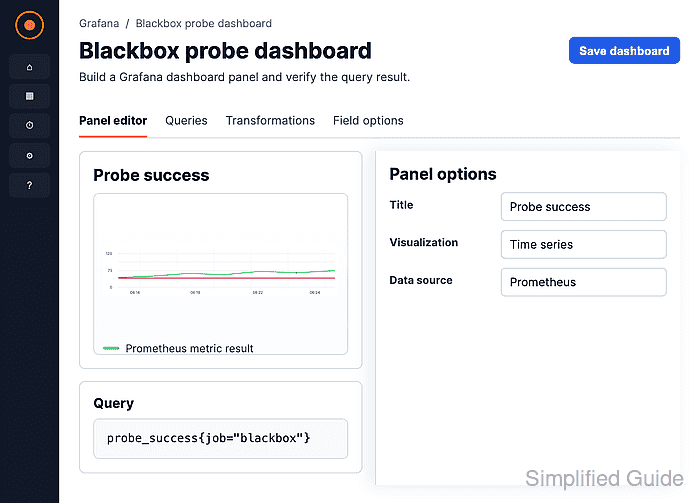
Grafana reads the metrics through a Prometheus data source, and each panel runs a PromQL expression against labels such as job and instance. A focused dashboard can start with probe_success, probe_duration_seconds, probe_http_status_code, and probe_http_duration_seconds before adding variables or alert links.
The Prometheus data source must already return blackbox probe series before dashboard work begins. Confirm one target first, then save and reopen the dashboard; a completed view should show Up, an HTTP code such as 200, and recent duration lines for the selected time range.
Steps to build a Grafana dashboard from Prometheus blackbox exporter metrics:
- Run a PromQL check for a blackbox success series.
probe_success{job="blackbox"}The result should include an instance label and a value of 1 for a reachable target. If no series appears, fix the Prometheus scrape job before building panels.
Tool: Prometheus Scrape Config Generator - Open Dashboards and choose New → New dashboard.
- Click Add visualization.
- Select the Prometheus data source that stores the blackbox exporter scrape job.
The data source must be reachable from Grafana and should already pass a saved connection test.
Related: How to add a Prometheus data source in Grafana - Switch the Prometheus query editor to Code mode.
- Enter the probe success query and run it.
probe_success{job="blackbox"}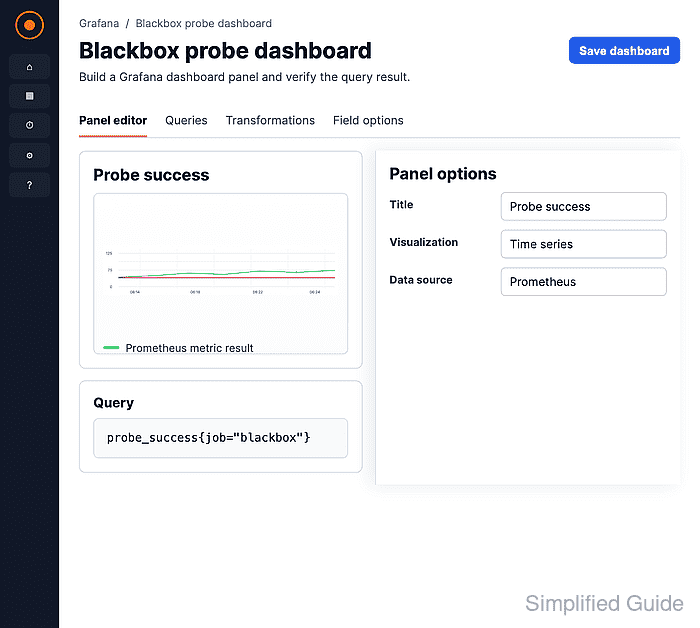
Replace job="blackbox" with the label matcher used by the scrape job, such as a different job value or an instance matcher for one endpoint.
- Select the Stat visualization for the success panel.
- Set the panel title to Probe success.
- Map 1 to Up and 0 to Down, then use a green threshold for 1 and a red threshold for 0.
Blackbox exporter returns probe_success as 1 when the selected module succeeds and 0 when the probe fails.
- Add another panel for probe duration.
- Enter the duration query and select the Time series visualization.
probe_duration_seconds{job="blackbox"}Set the unit to seconds and use the instance label in the legend so each probed endpoint is identifiable on the chart.
Related: How to create a time series panel in Grafana - Add a status-code panel for HTTP probes.
probe_http_status_code{job="blackbox"}Use this panel only for HTTP or HTTPS modules. TCP, DNS, ICMP, and gRPC probes do not use HTTP status codes.
- Add an HTTP phase duration panel when latency breakdowns are needed.
probe_http_duration_seconds{job="blackbox"}The phase label separates connection, DNS, TLS, processing, and transfer timing where the HTTP probe reports those phases.
- Set the dashboard time range and refresh interval for the probe cadence.
A dashboard refresh shorter than the Prometheus scrape interval repeats the same sample and adds browser load without showing fresher probe data.
- Click Save, enter a dashboard title such as Blackbox probe dashboard, and save the dashboard.
- Reopen the saved dashboard and confirm the panels show probe state, HTTP status, and duration data.
If a saved panel shows No data, inspect the panel query with the same time range and variable values before changing the data source.
Related: How to troubleshoot a Grafana panel with no data

Mohd Shakir Zakaria is a cloud architect with deep roots in software development and open-source advocacy. Certified in AWS, Red Hat, VMware, ITIL, and Linux, he specializes in designing and managing robust cloud and on-premises infrastructures.


