The Ollama version can be checked through the CLI and through the local API. Comparing both surfaces helps confirm that a shell command and a running server belong to the same install.
Use the CLI check after installs and updates, and the API check when debugging application connectivity. A stale background server can answer API requests even after a different CLI binary is installed earlier on PATH.
Record exact versions in task evidence when behavior depends on a recent feature, but keep article steps focused on the check itself.
Related: How to update Ollama on Linux
Related: How to check the Ollama API server
Related: How to check Ollama server status
Steps to check the Ollama version:
- Check the CLI version.
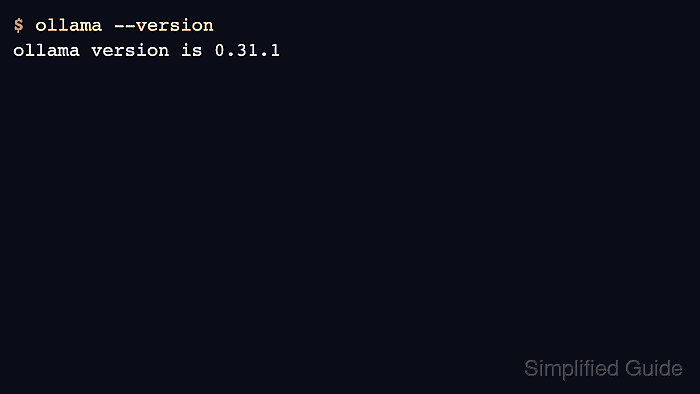
$ ollama --version ollama version is 0.31.1 - Check which binary the shell is using.
$ command -v ollama
/opt/homebrew/bin/ollama
- Check the running API server version.
$ curl -s http://localhost:11434/api/version
{"version":"0.31.1"}
- Restart the service or app if the CLI and API versions differ after an update.
$ sudo systemctl restart ollama
Related: How to manage the Ollama service
- Check the version again after restart.
$ curl -s http://localhost:11434/api/version
{"version":"0.31.1"}

Author: Mohd
Shakir Zakaria
Mohd Shakir Zakaria is a cloud architect with deep roots in software development and open-source advocacy. Certified in AWS, Red Hat, VMware, ITIL, and Linux, he specializes in designing and managing robust cloud and on-premises infrastructures.


Mohd Shakir Zakaria is a cloud architect with deep roots in software development and open-source advocacy. Certified in AWS, Red Hat, VMware, ITIL, and Linux, he specializes in designing and managing robust cloud and on-premises infrastructures.