Public Nextcloud traffic should reach the login page, WebDAV endpoints, sharing links, and mobile clients over browser-trusted HTTPS. An Nginx virtual host with an ACME certificate removes certificate warnings and lets Nextcloud generate secure URLs for background jobs, notifications, and file links.
The HTTPS change assumes an existing Nextcloud installation already works through Nginx on plain HTTP and that the public DNS name points to the server. certbot uses the Nginx plugin to request the certificate, install the certificate paths, and leave renewal automation in place.
Keep the Nextcloud server block aligned with the current official Nginx example, especially the /.well-known exceptions and the PHP handoff. If a separate reverse proxy or load balancer terminates TLS before requests reach this host, configure Nextcloud proxy trust instead of treating the application server as the public TLS endpoint.
Steps to configure HTTPS for Nextcloud in Nginx:
- Confirm that the public hostname resolves to the Nextcloud server.
$ getent ahosts cloud.example.com
203.0.113.20   STREAM cloud.example.com
203.0.113.20   DGRAM
203.0.113.20   RAW
If the hostname also has an .AAAA record, that IPv6 address must reach the same Nginx host or Let's Encrypt validation can fail from validators that choose IPv6.
- Confirm that the existing Nextcloud site answers over HTTP on port 80.
$ curl -I http://cloud.example.com/status.php
HTTP/1.1 200 OK
Server: nginx
Content-Type: application/json; charset=utf-8
##### snipped #####
certbot with --nginx normally uses the HTTP-01 validation path, so the hostname must be reachable from the public Internet on port 80 unless DNS validation is used instead.
- Open the active Nginx site file for the Nextcloud hostname.
$ sudoedit /etc/nginx/sites-available/cloud.example.com
Use the file already linked from /etc/nginx/sites-enabled. A new file is only needed when the existing Nextcloud server block is still the default site.
- Confirm that the HTTP server block names the public hostname and leaves an ACME challenge exception under /.well-known.
server {
    listen 80;
    listen [::]:80;
    server_name cloud.example.com;

    root /var/www/nextcloud;

    location ^~ /.well-known {
        location = /.well-known/carddav { return 301 /remote.php/dav/; }
        location = /.well-known/caldav  { return 301 /remote.php/dav/; }
        location /.well-known/acme-challenge { try_files $uri $uri/ =404; }
        return 301 /index.php$request_uri;
    }

    location / {
        try_files $uri $uri/ /index.php$request_uri;
    }
}
The full Nextcloud server block also needs the deny rules, PHP-FPM location, static asset handling, and security headers from the current official Nextcloud Nginx example. Do not replace a complete working site with only this excerpt.
- Test the Nginx configuration before requesting the certificate.
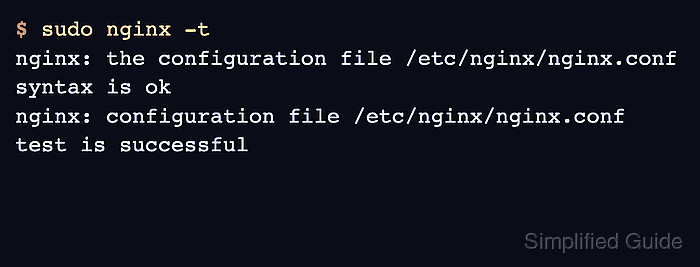
$ sudo nginx -t
nginx: the configuration file /etc/nginx/nginx.conf syntax is ok
nginx: configuration file /etc/nginx/nginx.conf test is successful
A syntax error here must be fixed before running certbot, because the Nginx plugin needs to parse and reload the loaded configuration.
Related: How to test Nginx configuration
- Reload Nginx so the public HTTP validation path is active.
$ sudo systemctl reload nginx
Related: How to manage the Nginx service
- Install certbot and the Nginx plugin on Debian or Ubuntu.
$ sudo apt install --assume-yes certbot python3-certbot-nginx
The following NEW packages will be installed:
  certbot python3-certbot-nginx
##### snipped #####
Use one certbot packaging path consistently. Upstream certbot instructions for Ubuntu commonly use snap packages, while distro packages use package-manager service and timer names.
- Request and install the Let's Encrypt certificate with the Nginx plugin.
$ sudo certbot --nginx -d cloud.example.com
Saving debug log to /var/log/letsencrypt/letsencrypt.log
Requesting a certificate for cloud.example.com
Successfully received certificate.
Certificate is saved at: /etc/letsencrypt/live/cloud.example.com/fullchain.pem
Key is saved at:         /etc/letsencrypt/live/cloud.example.com/privkey.pem
Deploying certificate
Successfully deployed certificate for cloud.example.com to /etc/nginx/sites-enabled/cloud.example.com
Add each public alias with another -d option only when that name resolves to this Nginx server and should be covered by the same certificate. Wildcard names require DNS validation instead of the Nginx HTTP-01 flow.
Related: How to configure Let's Encrypt SSL in Nginx - Review the HTTPS server block after certbot updates it.
server {
    listen 443 ssl;
    listen [::]:443 ssl;
    server_name cloud.example.com;

    root /var/www/nextcloud;
    index index.php index.html /index.php$request_uri;

    ssl_certificate     /etc/letsencrypt/live/cloud.example.com/fullchain.pem;
    ssl_certificate_key /etc/letsencrypt/live/cloud.example.com/privkey.pem;

    add_header Strict-Transport-Security "max-age=15552000" always;

    location ^~ /.well-known {
        location = /.well-known/carddav { return 301 /remote.php/dav/; }
        location = /.well-known/caldav  { return 301 /remote.php/dav/; }
        location /.well-known/acme-challenge { try_files $uri $uri/ =404; }
        return 301 /index.php$request_uri;
    }

    location / {
        try_files $uri $uri/ /index.php$request_uri;
    }
}
Add includeSubDomains or preload to Strict-Transport-Security only after every subdomain that users may visit is ready to stay on HTTPS. Browser HSTS caching can outlive a quick rollback.
- Test the updated Nginx configuration.
$ sudo nginx -t
nginx: the configuration file /etc/nginx/nginx.conf syntax is ok
nginx: configuration file /etc/nginx/nginx.conf test is successful
Related: How to test Nginx configuration
- Reload Nginx to serve the HTTPS configuration.
$ sudo systemctl reload nginx
Related: How to manage the Nginx service
- Set the Nextcloud command-line URL to the HTTPS hostname.
$ sudo -E -u www-data php /var/www/nextcloud/occ config:system:set overwrite.cli.url --value=https://cloud.example.com
System config value overwrite.cli.url set to string https://cloud.example.com
Generated links from command-line jobs should use the same public HTTPS URL that users open in a browser. If Nextcloud is behind another TLS terminator, also review trusted_proxies and overwrite settings.
Related: How to configure Nextcloud behind a reverse proxy - Verify that the Nextcloud status endpoint responds over HTTPS.
$ curl -sS https://cloud.example.com/status.php
{"installed":true,"maintenance":false,"needsDbUpgrade":false,"versionstring":"35.0.0","productname":"Nextcloud"}
A JSON response from https://cloud.example.com/status.php proves the public HTTPS request reaches the Nextcloud application instead of only proving that Nginx accepts TLS.
- Verify the certificate served by the public hostname.
$ echo | openssl s_client -servername cloud.example.com -connect cloud.example.com:443 2>/dev/null | openssl x509 -noout -issuer -subject -dates
issuer=C=US,O=Let's Encrypt,CN=E8
subject=CN=cloud.example.com
notBefore=Jun 28 02:18:22 2026 GMT
notAfter=Sep 26 02:18:21 2026 GMT
The intermediate name can differ by key type and issuer profile. The subject or SAN coverage, issuer organization, and validity dates should match the certificate just issued.
Tool: SSL Expiry Checker - Confirm that the certbot renewal timer is present for the package path in use.
$ systemctl list-timers certbot.timer
NEXT                        LEFT     LAST                        PASSED  UNIT          ACTIVATES
Mon 2026-06-29 12:05:00 UTC 8h left  Mon 2026-06-29 00:05:00 UTC 3h ago  certbot.timer certbot.service
snap installs use snap-managed renewal units instead of the distro certbot.timer name.
- Run a renewal dry run.
$ sudo certbot renew --dry-run
Saving debug log to /var/log/letsencrypt/letsencrypt.log
##### snipped #####
Congratulations, all simulated renewals succeeded:
  /etc/letsencrypt/live/cloud.example.com/fullchain.pem (success)
The dry run uses the staging service and does not replace the active production certificate.
- Recheck the Nextcloud setup checks for HTTPS URL warnings.
$ sudo -E -u www-data php /var/www/nextcloud/occ setupchecks
	security:
		✓ HTTPS access and URLs: You are accessing your instance over a secure connection, and your instance is generating secure URLs.
	config:
		✓ Overwrite CLI URL: The "overwrite.cli.url" option in your config.php is correctly set to "https://cloud.example.com".
##### snipped #####
Review Administration settings → Overview in the browser as well, because that page is where administrators normally see remaining HTTPS, HSTS, proxy, or generated-URL warnings.
Related: How to check Nextcloud administration overview warnings

Mohd Shakir Zakaria is a cloud architect with deep roots in software development and open-source advocacy. Certified in AWS, Red Hat, VMware, ITIL, and Linux, he specializes in designing and managing robust cloud and on-premises infrastructures.


