Testing Nginx configuration before a reload catches broken directives, bad includes, and missing files while the current worker processes are still serving requests. That turns a live edit into a controlled checkpoint instead of a risky restart attempt.
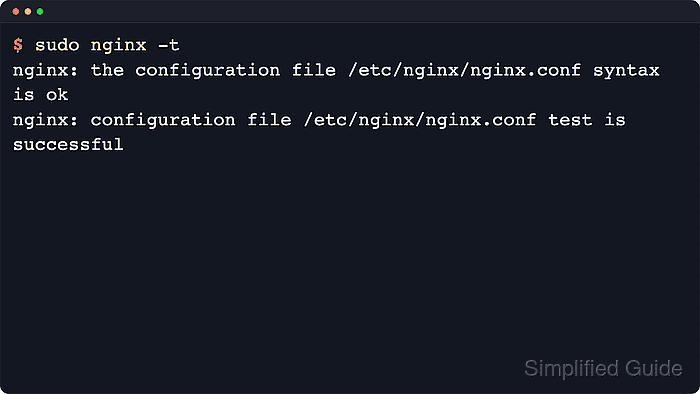
The nginx binary provides -t to parse the main configuration file plus every included file, and the check also attempts to open files referenced by the configuration. When you need to confirm which snippets are included in the test, -T performs the same validation and dumps the loaded configuration files to standard output.
Examples below use the common packaged layout with /etc/nginx/nginx.conf as the main file and additional snippets under /etc/nginx/conf.d/ or /etc/nginx/sites-enabled/. A clean syntax test is still not a full runtime check because it confirms parsing and referenced-file access without proving upstream services are reachable or that the expected virtual host is answering on the expected address.
Steps to test Nginx configuration:
- Open a terminal with a user account that can run sudo.
- Open the Nginx configuration file or virtual host file that you changed.
$ sudoedit /etc/nginx/nginx.conf
Common edit locations include /etc/nginx/nginx.conf, /etc/nginx/conf.d/, and /etc/nginx/sites-enabled/ depending on distribution packaging.
- Run the Nginx configuration test.
$ sudo nginx -t
2026/06/06 03:36:53 [emerg] 2938#2938: unexpected "}" in /etc/nginx/conf.d/broken.conf:4
nginx: configuration file /etc/nginx/nginx.conf test failed
The first reported file and line are the fastest path to the actual parse failure.
- Correct the directive, include, or file path identified by the failed test.
- Re-run the configuration test until it reports a clean result.
$ sudo nginx -t
nginx: the configuration file /etc/nginx/nginx.conf syntax is ok
nginx: configuration file /etc/nginx/nginx.conf test is successful
A clean test confirms syntax and referenced-file access, but it does not prove backend reachability, DNS resolution at request time, or that the intended server block is the one receiving requests.
- Print the loaded configuration files when you need to confirm that an included file is part of the test.
$ sudo nginx -T
nginx: the configuration file /etc/nginx/nginx.conf syntax is ok
nginx: configuration file /etc/nginx/nginx.conf test is successful
# configuration file /etc/nginx/nginx.conf:
user www-data;
worker_processes auto;
worker_cpu_affinity auto;
pid /run/nginx.pid;
error_log /var/log/nginx/error.log;
##### snipped #####
nginx -T can print sensitive inline values from loaded configuration files. Review the output locally instead of pasting it into tickets or public logs.
- Reload the running Nginx master process to apply the validated configuration.
$ sudo nginx -s reload
2026/06/06 03:36:53 [notice] 2951#2951: signal process started
Use sudo systemctl reload nginx on hosts where systemd manages the packaged service.
Related: How to manage the Nginx service
- Review recent unit log lines when a reload fails or the service does not stay active.
$ sudo journalctl --unit=nginx.service --no-pager --lines=20
Look for the lines immediately before the failure, because systemd usually records the failing command and exit status there.
- Verify that the expected site still answers HTTP requests after the reload.
$ curl -I -sS http://127.0.0.1/
HTTP/1.1 200 OK
Server: nginx/1.28.3 (Ubuntu)
Date: Sat, 06 Jun 2026 03:36:53 GMT
Content-Type: text/html
Content-Length: 615
Last-Modified: Sat, 06 Jun 2026 03:36:50 GMT
Connection: keep-alive
ETag: "6a2395d2-267"
Accept-Ranges: bytes
Use the real site hostname or a matching Host header instead of 127.0.0.1 when the validated configuration serves a non-default virtual host.

Mohd Shakir Zakaria is a cloud architect with deep roots in software development and open-source advocacy. Certified in AWS, Red Hat, VMware, ITIL, and Linux, he specializes in designing and managing robust cloud and on-premises infrastructures.


