Managing the Nginx service lets an operator apply validated configuration changes, pause traffic during maintenance, and confirm that HTTP service returned before a change window closes. The main choice is whether a reload is enough or whether the running master process must be replaced with a restart.
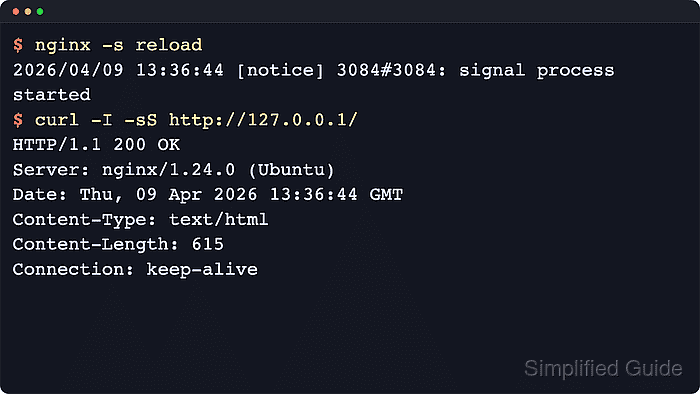
On current packaged Linux systems, systemd usually manages Nginx as nginx.service. Current Ubuntu packages start the master process through the packaged unit, run nginx -t -q before startup, send nginx -s reload for service reloads, and use a graceful QUIT stop before escalating if workers do not exit.
Test the configuration before changing the running service state because service commands still depend on Nginx accepting the files it must load. Reload after ordinary configuration edits, restart only when the process has to be reinitialized, and use direct nginx -s signals only on older, minimal, or containerized hosts where systemd is not managing the daemon.
Related: How to test Nginx configuration
Related: How to audit Nginx access logs for security threats
| Action | Command | Use when |
|---|---|---|
| Test configuration | sudo nginx -t | Before a reload, restart, or start after editing config. |
| Reload service | sudo systemctl reload nginx | Apply a valid config change without a full stop. |
| Restart service | sudo systemctl restart nginx | Replace the master and worker processes. |
| Stop or start service | sudo systemctl stop nginx / sudo systemctl start nginx | Enter or leave a maintenance state. |
| Change boot behavior | sudo systemctl disable --now nginx / sudo systemctl enable --now nginx | Change automatic startup and the current running state together. |
| Direct fallback | sudo nginx -s reload / sudo nginx -s quit | Manage a running daemon when systemd is not available. |
Steps to manage the Nginx service:
- Open a terminal with a user account that can run sudo.
- Test the Nginx configuration before changing the running service state.
$ sudo nginx -t
nginx: the configuration file /etc/nginx/nginx.conf syntax is ok
nginx: configuration file /etc/nginx/nginx.conf test is successful
Current packaged Ubuntu units run the same check in ExecStartPre before the service starts, but testing first lets you fix syntax errors, missing files, or permission problems before a reload or restart touches the live process.
Related: How to test Nginx configuration
- Check whether Nginx is already running.
$ systemctl is-active nginx
active
systemctl is-active is useful in scripts and maintenance runbooks because it returns a zero exit status only while the named unit is running.
- Start the service when it is stopped.
$ sudo systemctl start nginx
Use sudo systemctl enable --now nginx instead when the host should also start Nginx automatically on later boots.
- Reload the service after a validated configuration change.
$ sudo systemctl reload nginx
On hosts where systemd is not managing Nginx, the direct fallback is sudo nginx -s reload. The packaged systemd unit uses that same reload signal under the hood.
- Restart the service only when a full process reinitialization is required.
$ sudo systemctl restart nginx
A restart can interrupt keepalive clients, long downloads, or proxied requests because the master process exits and starts again instead of handing work to new workers in place.
- Stop the service when the server must stop accepting new connections.
$ sudo systemctl stop nginx
Current packaged Ubuntu units try a graceful quit first when stopping Nginx. On hosts without systemd, the graceful direct fallback is sudo nginx -s quit, while sudo nginx -s stop is the immediate-stop variant.
- Disable automatic startup at boot when the host should not bring Nginx back after a reboot.
$ sudo systemctl disable --now nginx
Synchronizing state of nginx.service with SysV service script with /usr/lib/systemd/systemd-sysv-install.
Executing: /usr/lib/systemd/systemd-sysv-install disable nginx
Removed '/etc/systemd/system/multi-user.target.wants/nginx.service'.
The --now option stops the running service immediately after removing it from the boot target.
- Enable automatic startup at boot and start the service now.
$ sudo systemctl enable --now nginx
Synchronizing state of nginx.service with SysV service script with /usr/lib/systemd/systemd-sysv-install.
Executing: /usr/lib/systemd/systemd-sysv-install enable nginx
Created symlink '/etc/systemd/system/multi-user.target.wants/nginx.service' → '/usr/lib/systemd/system/nginx.service'.
Use this after planned maintenance or recovery when the server should return to its normal boot behavior.
- Review the full unit status when a start, reload, or restart does not behave as expected.
$ sudo systemctl status --no-pager --full nginx
Look for the current Active state and the unit actions tied to Nginx itself, such as the pre-start config test, reload command, and graceful stop path.
- Read recent unit logs when the service enters failed, exits unexpectedly, or refuses a reload.
$ sudo journalctl --unit=nginx.service --no-pager --lines=20
The journal usually shows the failing config test, missing file, listen-port conflict, or permission error immediately before the final failed transition.
- Confirm that the server still answers HTTP requests after the service change.
$ curl -I -sS http://127.0.0.1/
HTTP/1.1 200 OK
Server: nginx/1.28.3 (Ubuntu)
Date: Sat, 06 Jun 2026 11:53:16 GMT
Content-Type: text/html
Content-Length: 615
Last-Modified: Sat, 06 Jun 2026 11:51:39 GMT
Connection: keep-alive
ETag: "6a2409cb-267"
Accept-Ranges: bytes
Use the real site hostname, HTTPS URL, or a matching Host header when the default localhost virtual host is not the site you just managed.
Tool: Web Server Detector

Mohd Shakir Zakaria is a cloud architect with deep roots in software development and open-source advocacy. Certified in AWS, Red Hat, VMware, ITIL, and Linux, he specializes in designing and managing robust cloud and on-premises infrastructures.


