A Nextcloud site can serve files while its background jobs, web server, or security settings still need attention. The Administration overview page brings these setup warnings together so an administrator can identify configuration problems before or after maintenance.
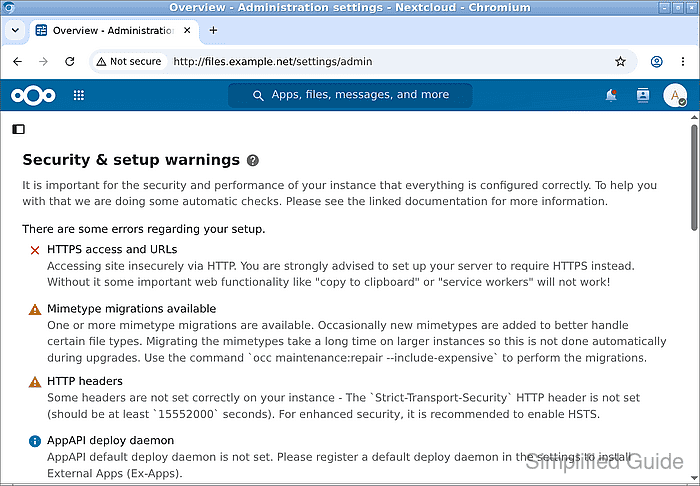
Access to the overview requires a Nextcloud administrator account. Nextcloud runs its setup checks automatically when the page opens and can take a little time to finish; an empty list while the loading indicator is visible does not mean the server has passed.
The results describe the server configuration rather than the availability of every app or file. Errors, warnings, and informational notices have different priorities, and each finding includes details about the affected setting or a link to its documentation.
Steps to check Nextcloud administration overview warnings:
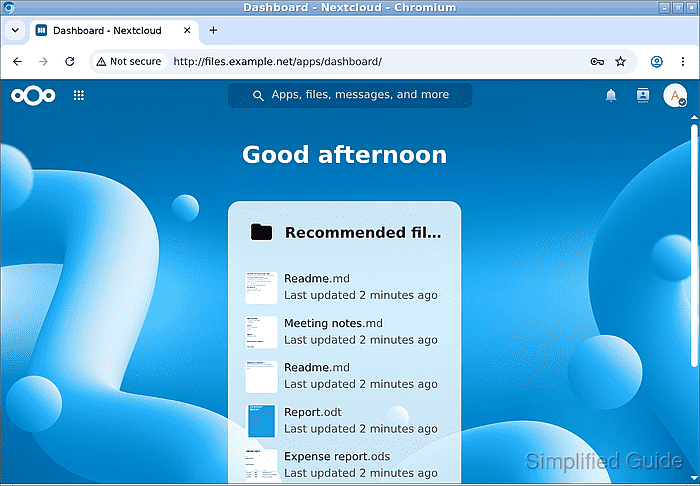
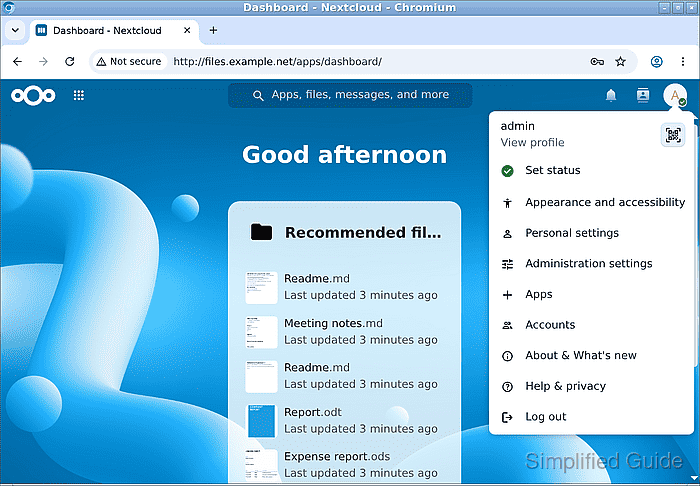
- Open the account menu at the top-right of Nextcloud while signed in as an administrator.
- Select Administration settings from the account menu.
The Overview page opens under Administration settings. Personal settings do not contain the server setup checks.
- Wait for Checking your server … to finish under Security & setup warnings.
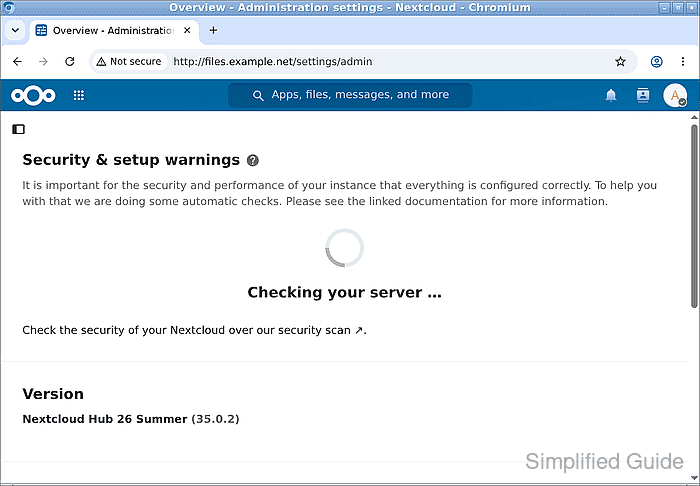
A loading indicator or a failed request is not a completed check. A message that the checks could not run leaves the server's setup status unknown.
- Review the completed Security & setup warnings list for configuration problems.
A red cross marks an error, a yellow triangle marks a warning, and a blue information icon marks a notice. The text beside each entry explains what needs attention; entries may continue farther down the page. A server without reported problems displays All checks passed instead of a warning list. An error about HTTPS access concerns the connection, while Cron last run concerns background jobs and HTTP headers concerns the web server or reverse proxy.
Related: How to configure Nextcloud background jobs with cron
Related: How to configure HTTPS for Nextcloud with Nginx and Let's Encrypt
Related: How to view Nextcloud logs