Running DRBD online verification compares a replicated volume against its peer while the resource remains available. Operators use it after storage maintenance, long-running replication, or scheduled integrity checks to find silent block differences before a failover or maintenance window depends on the peer copy.
Online verification needs a configured verify-alg in the active DRBD network options. The run calculates block hashes and compares them with the peer; blocks that differ are marked out of sync and reported in the kernel log instead of being resynchronized automatically.
Start the check from the node and peer volume that match the operational question. A clean run returns the peer to Established replication, leaves both disks UpToDate, and shows out-of-sync:0 in drbdsetup status --statistics after the verify pass completes.
Related: How to validate DRBD configuration
Related: How to verify DRBD synchronization state
Related: How to force a DRBD resync
Steps to run DRBD online verification:
- Check that the resource is connected and synchronized before starting verification.
$ sudo drbdadm status wwwdata
wwwdata role:Primary
  volume:0 disk:UpToDate
  node-b role:Secondary
    volume:0 peer-disk:UpToDate
Replace wwwdata with the resource name and verify the peer that should be checked. Online verification requires a connected peer device.
Related: How to check DRBD resource status
- Confirm that online verification has an active hash algorithm.
$ sudo drbdsetup show wwwdata --show-defaults
resource wwwdata {
  net {
    protocol C;
    verify-alg crc32c;
  }
}
The verify-alg value can be any supported kernel digest algorithm, such as crc32c, sha1, or md5. Add it to the resource or common net section and adjust the resource on every node when it is missing.
Related: How to validate DRBD configuration - Start online verification for the selected peer volume.
$ sudo drbdadm verify wwwdata:node-b/0
The volume suffix is optional when every volume in the resource should be checked. Use sudo drbdadm verify wwwdata for all peer devices in that resource, or sudo drbdadm verify all only when every configured resource is ready for the same scheduled check.
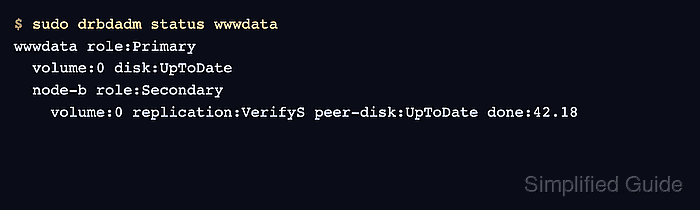
- Watch the verification progress.
$ sudo drbdadm status wwwdata
wwwdata role:Primary
  volume:0 disk:UpToDate
  node-b role:Secondary
    volume:0 replication:VerifyS peer-disk:UpToDate done:42.18
VerifyS marks the local node as the verification source. The peer can show VerifyT while it compares the same volume.
- Inspect detailed counters while the run is active.
$ sudo drbdsetup status wwwdata --verbose --statistics
wwwdata node-id:1 role:Primary suspended:no
  volume:0 minor:100 disk:UpToDate
  node-b node-id:0 connection:Connected role:Secondary congested:no
    volume:0 replication:VerifyS peer-disk:UpToDate done:42.18 resync-suspended:no
        received:0 sent:0 out-of-sync:0 pending:0 unacked:0
out-of-sync can remain zero during a clean pass. A nonzero value means DRBD has marked differing blocks and the source of truth must be chosen after verification finishes.
- Check the kernel log for the verification result.
$ sudo journalctl --dmesg --grep "drbd wwwdata" --since "1 hour ago"
Jun 19 13:10:18 node-a kernel: drbd wwwdata/0 drbd100 node-b: Starting Online Verify from sector 0
Jun 19 13:18:44 node-a kernel: drbd wwwdata/0 drbd100 node-b: Online verify done (total 506 sec; paused 0 sec; 214302 K/sec)
Jun 19 13:18:44 node-a kernel: drbd wwwdata/0 drbd100 node-b: Online verify found 0 4k blocks out of sync!
Use a wider --since window when the verification started before the current maintenance window.
Related: How to view DRBD logs - Verify the final synchronized state.
$ sudo drbdsetup status wwwdata --verbose --statistics
wwwdata node-id:1 role:Primary suspended:no
  volume:0 minor:100 disk:UpToDate
  node-b node-id:0 connection:Connected role:Secondary congested:no
    volume:0 replication:Established peer-disk:UpToDate resync-suspended:no
        received:0 sent:0 out-of-sync:0 pending:0 unacked:0
replication:Established and out-of-sync:0 confirm that the selected peer volume has no known differences after the verify run.
Related: How to verify DRBD synchronization state - Resynchronize marked differences only after choosing the authoritative copy.
$ sudo drbdadm invalidate-remote wwwdata:node-b/0 --reset-bitmap=no
This example overwrites the peer volume from the local node. Use sudo drbdadm invalidate wwwdata:node-b/0 --reset-bitmap=no only when the local volume should be overwritten by the peer, and do not run either command until the correct data source is clear.
Related: How to force a DRBD resync
Related: How to recover DRBD split brain

Mohd Shakir Zakaria is a cloud architect with deep roots in software development and open-source advocacy. Certified in AWS, Red Hat, VMware, ITIL, and Linux, he specializes in designing and managing robust cloud and on-premises infrastructures.


