Checkmk marks a service as flapping when its state changes back and forth quickly enough to create notification noise. Troubleshooting a flapping service means confirming the state-change pattern, deciding whether the monitored system or the check definition is unstable, and retesting the same service after one focused correction.
Flapping is a monitoring state, not the root cause. The current service output shows the latest check result, while Events of host & services, notification history, metrics, and service rules show whether the object is really failing or only crossing a narrow threshold.
Keep the first pass scoped to the affected host and service. Avoid disabling flap detection globally before the evidence is clear, because that can hide real intermittent outages across unrelated objects.
Steps to troubleshoot Checkmk service flapping:
- Open Monitor → Problems → Service problems.
- Filter the view to the affected host name or service description.
- Open the affected service.
- Record the service state, plugin output, last check time, and any flapping icon shown beside the object.
Checkmk suppresses successive state-change notifications while an object is flapping, but it still records when the object enters or leaves the flapping state.
- Open Monitor → Overview → Events of host & services.
- Filter the event view to the same host, service, and incident time range.
- Confirm that the service alternates between OK and WARN, CRIT, or UNKNOWN within a short period.
If the service has one long problem period instead of repeated state changes, handle it as a normal service problem rather than flap noise.
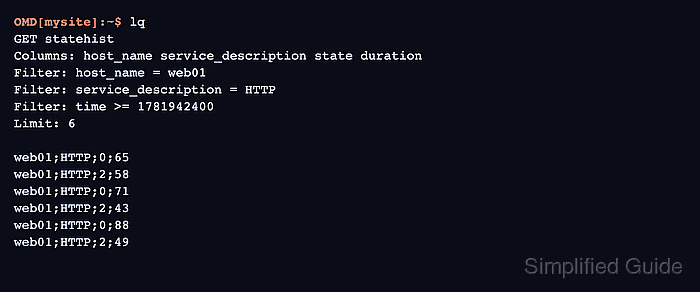
- Query the same state history from the site shell when an incident note needs a compact transcript.
OMD[mysite]:~$ lq
GET statehist
Columns: host_name service_description state duration
Filter: host_name = web01
Filter: service_description = HTTP
Filter: time >= 1781942400
Limit: 6

web01;HTTP;0;65
web01;HTTP;2;58
web01;HTTP;0;71
web01;HTTP;2;43
web01;HTTP;0;88
web01;HTTP;2;49
Replace web01, HTTP, and the Unix timestamp with the affected object and incident start time. For service states, 0 means OK, 1 means WARN, 2 means CRIT, and 3 means UNKNOWN.
- Open the service's notification history and identify which events generated notifications.
A service can notify when it enters or leaves flapping even though additional state changes are suppressed while flapping remains active.
- Compare the event timestamps with the service graph or plugin output.
Small metric movements around a warning or critical boundary usually point to threshold tuning; matching application errors, packet loss, or agent failures point to a real intermittent problem.
- Correct the source that matches the evidence.
Fix the application, network, agent, or data source when the check output shows real failures. Use a narrow service monitoring rule when the service is healthy but the threshold, discovery rule, or check parameter is too sensitive.
- Increase the service's maximum check attempts only when short failed checks recover before an operator needs to act.
The rule set is Maximum number of check attempts for service. More attempts delay hard-state notification, so use it for brief noise rather than sustained outages.
- Leave global Flap Detection enabled unless the monitoring policy explicitly excludes this service from flap detection.
Disabling flap detection globally affects unrelated hosts and services. Use Enable/disable flapping detection for services only for a tightly matched service rule.
- Activate pending changes when a service rule, discovery decision, or check parameter changed.
- Reschedule the service check from the service action menu or Commands → Reschedule active checks.
- Reopen the service and confirm the current state matches the expected fixed state.
- Recheck Events of host & services after the next few check intervals.
The same service should stop alternating rapidly, and the flapping icon should disappear after Checkmk sees a final stable state.
- Acknowledge the service or schedule downtime only when the service still needs owner action after the diagnosis.
Related: How to acknowledge a problem in Checkmk
Related: How to schedule Checkmk downtime

Mohd Shakir Zakaria is a cloud architect with deep roots in software development and open-source advocacy. Certified in AWS, Red Hat, VMware, ITIL, and Linux, he specializes in designing and managing robust cloud and on-premises infrastructures.


