Creating a Checkmk rule for selected hosts changes one monitoring parameter without changing the global default. Use a targeted rule when a host, folder, tag group, or label needs different thresholds, check intervals, contact assignment, agent behavior, or discovery settings.
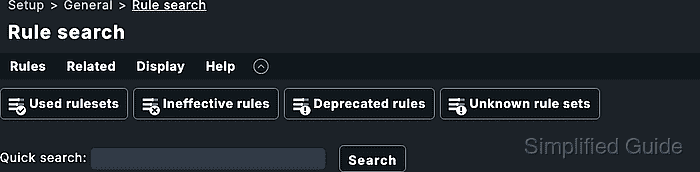
Checkmk organizes rules inside rule sets. A rule set defines one host or service parameter, and conditions decide which objects receive the value. Explicit host conditions are the narrowest fit for one or two hosts; folders, host tags, and labels keep the same policy attached to a group of hosts over time.
Rule order affects the final parameter. In rule sets where the first matching rule wins, a broad rule above a narrow exception can hide that exception. Save the rule in the narrowest folder, place specific rules above catch-all rules, then activate pending changes and confirm effective parameters on one matching host and one non-matching host.
Steps to create a Checkmk rule for selected hosts:
- Open Setup → Hosts → Host monitoring rules.
- Search for and open the rule set that controls the host parameter.
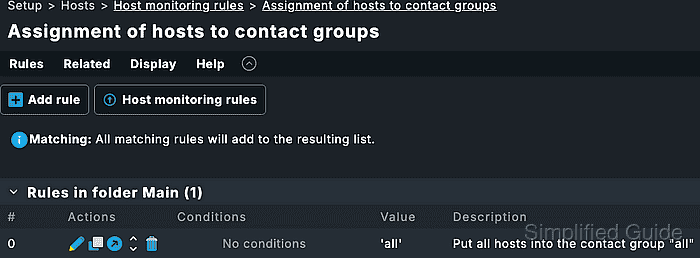
For a low-impact practice rule, use Normal check interval for host checks on a lab host. For service parameters, use Setup → Services → Service monitoring rules and add a service condition only when the rule should affect selected services on the matched hosts.
- Review the existing rules in the rule set.
Rules higher in the list have priority in first-match rule sets. Rules stored in lower folders can also override broader rules stored higher in the folder tree.
- Click Create rule in folder in the folder that owns the selected hosts.
Use Main only when the rule may evaluate against all hosts. A lower folder narrows the administrative and matching boundary.
Related: How to create a Checkmk host folder with inherited settings - Set the needed parameter in the Value section.
Only enable parameters that should be defined by this rule. Leaving unrelated values unset lets other matching rules or defaults continue to control them.
- Add the selected host names under Conditions → Explicit hosts.
A rule with no condition can apply to every host in its rule folder. An enabled Explicit hosts condition with an empty host list is ineffective.
- Use a folder, host tag, or label condition instead when the rule should follow a host group.
Folder, host tag, label, and explicit-host conditions are combined as AND conditions. Each added condition further narrows the hosts that can match.
- Add a clear description under General properties.
A description such as Linux lab hosts longer host check interval makes the rule easier to identify in analysis mode and the audit log.
- Save the rule.
- Move the new rule above broader fallback rules when the narrow exception must win.
A catch-all rule above the selected-host rule can prevent the selected-host rule from defining the effective value in first-match rule sets.
- Activate the pending changes.
Saved setup rules do not affect the running monitoring environment until pending changes are activated.
Related: How to activate Checkmk pending changes - Open a matching host in Setup → Hosts → Hosts.
- Open Host → Effective parameters for the matching host.
- Confirm the rule set shows the new rule as the effective value for the matching host.
- Open Host → Effective parameters for a host that should not match.
- Confirm the non-matching host still shows the default value or a different matching rule for the same rule set.

Mohd Shakir Zakaria is a cloud architect with deep roots in software development and open-source advocacy. Certified in AWS, Red Hat, VMware, ITIL, and Linux, he specializes in designing and managing robust cloud and on-premises infrastructures.


