Inspecting a Checkmk service metric graph shows how a monitored value changed over time instead of only showing the latest service state. It helps when a service is OK now but recently spiked, or when a WARN or CRIT state needs metric context before the operator acknowledges or escalates the problem.
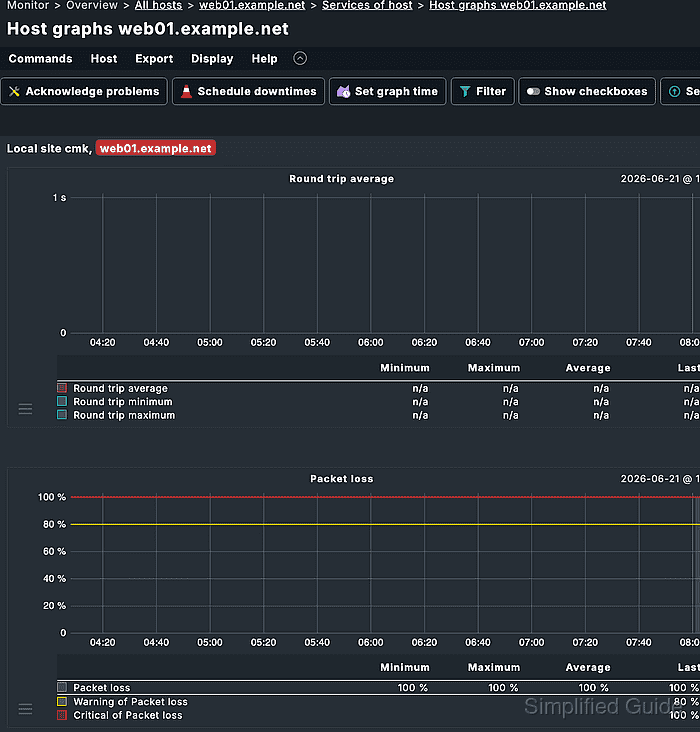
Checkmk exposes service metrics from host and service views, service details, and graph panels. A service row can show a compact Perf-O-Meter value, while the detailed graph shows the metric curve, time axis, legend, and measured values for a selected point.
A graph appears only for a service that produces metric data and has retained measurements for the selected period. Start with a discovered host and a service such as CPU, filesystem, interface, or latency monitoring so the graph contains a visible curve.
Related: How to run Checkmk service discovery
Steps to inspect a Checkmk service metric graph:
- Sign in to the Checkmk site with an account that can view the target host and service.
- Open Monitor and select a service view that contains the target service, such as All services, Service problems, or the host's service list.
Monitor views show service rows as tables; host names, service names, and many cells can open more specific views for the same object.
- Open Display → Filter when the table is long.
- Enter the target service name in Service name (regex).
- Click Apply filters.
- Click the service name to open the service details page.
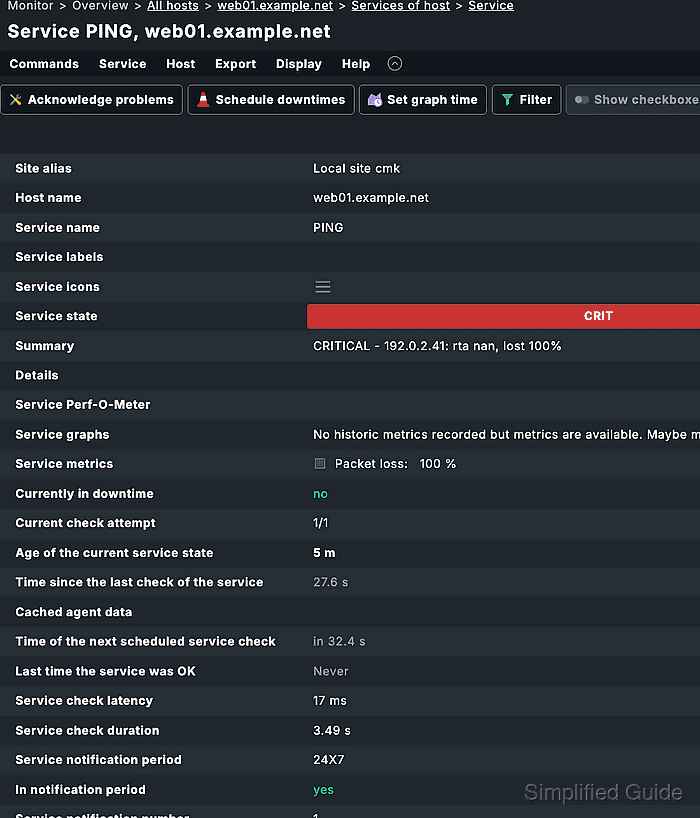
The graph icon in some service rows can open the metric graph directly; the service details page shows the same service graphs with more surrounding status context.
- Locate the service graph and confirm that the title, legend, and service name match the object being investigated.
- Pan the graph horizontally by dragging inside the graph area to move the visible time range.
- Zoom the time range with the mouse wheel while the pointer is over the graph.
- Click the graph at the time of interest to set a pin and show the measured values for that timestamp.
Checkmk pauses page refresh briefly while the graph is being manipulated so the selected point is not immediately replaced by an automatic refresh.
- Compare the pinned value, curve shape, and any visible threshold lines with the service state or event being investigated.
- Confirm the graph shows data for the selected service and time range, not an empty graph or an unrelated metric.

Mohd Shakir Zakaria is a cloud architect with deep roots in software development and open-source advocacy. Certified in AWS, Red Hat, VMware, ITIL, and Linux, he specializes in designing and managing robust cloud and on-premises infrastructures.


