Checking the installed AWS CLI version confirms which client build the current shell is actually running before troubleshooting command differences, comparing automation behavior across hosts, or deciding whether an upgrade is still needed.
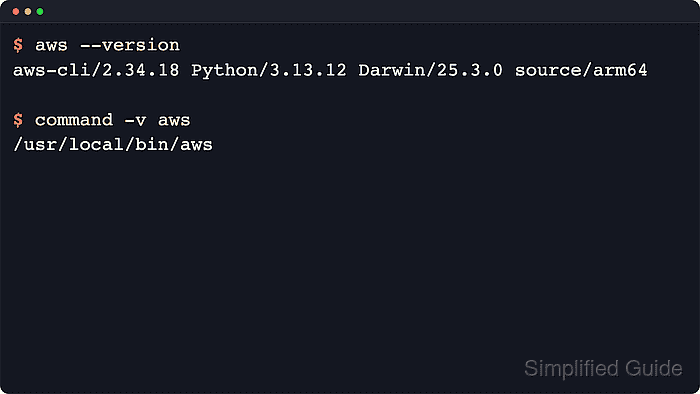
The aws --version command prints a single local version line and does not require configured credentials or network access. The first aws-cli/x.y.z token identifies the CLI release, while the remaining fields show the bundled runtime and platform details for that binary.
AWS CLI version 2 and version 1 use the same aws command name, so more than one install can exist on PATH at the same time. AWS documents version 2 as the most recent major release and recommends moving away from version 1, so an unexpected aws-cli/1.x result is a reason to check which binary the shell resolved before reinstalling or changing scripts.
Steps to check AWS CLI version:
- Print the installed AWS CLI version from the same shell session that normally runs AWS commands.
$ aws --version
aws-cli/2.35.4 Python/3.14.5 Linux/6.8.0 exe/x86_64.ubuntu.26
No credentials or region are required for this command because it only reports the local client build.
- Read the first token in the returned line to identify the major release that the shell is running.
v2 example:
aws-cli/2.35.4 Python/3.14.5 Linux/6.8.0 exe/x86_64.ubuntu.26

v1 example:
aws-cli/1.45.29 Python/3.12.13 Linux/6.8.0 botocore/1.43.29
aws-cli/2.x means AWS CLI v2, while aws-cli/1.x means the older AWS CLI v1 line.
- Show the path of the aws executable that the current shell resolves first.
$ command -v aws
/usr/local/bin/aws
On Windows, use where aws in Command Prompt or Get-Command aws in PowerShell to inspect the active executable path.
- List every matching aws command on the current PATH when the reported version is not the install that should be in use.
$ type -a aws
aws is /usr/local/bin/aws
aws is /usr/bin/aws
The first match wins, so an older install that appears earlier on PATH can answer even when a newer copy is also installed.
- Run the version check again after fixing PATH or reinstalling and stop when the line shows the expected major release.
$ aws --version
aws-cli/2.35.4 Python/3.14.5 Linux/6.8.0 exe/x86_64.ubuntu.26
After the version matches the expected install, make one signed request to confirm that the shell is also using the intended credentials.
Related: Check the current caller identity

Mohd Shakir Zakaria is a cloud architect with deep roots in software development and open-source advocacy. Certified in AWS, Red Hat, VMware, ITIL, and Linux, he specializes in designing and managing robust cloud and on-premises infrastructures.


