Installing AWS CLI on Ubuntu gives administrators and automation jobs the aws command before profiles, regions, and service calls can be configured. The current AWS CLI version 2 installer keeps the client independent of older distro or Python packages when scripts need the current major release and a predictable install path.
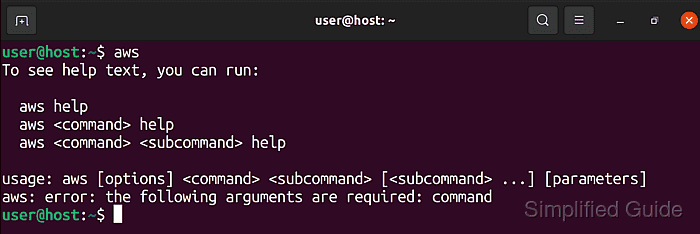
AWS supports a command line installer for recent 64-bit Linux distributions, including Ubuntu, and provides separate archives for x86_64 and aarch64 systems. The installer places the CLI under /usr/local/aws-cli by default and creates the /usr/local/bin/aws symlink, so checking the active path matters when older APT, pip, or snap copies are already on PATH.
The official snap package is also supported and auto-refreshes, but it does not let teams pin a minor AWS CLI version. The vendor ZIP installer fits repeatable server setup because updates happen only when a new installer is downloaded and run with --update.
Related: How to check AWS CLI version
Related: How to configure AWS CLI on Linux and macOS
Related: Install AWS CLI version 1 using pip
Steps to install AWS CLI on Ubuntu:
- Open a terminal with sudo privileges.
- Refresh the local package index.
$ sudo apt update
- Install the download and extraction tools.
$ sudo apt install curl unzip ca-certificates
curl downloads the vendor archive, unzip extracts it, and ca-certificates lets curl validate the AWS HTTPS endpoint on minimal Ubuntu systems.
- Check the CPU architecture.
$ uname -m
x86_64
Use the x86_64 AWS CLI archive when this command returns x86_64. Use the aarch64 archive when it returns aarch64.
- Download the AWS CLI v2 archive for x86_64 Ubuntu.
$ curl "https://awscli.amazonaws.com/awscli-exe-linux-x86_64.zip" -o "awscliv2.zip"
On aarch64 Ubuntu, use https://awscli.amazonaws.com/awscli-exe-linux-aarch64.zip instead.
- Extract the installer directory.
$ unzip awscliv2.zip
- Run the bundled installer.
$ sudo ./aws/install
You can now run: /usr/local/bin/aws --version
The default install directory is /usr/local/aws-cli, and the default symlink path is /usr/local/bin/aws. For an existing manual AWS CLI v2 install, rerun the new installer with sudo ./aws/install --update.
- Confirm that the shell resolves the vendor-installed command.
$ command -v aws
/usr/local/bin/aws
If the result is /usr/bin/aws, /snap/bin/aws, or ~/.local/bin/aws, an older install is still earlier on PATH.
- Confirm that the active command reports AWS CLI v2.
$ aws --version
aws-cli/2.35.3 Python/3.14.5 Linux/6.8.0 exe/x86_64.ubuntu.26
The exact version, Python runtime, kernel string, and platform suffix change over time. Look for an aws-cli/2.x version line from the intended path.
Related: How to check AWS CLI version - Run a CLI smoke test before configuring new credentials.
$ aws configure list
NAME       : VALUE                    : TYPE             : LOCATION
profile    : <not set>                : None             : None
access_key : <not set>                : None             : None
secret_key : <not set>                : None             : None
region     : <not set>                : None             : None
The command should print the configuration table without an error. Existing profiles may show masked access keys or a saved region instead of <not set>. Configure credentials separately before making signed AWS service calls.
Related: How to configure AWS CLI on Linux and macOS
Related: How to check the current caller identity in AWS CLI - Remove the downloaded installer files.
$ rm -r aws awscliv2.zip
This cleanup removes only the working directory and archive. It does not remove the installed CLI under /usr/local/aws-cli.

Mohd Shakir Zakaria is a cloud architect with deep roots in software development and open-source advocacy. Certified in AWS, Red Hat, VMware, ITIL, and Linux, he specializes in designing and managing robust cloud and on-premises infrastructures.


