Typing long AWS CLI commands by hand is slower when service names, operation names, and global options must be checked between prompts. Shell completion connects the aws command to aws_completer so the shell can show matches after Tab instead of waiting for a failed command or a separate help lookup.
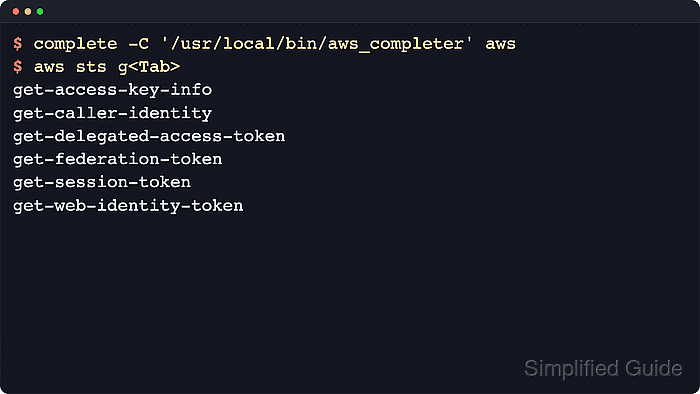
The completion hook is shell state, not an AWS profile setting. bash uses the built-in complete command, zsh enables bash-compatible completion first, and tcsh uses its own completion pattern. Edit the startup file for the shell that opens the terminal session.
Command completion is separate from AWS CLI v2 auto-prompt. Completion reacts to the shell completion key and can suggest commands, parameters, and in version 2 some resource values; resource suggestions may call AWS APIs through the active profile and region. AWS documents command completion as enabled by default on Amazon Linux EC2 instances, so check the active shell before adding duplicate startup lines.
Related: How to configure AWS CLI on Linux and macOS
Related: How to check AWS CLI version
Steps to enable AWS CLI shell completion:
- Confirm that the current shell can find aws_completer.
$ command -v aws_completer
/usr/local/bin/aws_completer
If no path is returned, repair the AWS CLI installation or add the completer directory to PATH before editing shell startup files. Common locations include /usr/local/bin, /opt/homebrew/bin, and ~/.local/bin.
Related: How to install AWS CLI on Ubuntu
Related: How to install AWS CLI on CentOS Stream or Red Hat Enterprise Linux
Related: How to install AWS CLI version 1 using pip - Identify the shell whose startup file should load the completion rule.
$ echo "$SHELL"
/bin/bash
Use ~/.bashrc for bash, ~/.zshrc for zsh, and ~/.tcshrc for tcsh. Run the check inside the terminal session where aws should complete if the login shell starts another shell.
- Add the bash completion rule to ~/.bashrc when the shell is bash.
complete -C '/usr/local/bin/aws_completer' aws
Use the absolute path returned by command -v aws_completer when it differs from /usr/local/bin/aws_completer. Login shells should still load ~/.bashrc from ~/.bash_profile, ~/.profile, or ~/.bash_login.
- Add the zsh completion lines to ~/.zshrc when the shell is zsh.
autoload bashcompinit && bashcompinit
autoload -Uz compinit && compinit
complete -C '/usr/local/bin/aws_completer' aws
If ~/.zshrc already initializes compinit, keep the existing line and add only the missing bashcompinit or complete -C line after it.
- Add the tcsh completion rule to ~/.tcshrc when the shell is tcsh.
complete aws 'p/*/`aws_completer`/'
If aws_completer is not already in PATH for tcsh, replace aws_completer inside the backticks with the absolute path returned by command -v aws_completer.
- Reload the startup file that changed.
$ source ~/.bashrc
Use source ~/.zshrc or source ~/.tcshrc instead when that is the file you updated. Opening a new terminal session also loads the saved rule.
- Confirm the bash or zsh completion rule is registered.
$ complete -p aws
complete -C '/usr/local/bin/aws_completer' aws
tcsh does not use the same complete -p inspection command, so verify tcsh from the Tab-completion step instead.
- Enter a partial AWS CLI command and press Tab twice.
$ aws sts g<Tab><Tab>
get-access-key-info         get-federation-token
get-caller-identity         get-session-token
get-delegated-access-token  get-web-identity-token
AWS CLI v2 can also suggest some live resource values after parameters such as --table-name when the active credentials can list them in the current region.
Related: How to check AWS CLI version

Mohd Shakir Zakaria is a cloud architect with deep roots in software development and open-source advocacy. Certified in AWS, Red Hat, VMware, ITIL, and Linux, he specializes in designing and managing robust cloud and on-premises infrastructures.


