Appium tests become hard to read when every locator carries its own timeout guess or fixed sleep. A shared wait policy gives the test suite one implicit locator timeout, one screen-level explicit wait, and one polling interval so mobile screen transitions fail with a locator-specific timeout message instead of a stalled run.
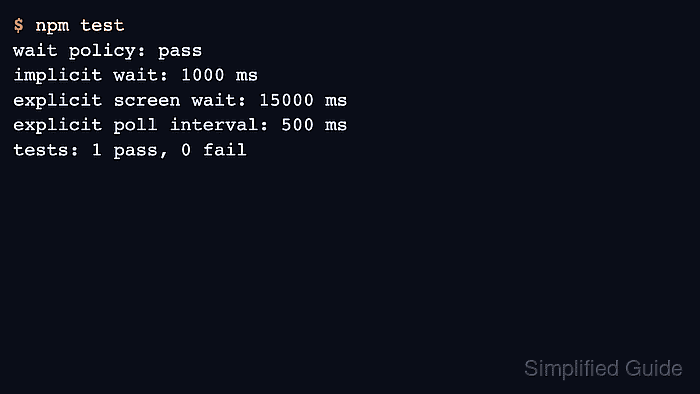
The Appium server receives the implicit wait through the W3C WebDriver session timeouts command. Explicit waits stay in the client code, where WebdriverIO can wait for an element state such as displayed, enabled, or a custom condition before the next action runs.
Keep implicit waits short when explicit waits are part of the same suite. A long implicit wait applies to every element lookup and can stretch explicit waits, while a short implicit wait plus page-specific explicit waits keeps slow screen loads visible in the failing step.
Related: How to run an Appium test in JavaScript
Related: How to configure Appium capabilities
Related: How to troubleshoot stale Appium elements
Steps to configure waits in Appium tests:
- Open the JavaScript Appium test project.
$ cd appium-js-smoke
The examples use WebdriverIO because the Appium quickstart uses it for JavaScript tests. Use the same timeout pattern with the equivalent wait and timeout methods in another Appium client.
- Confirm that the project has the test client installed.
$ npm ls webdriverio mocha
appium-js-smoke@1.0.0
├── mocha@11.7.2
└── webdriverio@9.27.2
Install the packages first if the command reports an empty tree: npm install --save-dev webdriverio mocha.
Related: How to run an Appium test in JavaScript - Create a support directory for shared test settings.
$ mkdir -p test/support
- Add one wait-policy helper for the suite.
- test/support/waits.js
const WAIT = Object.freeze({
  implicit: Number(process.env.APPIUM_IMPLICIT_WAIT_MS || 1000),
  screen: Number(process.env.APPIUM_SCREEN_WAIT_MS || 15000),
  interval: Number(process.env.APPIUM_WAIT_INTERVAL_MS || 500),
});

async function applySessionTimeouts(driver) {
  await driver.setTimeout({ implicit: WAIT.implicit });
}

module.exports = { WAIT, applySessionTimeouts };
implicit is sent to the Appium session through WebDriver timeouts. screen and interval stay client-side and are passed to explicit waits.
- Set the test runner timeout higher than the longest Appium wait.
- package.json
{
  "scripts": {
    "test": "mocha \"test/**/*.test.js\" --timeout 30000"
  },
  "devDependencies": {
    "mocha": "^11.7.2",
    "webdriverio": "^9.27.2"
  }
}
A framework timeout shorter than the explicit wait can fail the test runner before WebdriverIO prints the locator-specific timeout message.
- Apply the wait policy when the Appium session starts.
- test/settings-waits.test.js
const assert = require('node:assert/strict');
const { remote } = require('webdriverio');
const { WAIT, applySessionTimeouts } = require('./support/waits');

const capabilities = {
  platformName: 'Android',
  'appium:automationName': 'UiAutomator2',
  'appium:deviceName': 'Android',
  'appium:appPackage': 'com.android.settings',
  'appium:appActivity': '.Settings',
};

describe('Android Settings Appium waits', function () {
  let driver;

  afterEach(async function () {
    if (driver) {
      await driver.deleteSession();
      driver = undefined;
    }
  });

  it('opens Battery settings with configured waits', async function () {
    driver = await remote({
      hostname: process.env.APPIUM_HOST || '127.0.0.1',
      port: Number(process.env.APPIUM_PORT || 4723),
      path: process.env.APPIUM_PATH || '/',
      logLevel: 'error',
      waitforTimeout: WAIT.screen,
      waitforInterval: WAIT.interval,
      capabilities,
    });

    await applySessionTimeouts(driver);

    const battery = await driver.$('//*[@text="Battery"]');
    await battery.waitForDisplayed({
      timeout: WAIT.screen,
      interval: WAIT.interval,
      timeoutMsg: 'Battery menu item did not appear',
    });
    await battery.click();

    const title = await driver.$('//*[@text="Battery"]');
    assert.equal(await title.getText(), 'Battery');
  });
});
Use a locator that appears on the target device. The Android Settings app is a small smoke-test target; a product app should wait for its own screen label, button, dialog, or activity boundary.
- Start Appium and keep the server terminal open.
$ appium --address 127.0.0.1 --port 4723 --log-level info
[Appium] Welcome to Appium v3.5.0
[Appium] Appium REST http interface listener started on http://127.0.0.1:4723
The server must have the platform driver installed and a matching emulator, simulator, or device available before the test can create a session.
Related: How to start the Appium server
Related: How to install the Appium Android driver - Run the wait-configured test.
$ npm test

> test
> mocha "test/**/*.test.js" --timeout 30000


  Android Settings Appium waits
    ✔ opens Battery settings with configured waits (841ms)


  1 passing (848ms)
A passing run shows the client created the Appium session, sent the implicit timeout, waited for the Battery item, clicked it, and cleaned up the session.
- Override the wait values only for slower test environments.
$ APPIUM_SCREEN_WAIT_MS=20000 APPIUM_WAIT_INTERVAL_MS=750 npm test
Keep the environment override close to the CI job, device farm job, or slow emulator profile that needs it instead of changing the default wait policy for every developer run.
- Inspect timeout failures by checking the wait message and the Appium log together.
Battery menu item did not appear
##### snipped #####
[HTTP] --> POST /session/9f4c1f0a-72b8-4d8d-a3b4-4c09a8f042d6/element
If the locator is wrong, the explicit wait times out with the message from the test. If the session itself stalls before the locator runs, troubleshoot server, driver, or device timeouts instead.
Related: How to troubleshoot Appium timeout errors
Related: How to debug Appium session logs

Mohd Shakir Zakaria is a cloud architect with deep roots in software development and open-source advocacy. Certified in AWS, Red Hat, VMware, ITIL, and Linux, he specializes in designing and managing robust cloud and on-premises infrastructures.


