An Appium timeout error is easiest to fix after the server log shows which layer stopped waiting. The same test run can fail because the server closed an idle session, an Android or iOS driver waited too long for app startup, or the client library gave up while Appium was still working.
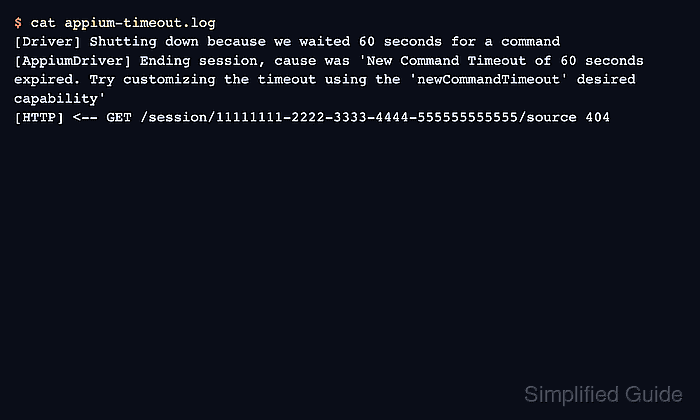
The server-side idle timer is controlled by the appium:newCommandTimeout capability. Current Appium sessions default to 60 seconds, and a value of 0 disables the idle-command timer, but disabling it should be reserved for controlled debugging because abandoned sessions can keep devices and simulators busy.
Do not raise every timeout at once. Capture one failing session, identify the exact log line, change the matching capability or client timeout, then rerun the same failure path. Logs may contain app identifiers, device names, UDIDs, paths, and account data, so mask those values before sharing output outside the team.
Related: How to debug Appium session logs
Related: How to configure waits in Appium tests
Related: How to start the Appium server
Steps to troubleshoot Appium timeout errors:
- Start Appium with a dedicated timeout log file.
$ appium --address 127.0.0.1 --port 4723 --log appium-timeout.log --log-level info:debug --log-no-colors --log-timestamp
[Appium] Welcome to Appium v3.5.0
[Appium] Appium REST http interface listener started on http://127.0.0.1:4723
The info:debug log level keeps the terminal readable while preserving request, driver, and timeout details in appium-timeout.log. Start the server from the same shell and APPIUM_HOME used by the failing test.
Related: How to start the Appium server
Related: How to use APPIUM_HOME for Appium extensions - Confirm that the server is accepting WebDriver requests.
$ curl --silent http://127.0.0.1:4723/status
{"value":{"ready":true,"message":"The server is ready to accept new connections","build":{"version":"3.5.0"}}}
If the status endpoint does not answer, fix the server process or listener URL before changing session capabilities.
- Reproduce the timeout with the smallest failing test or session command.
$ pytest tests/test_login.py::test_login -q
E selenium.common.exceptions.InvalidSessionIdException:
E Message: A session is either terminated or not started
Keep the reproduction to one session when possible. Several failed sessions in one log make it harder to match the timeout line to the command that caused it.
- Open the captured log and classify the timeout from the server-side message.
$ cat appium-timeout.log
[Driver] Shutting down because we waited 60 seconds for a command
[AppiumDriver] Ending session, cause was 'New Command Timeout of 60 seconds expired. Try customizing the timeout using the 'newCommandTimeout' desired capability'
[HTTP] <-- GET /session/11111111-2222-3333-4444-555555555555/source 404
This message means Appium closed a session because no new command arrived before appium:newCommandTimeout expired. A platform startup timeout, WebDriverAgent timeout, ADB timeout, or client HTTP timeout needs a different fix.
Related: How to debug Appium session logs
Tool: Application Log Pattern Analyzer - Set a session idle timeout that matches the longest legitimate pause in the test.
- session.json
{
  "capabilities": {
    "alwaysMatch": {
      "platformName": "Android",
      "appium:automationName": "UiAutomator2",
      "appium:deviceName": "Android Emulator",
      "appium:appPackage": "com.example.mobile",
      "appium:appActivity": ".MainActivity",
      "appium:newCommandTimeout": 180
    }
  }
}
The value is in seconds. Use a bounded value such as 180 or 300 for real test suites, and use 0 only while actively debugging an idle-session problem.
- Create a new session with the corrected timeout.
$ curl --silent --request POST http://127.0.0.1:4723/session --header "Content-Type: application/json" --data @session.json
{"value":{"capabilities":{"platformName":"Android","automationName":"UiAutomator2","newCommandTimeout":180},"sessionId":"11111111-2222-3333-4444-555555555555"}}
Change the project capability file or test-runner configuration after the focused request succeeds. Do not leave a temporary curl payload as the only place where the fix exists.
- Run a simple session command after the pause that used to fail.
$ curl --silent http://127.0.0.1:4723/session/11111111-2222-3333-4444-555555555555/source
{"value":"<hierarchy>##### snipped #####</hierarchy>"}
A successful response after the same idle interval proves the server idle timeout was the failing layer. If the session still disappears, confirm that the client is talking to the new session ID and the same Appium server.
- Fix a platform-driver timeout only when the log names that layer.
Android app launch messages that mention the expected activity or appWaitDuration should be handled with Android launch capabilities such as appium:appWaitDuration. WebDriverAgent or simulator startup messages should be handled in the XCUITest capability or environment named by the log. Client-side read or request timeouts belong in the Appium client configuration, not in appium:newCommandTimeout.
- Rerun the original failing test.
$ pytest tests/test_login.py::test_login -q
.
1 passed in 21.08s
The original timeout message should disappear without masking unrelated startup, locator, or app-state failures. If a new Appium error appears, keep the log and troubleshoot the new layer separately.
- Remove the temporary session payload after moving the setting into the test project.
$ rm session.json
Keep the masked appium-timeout.log with the test report or issue ticket. Delete only temporary payloads that contain copied app identifiers or device details.

Mohd Shakir Zakaria is a cloud architect with deep roots in software development and open-source advocacy. Certified in AWS, Red Hat, VMware, ITIL, and Linux, he specializes in designing and managing robust cloud and on-premises infrastructures.


