Stale element failures in Appium usually appear after the app redraws, navigates, or refreshes a native view between finding an element and using it. The locator may still be right, but the old WebElement handle points at a UI object that the driver no longer considers attached.
Appium sends element commands through the W3C WebDriver protocol. A successful find command returns an element ID, and later click, text, enabled, or attribute calls target that ID. When the underlying Android view, iOS element, or web context is rebuilt, the driver can reject the old ID with StaleElementReferenceException or a driver-specific message such as cached elements no longer existing.
The fix is to make locators the saved state and treat element objects as short-lived. Capture the failing line, remove cached element fields from the page object, wait for the redraw boundary when one is expected, re-find the target by locator, and retry only the small stale-prone action before running the original test again.
Related: How to configure waits in Appium tests
Related: How to debug Appium session logs
Related: How to troubleshoot Appium timeout errors
Steps to troubleshoot stale Appium elements:
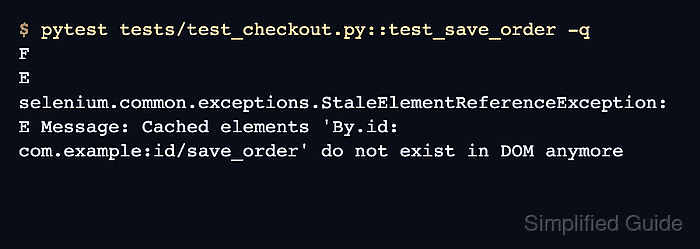
- Run the failing test and capture the stale-element message.
$ pytest tests/test_checkout.py::test_save_order -q
F
E selenium.common.exceptions.StaleElementReferenceException:
E Message: Cached elements 'By.id: com.example:id/save_order' do not exist in DOM anymore
Android UiAutomator2 failures often mention cached elements or StaleObjectException. WebView and browser-context failures usually use the standard stale element reference wording.
- Find the code that stores an element before the screen changes.
class CheckoutPage:
    def __init__(self, driver):
        self.save_button = driver.find_element(By.ID, "com.example:id/save_order")

    def save(self):
        self.save_button.click()
A WebElement saved during page-object construction can become stale after a recycler row reloads, a dialog closes, a WebView updates, or the app returns from another screen.
- Replace the cached element with a saved locator.
from selenium.webdriver.common.by import By

SAVE_ORDER = (By.ID, "com.example:id/save_order")


def save_order(driver):
    driver.find_element(*SAVE_ORDER).click()
Keep the locator stable and re-run find_element() near the action that needs the element. If the locator itself is weak, fix that separately before adding retries.
- Wait for the old element to go stale after an action that redraws the screen.
from selenium.webdriver.support.ui import WebDriverWait
from selenium.webdriver.support import expected_conditions as EC

TOTAL = (By.ID, "com.example:id/order_total")
REFRESH = (By.ID, "com.example:id/recalculate")

old_total = driver.find_element(*TOTAL)
driver.find_element(*REFRESH).click()
WebDriverWait(driver, 10).until(EC.staleness_of(old_total))
Use staleness_of() only when the app is expected to replace the element. Waiting for staleness before every click can hide a locator or timing problem.
- Re-find the target with an explicit wait before using it.
button = WebDriverWait(driver, 10).until(
    EC.element_to_be_clickable(SAVE_ORDER)
)
button.click()
element_to_be_clickable() finds the element from the locator and checks that it is visible and enabled before returning the fresh handle.
- Wrap only the stale-prone action when the redraw timing varies.
from selenium.common.exceptions import StaleElementReferenceException


def click_fresh(driver, locator, timeout=10):
    wait = WebDriverWait(
        driver,
        timeout,
        ignored_exceptions=(StaleElementReferenceException,),
    )
    wait.until(EC.element_to_be_clickable(locator)).click()
Do not retry a whole checkout, payment, upload, or destructive flow around this exception. Retry the locator lookup and click only, then let the surrounding test fail if the app still changes state unexpectedly.
- Run the original test again.
$ pytest tests/test_checkout.py::test_save_order -q
.
1 passed in 18.42s
The original stale-element failure should disappear without adding fixed sleeps. If the test now times out, inspect the Appium session log and page source because the replacement locator may not match the rebuilt screen.
Related: How to debug Appium session logs
Related: How to run an Appium test in Python

Mohd Shakir Zakaria is a cloud architect with deep roots in software development and open-source advocacy. Certified in AWS, Red Hat, VMware, ITIL, and Linux, he specializes in designing and managing robust cloud and on-premises infrastructures.


