How to query UI elements in XCUITest
XCUITest queries connect test code to the app's accessibility hierarchy. A precise query matters most on screens with repeated buttons, reused cell layouts, localized labels, or generated text where a broad label lookup can tap the wrong element.
XCUIApplication exposes type-specific query collections such as buttons, staticTexts, textFields, and cells. Start with the element type, prefer app-owned accessibility identifiers for stable controls, and use labels or predicates only when visible text is the behavior being tested.
The safest query flow narrows the search, checks that exactly one intended element matched, waits for that element to appear, and performs the assertion or action only after the match is unambiguous. Keep debugDescription as a diagnostic aid when a query fails instead of making hierarchy dumps part of the normal test path.
Related: How to write a first XCUITest UI test
Related: How to wait for UI elements in XCUITest
Related: How to stabilize selectors in XCUITest tests
Related: How to run XCUITest tests locally
Steps to query UI elements in XCUITest:
- Add stable identifiers to app-owned controls that the test must locate.
Button("Sign In") {
    signIn()
}
.accessibilityIdentifier("login.submitButton")

Text("Welcome back")
    .accessibilityIdentifier("login.welcomeMessage")
For UIKit controls, set the same value through accessibilityIdentifier on the view, such as loginButton.accessibilityIdentifier = "login.submitButton".
- Launch the app from the UI test before building queries.
import XCTest

final class LoginUITests: XCTestCase {
    func testLoginButtonQuery() throws {
        let app = XCUIApplication()
        app.launch()
    }
}
UI tests run in a separate process and interact with the app through accessibility data, not through internal view instances.
- Query a single control by element type and identifier.
let submitButton = app.buttons["login.submitButton"]

XCTAssertTrue(submitButton.waitForExistence(timeout: 5))
XCTAssertTrue(submitButton.isHittable)
submitButton.tap()
Use the element type that matches the accessible control, such as buttons for tappable buttons or textFields for editable text fields.
- Check query cardinality before using a selector that may match repeated controls.
let matchingButtons = app.buttons.matching(identifier: "login.submitButton")

XCTAssertEqual(matchingButtons.count, 1)
matchingButtons.element.tap()
The element property is intended for a query that should resolve to one element. A count assertion turns duplicate identifiers into a clear test failure before the tap.
- Query a repeated container by the child element that identifies the row.
let orderCell = app.cells
    .containing(.staticText, identifier: "Order #A1042")
    .element

XCTAssertTrue(orderCell.waitForExistence(timeout: 5))
orderCell.tap()
Use visible text here only when that text is the expected row identity. Prefer a child accessibility identifier when the row label changes with localization or display formatting.
- Add a predicate when the query needs both an identifier and a visible value.
let totalLabels = app.staticTexts.matching(
    NSPredicate(format: "identifier == %@ AND label BEGINSWITH %@",
                "cart.totalLabel",
                "$")
)

XCTAssertEqual(totalLabels.count, 1)
XCTAssertTrue(totalLabels.element.exists)
Predicates are useful for narrowing a query with element attributes such as identifier, label, or value. Keep the predicate focused so a failure points to one UI assumption.
- Print the hierarchy only when a query does not find the expected element.
if !submitButton.exists {
    XCTFail(app.debugDescription)
}
The hierarchy dump can reveal the element type, label, value, and identifier that XCTest sees at the failure point. Remove or narrow noisy dumps after the selector is fixed.
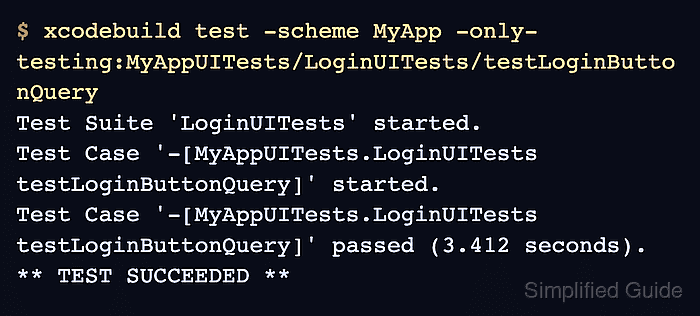
- Run the focused UI test and confirm the query resolves to one passing test case.
$ xcodebuild test \
  -workspace MyApp.xcworkspace \
  -scheme MyApp \
  -destination 'platform=iOS Simulator,name=iPhone 16,OS=latest' \
  -only-testing:MyAppUITests/LoginUITests/testLoginButtonQuery \
  -resultBundlePath TestResults/UIElementQuery.xcresult
Test Suite 'LoginUITests' started.
Test Case '-[MyAppUITests.LoginUITests testLoginButtonQuery]' started.
Test Case '-[MyAppUITests.LoginUITests testLoginButtonQuery]' passed (3.412 seconds).
** TEST SUCCEEDED **
Open the result bundle when the test fails and inspect the failure screenshot or hierarchy output before changing the selector.