How to handle permission dialogs in XCUITest
iOS permission prompts sit outside the app's normal view hierarchy, so a UI test that opens the camera, photo library, location, microphone, or notification flow has to prepare the system permission state before it taps the app control. XCUITest can reset that protected-resource decision, answer the SpringBoard alert, and assert the app screen that follows the user's choice.
Permission dialogs only appear when the app has no stored decision for the requested resource. Reset the authorization status inside the UI test before launching the app, then query the alert through SpringBoard because the sheet is owned by iOS rather than the tested app.
Use direct alert queries for expected permission prompts that belong to the tested path. Nondeterministic banners or alerts that block a later tap belong in an interruption monitor, but a protected-resource prompt should stay visible in the test so both grant and denial branches can be reported clearly.
Steps to handle XCUITest permission dialogs:
- Add the matching privacy usage string to the app target.
- Info.plist
<key>NSCameraUsageDescription</key>
<string>Use the camera to scan a document in MyApp.</string>
The camera prompt uses NSCameraUsageDescription. Use the resource key that matches the feature, such as NSPhotoLibraryUsageDescription for photo library access or NSLocationWhenInUseUsageDescription for foreground location.
- Give the permission trigger and result screens stable accessibility identifiers.
- CameraPermissionView.swift
Button("Open camera") {
    viewModel.openCamera()
}
.accessibilityIdentifier("open-camera-button")

Text("Camera ready")
    .accessibilityIdentifier("camera-permission-granted")

Text("Camera access needed")
    .accessibilityIdentifier("camera-permission-denied")
Assert app-owned result screens after the dialog choice. The system button tap is only the permission decision, not proof that the app handled the branch.
- Add a permission-dialog test case to the UI test target.
- PermissionDialogUITests.swift
import XCTest

private enum PermissionDialogChoice {
    case allow
    case deny

    var buttonLabels: [String] {
        switch self {
        case .allow:
            return ["OK", "Allow", "Allow While Using App", "Allow Full Access"]
        case .deny:
            return ["Don’t Allow", "Don't Allow"]
        }
    }
}

final class PermissionDialogUITests: XCTestCase {
    private let app = XCUIApplication()
    private let springboard = XCUIApplication(bundleIdentifier: "com.apple.springboard")

    override func setUpWithError() throws {
        continueAfterFailure = false
        app.launchArguments = ["-ui-testing", "-reset-permission-demo"]
    }

    func testCameraPermissionAllowPath() {
        openCameraPermissionPath(
            choice: .allow,
            expectedIdentifier: "camera-permission-granted"
        )
    }

    func testCameraPermissionDenyPath() {
        openCameraPermissionPath(
            choice: .deny,
            expectedIdentifier: "camera-permission-denied"
        )
    }

    private func openCameraPermissionPath(
        choice: PermissionDialogChoice,
        expectedIdentifier: String,
        file: StaticString = #filePath,
        line: UInt = #line
    ) {
        app.terminate()
        app.resetAuthorizationStatus(for: .camera)
        app.launch()

        app.buttons["open-camera-button"].tap()
        answerPermissionDialog(choice, file: file, line: line)

        let expectedScreen = app.staticTexts[expectedIdentifier]
        XCTAssertTrue(
            expectedScreen.waitForExistence(timeout: 10),
            "App did not show \(expectedIdentifier) after permission choice.",
            file: file,
            line: line
        )
    }

    private func answerPermissionDialog(
        _ choice: PermissionDialogChoice,
        file: StaticString = #filePath,
        line: UInt = #line
    ) {
        let alert = springboard.alerts.firstMatch
        XCTAssertTrue(
            alert.waitForExistence(timeout: 5),
            "Permission dialog did not appear.",
            file: file,
            line: line
        )

        for label in choice.buttonLabels {
            let button = alert.buttons[label].firstMatch
            if button.exists {
                button.tap()
                return
            }
        }

        XCTFail(
            "Permission dialog did not contain any expected button: \(choice.buttonLabels.joined(separator: ", ")).",
            file: file,
            line: line
        )
    }
}
resetAuthorizationStatus(for:) makes the app behave as if it has not asked for the protected resource before. Resetting can terminate the app process, so launch the app after the reset. Query the permission alert through com.apple.springboard because protected-resource prompts are system UI.
- Create a directory for the result bundle.
$ mkdir -p TestResults
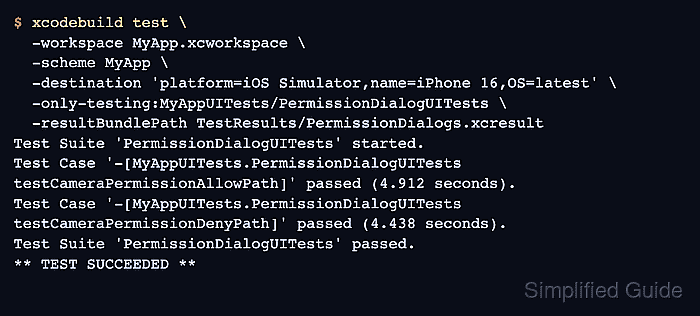
- Run the permission-dialog UI tests with xcodebuild.
$ xcodebuild test \
  -workspace MyApp.xcworkspace \
  -scheme MyApp \
  -destination 'platform=iOS Simulator,name=iPhone 16,OS=latest' \
  -only-testing:MyAppUITests/PermissionDialogUITests \
  -resultBundlePath TestResults/PermissionDialogs.xcresult
Test Suite 'PermissionDialogUITests' started.
Test Case '-[MyAppUITests.PermissionDialogUITests testCameraPermissionAllowPath]' passed (4.912 seconds).
Test Case '-[MyAppUITests.PermissionDialogUITests testCameraPermissionDenyPath]' passed (4.438 seconds).
Test Suite 'PermissionDialogUITests' passed.
** TEST SUCCEEDED **
Replace MyApp.xcworkspace, MyApp, and the test target name with the project values. Use a simulator destination that is available on the Mac running the test.
Related: How to run XCUITest with xcodebuild in CI - Confirm that the result bundle was saved.
$ ls -d TestResults/PermissionDialogs.xcresult
TestResults/PermissionDialogs.xcresult
Open the bundle when either branch fails, then inspect the screenshot, activity log, and failure text for the alert label or missing app result screen.
Related: How to save XCUITest result bundles