Biometric login screens sit across two layers during UI testing. The app starts the LocalAuthentication request, while the iOS Simulator owns the Face ID or Touch ID enrollment and the matching decision, so the test has to wait for the system prompt and assert the app screen that follows.
Apple's biometric-only LocalAuthentication policy authenticates with Face ID or Touch ID only. Policy evaluation fails when biometry is unavailable, not enrolled, locked out, canceled, or sent to fallback, and apps that access Face ID need the NSFaceIDUsageDescription key in their app Info.plist.
A simulator-based XCUITest can prove the app's success and fallback paths, but it does not prove physical sensor behavior on a real device. Use a simulator model that exposes the matching biometric menu, keep the UI test assertions focused on app-owned screens, and run device coverage separately when the release risk is tied to hardware, enrollment, lockout, or passcode fallback behavior.
Steps to handle an XCUITest biometric prompt:
- Add a Face ID usage string to the app target.
- Info.plist
<key>NSFaceIDUsageDescription</key>
<string>Use Face ID to unlock MyApp during sign in.</string>
NSFaceIDUsageDescription is required for apps that use APIs that access Face ID. Touch ID devices use the localized reason passed to LocalAuthentication, but keeping the key in the app target prevents Face ID simulators and devices from taking a different path.
- Give the biometric trigger and result screens stable accessibility identifiers.
- LoginView.swift
Button("Use Face ID") {
    viewModel.authenticateWithBiometrics()
}
.accessibilityIdentifier("biometric-login-button")

Text("Welcome")
    .accessibilityIdentifier("biometric-login-success")

Text("Use password instead")
    .accessibilityIdentifier("biometric-login-fallback")
Use identifiers that belong to the app screen, not the system biometric sheet. The final assertions should prove the app reacted to the authentication result.
- Add an XCUITest case that opens the biometric prompt and waits for the app result.
- LoginUITests.swift
import XCTest

final class BiometricUITests: XCTestCase {
    private let app = XCUIApplication()
    private let springboard = XCUIApplication(bundleIdentifier: "com.apple.springboard")

    override func setUpWithError() throws {
        continueAfterFailure = false
        app.launchArguments = ["-ui-testing", "-reset-login-state"]
    }

    func testLoginMatch() {
        app.launch()
        app.buttons["biometric-login-button"].tap()

        waitForBiometricPrompt()
        XCTAssertTrue(app.staticTexts["biometric-login-success"].waitForExistence(timeout: 20))
    }

    func testLoginFallback() {
        app.launch()
        app.buttons["biometric-login-button"].tap()

        waitForBiometricPrompt()
        XCTAssertTrue(app.staticTexts["biometric-login-fallback"].waitForExistence(timeout: 20))
    }

    private func waitForBiometricPrompt() {
        let prompt = springboard.alerts.firstMatch
        XCTAssertTrue(prompt.waitForExistence(timeout: 5), "Biometric prompt did not appear")
    }
}
Expected biometric sheets are part of the test path. Apple's UI interruption monitors are for unrelated modal UI that blocks a later interaction, so keep this prompt in the normal query and assertion flow instead of registering a generic addUIInterruptionMonitor handler for it.
- Enroll biometrics on the running simulator before starting the matching test.
In Simulator, choose Features → Face ID → Enrolled or Features → Touch ID → Enrolled. If the app checks canEvaluatePolicy before showing the prompt, an unenrolled simulator normally drives the biometryNotEnrolled path instead of the login prompt.
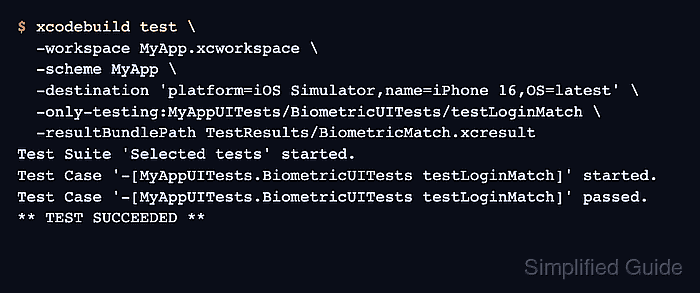
- Run only the matching biometric test and leave the terminal open while the simulator shows the prompt.
$ xcodebuild test \
  -workspace MyApp.xcworkspace \
  -scheme MyApp \
  -destination 'platform=iOS Simulator,name=iPhone 16,OS=latest' \
  -only-testing:MyAppUITests/BiometricUITests/testLoginMatch \
  -resultBundlePath TestResults/BiometricMatch.xcresult
Replace MyApp.xcworkspace, MyApp, and the test identifier with the project values. The -destination value targets an iOS Simulator by platform, device name, and latest installed OS.
- Choose a matching biometric in Simulator.
Test Suite 'Selected tests' started.
Test Case '-[MyAppUITests.BiometricUITests testLoginMatch]' started.
Test Case '-[MyAppUITests.BiometricUITests testLoginMatch]' passed.
** TEST SUCCEEDED **
In Simulator, choose Features → Face ID → Matching Face or Features → Touch ID → Matching Touch while the prompt is visible. The passing assertion should come from the app's authenticated screen.
- Run only the fallback test after resetting the app login state.
$ xcodebuild test \
  -workspace MyApp.xcworkspace \
  -scheme MyApp \
  -destination 'platform=iOS Simulator,name=iPhone 16,OS=latest' \
  -only-testing:MyAppUITests/BiometricUITests/testLoginFallback \
  -resultBundlePath TestResults/BiometricNoMatch.xcresult
Keep the fallback branch as a separate test method so a previous successful authentication cannot hide the no-match path.
- Choose a non-matching biometric and confirm the fallback assertion.
Test Suite 'Selected tests' started.
Test Case '-[MyAppUITests.BiometricUITests testLoginFallback]' started.
Test Case '-[MyAppUITests.BiometricUITests testLoginFallback]' passed.
** TEST SUCCEEDED **
In Simulator, choose Features → Face ID → Non-matching Face or Features → Touch ID → Non-matching Touch. After failed Face ID attempts, the system may offer fallback or stop retrying Face ID; the app should route userCancel or userFallback to the password path and the test should assert that app-owned screen.
- Keep the result bundles for later review.
$ ls TestResults
BiometricMatch.xcresult
BiometricNoMatch.xcresult
The saved xcresult bundles preserve screenshots, logs, and failure details for the two biometric branches.
Related: How to save XCUITest result bundles

Mohd Shakir Zakaria is a cloud architect with deep roots in software development and open-source advocacy. Certified in AWS, Red Hat, VMware, ITIL, and Linux, he specializes in designing and managing robust cloud and on-premises infrastructures.


