How to install Tomcat on Ubuntu
Installing Apache Tomcat from the Ubuntu package archive gives a server the packaged servlet container, service unit, default connector, and Java runtime dependencies without building a separate /opt/tomcat tree by hand.
Current Ubuntu LTS packages provide the servlet container through the tomcat10 package and manage it with tomcat10.service. The package keeps configuration under /etc/tomcat10, runtime files under /usr/share/tomcat10, web applications under /var/lib/tomcat10/webapps, and the default HTTP connector on port 8080.
A working install should show the tomcat10 service active and return an HTTP response from http://127.0.0.1:8080/. Remote clients need a firewall rule for port 8080 only when the host is meant to expose the Tomcat connector directly; many production deployments put Tomcat behind Apache or Nginx instead.
Steps to install Tomcat on Ubuntu:
- Open a terminal with sudo privileges.
- Refresh the local APT package index.
$ sudo apt update
- Install the Tomcat package.
$ sudo apt install tomcat10
The package creates the tomcat service user, installs tomcat10.service, and pulls in a compatible OpenJDK runtime when one is not already installed.
- Enable Tomcat at boot and start it now.
$ sudo systemctl enable --now tomcat10
Ubuntu may start the service during package installation, but running this command makes the current and boot-time state explicit.
- Confirm the service is active.
$ systemctl is-active tomcat10
active
If the command does not return active, inspect sudo journalctl -u tomcat10 before changing ports or deploying applications. Related: How to troubleshoot Tomcat startup failures with systemd
- Confirm the installed Tomcat build.
$ /usr/share/tomcat10/bin/version.sh
Server version: Apache Tomcat/10.1.40 (Ubuntu)
Server built:   Jun 9 2026 12:08:21 UTC
##### snipped #####
The exact package version changes with Ubuntu security updates. The important result is that the packaged script reports an Apache Tomcat build from the installed tomcat10 package.
- Verify the default connector on localhost.
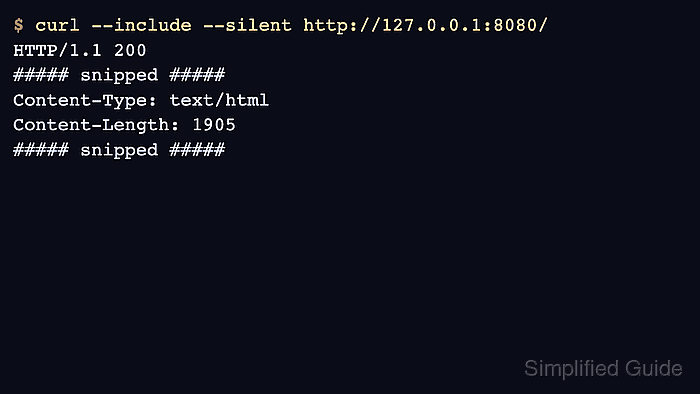
$ curl --include --silent http://127.0.0.1:8080/
HTTP/1.1 200
##### snipped #####
Content-Type: text/html
Content-Length: 1905
##### snipped #####
An HTTP response from 127.0.0.1:8080 proves the local connector is listening and serving the packaged default web application.
- If UFW protects the host and remote clients must reach Tomcat directly, allow TCP port 8080.
$ sudo ufw allow 8080/tcp
Do not expose the default connector to untrusted networks unless the application, manager access, and reverse-proxy plan are already designed for that exposure.