How to create a user systemd service unit
Creating a per-user service unit lets one Linux account keep a helper, poller, or personal background worker under systemd control without installing a system-wide service. That matters when a long-running command belongs to one login, should restart after a crash, and should be managed with normal unit state instead of an interactive shell or ad-hoc login script.
In the user manager, current systemd load-path rules look in ~/.config/systemd/user for per-user unit files, and default.target is the normal install target instead of multi-user.target. A user service file still uses the same [Unit], [Service], and [Install] sections as a system service, but the paths and manager scope are tied to the owning account.
User services belong to that account's user service manager, so systemctl --user commands must run as the same user that owns the unit. That manager usually exists only while the user has an active session, which means services that must survive logout or start before the first login after boot also need lingering enabled with sudo loginctl enable-linger "$USER".
Related: How to create a systemd service unit
Related: How to check service status using systemctl
Related: How to view service logs using journalctl
Tool: systemd Unit Generator
Steps to create a user systemd service unit:
- Create the user-owned directories for the unit file, helper script, and sample state file.
$ mkdir -p ~/.config/systemd/user ~/.local/bin ~/.local/state
Run every systemctl --user command as the same account that will own the unit. A root shell or another user's session talks to a different service manager.
- Create the helper script that the user service will run.
#!/bin/sh
while :; do
  printf "custom-user-worker tick %s\n" "$(date --iso-8601=seconds)" >> "$HOME/.local/state/custom-user-worker.log"
  sleep 30
done
The sample workload writes a timestamped heartbeat into a user-owned log so the service has a clear proof of work. Replace the loop with the real long-running command or wrapper script that should stay under the user manager.
- Make the helper script executable.
$ chmod 0755 ~/.local/bin/custom-user-worker.sh
Use an absolute or specifier-based path in the unit file. Do not rely on a relative working directory, shell aliases, or login-only environment variables.
- Create the user service unit file.
[Unit]
Description=Custom user worker demo

[Service]
Type=exec
ExecStart=%h/.local/bin/custom-user-worker.sh
Restart=on-failure
RestartSec=5

[Install]
WantedBy=default.target
Type=exec is a strong default for long-running custom commands because start failures such as a missing executable are reported more accurately than with the implicit Type=simple default. default.target is the normal install target for user services, and the %h specifier expands to the home directory of the user running the manager.
- Verify that the unit parses cleanly before reloading the user manager.
$ systemd-analyze --user verify ~/.config/systemd/user/custom-user-worker.service
No output is the ideal result. If another existing unit is broken, the command can also warn about that file while checking the new user service.
- Reload the user manager so it sees the new unit definition.
$ systemctl --user daemon-reload
daemon-reload rereads user unit files and rebuilds the user dependency tree without a logout or reboot. Related: How to reload the systemd manager configuration
- Enable the user service for future manager starts and launch it immediately.
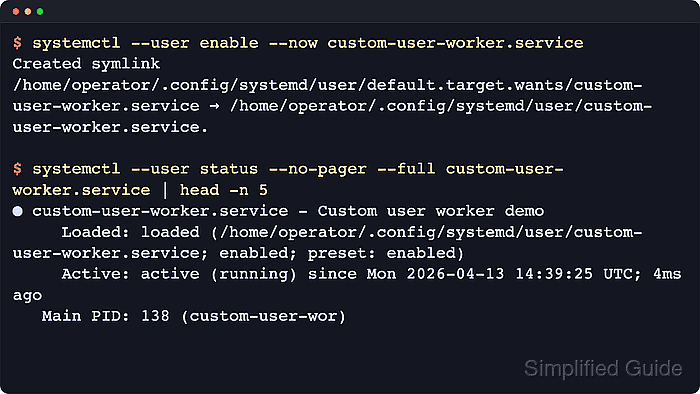
$ systemctl --user enable --now custom-user-worker.service
Created symlink /home/operator/.config/systemd/user/default.target.wants/custom-user-worker.service → /home/operator/.config/systemd/user/custom-user-worker.service.
enable --now installs the unit into default.target and starts it in the current user session in one step. The home path in the symlink line reflects the account that owns the service.
- Confirm that the user manager loaded the unit from the home directory and that the service is running.
$ systemctl --user show custom-user-worker.service -p FragmentPath -p LoadState -p ActiveState -p SubState -p Result -p UnitFileState
Result=success
LoadState=loaded
ActiveState=active
SubState=running
FragmentPath=/home/operator/.config/systemd/user/custom-user-worker.service
UnitFileState=enabled
Confirm FragmentPath=/home/operator/.config/systemd/user/custom-user-worker.service together with LoadState=loaded, ActiveState=active, SubState=running, and UnitFileState=enabled. Open systemctl --user status --no-pager --full custom-user-worker.service when the full human-readable summary is more useful than the normalized property view. Related: How to check service status using systemctl
- Confirm that the workload is actually doing its job instead of only staying alive.
$ cat ~/.local/state/custom-user-worker.log
custom-user-worker tick 2026-04-22T11:36:16+08:00
An application-specific file, socket, API response, or queue action is stronger proof than manager state alone because it shows the service logic is running. If the unit fails, use journalctl --user -u custom-user-worker.service -n 20 --no-pager to read the recent user-service log. Related: How to view service logs using journalctl
- Enable lingering when the user service must survive logout or start before the first login after boot.
$ sudo loginctl enable-linger "$USER"

$ loginctl show-user "$USER" -p Linger -p State
State=active
Linger=yes
Confirm Linger=yes. The State field can still show active while the account has a live session because lingering changes the manager lifetime, not the current session state.
Lingering keeps every enabled timer, socket, and service in that user's manager eligible to run without an interactive session. Review background jobs and resource-heavy user services before enabling it on shared or constrained hosts.