How to reload or restart a service using systemctl
The systemctl reload-or-restart command is the practical middle ground after a service configuration change when a live reload is preferred but the unit might only support a full restart. It keeps routine maintenance, deploy hooks, and manual admin work on one lifecycle verb instead of branching on reload support first.
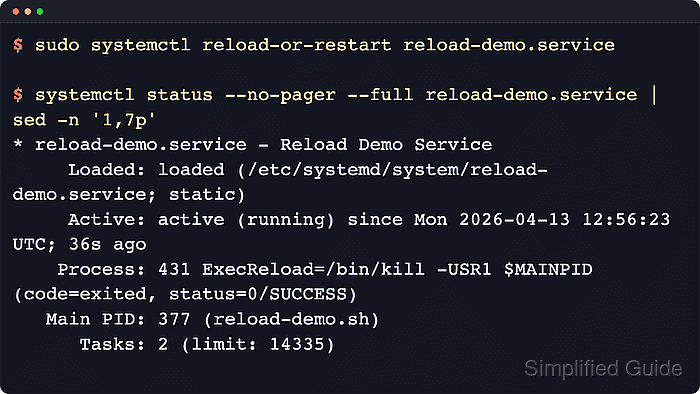
On a systemd host, reload-or-restart asks the unit to reload its own application configuration when the service exposes a reload path, and otherwise stops and starts the unit. Inactive units are started too, so the follow-up check needs to confirm whether the service stayed on the same main process or came back with a fresh start.
This action does not make systemd reread the unit file itself. Run daemon-reload first after editing a unit file or drop-in under /etc/systemd/system, add sudo for system services, use systemctl –user for per-user units, and switch to try-reload-or-restart when stopped units must remain stopped.
Steps to reload or restart a service using systemctl:
- Check the target unit's current state and reload support before using the combined command.
$ systemctl show -p ActiveState -p SubState -p CanReload nginx.service
ActiveState=active
SubState=running
CanReload=yes
Replace nginx.service with the real unit name on the host. When CanReload=no, systemctl reload-or-restart uses the restart path instead of an in-place reload.
- Run the combined lifecycle command for the service.
$ sudo systemctl reload-or-restart nginx.service
Use systemctl --user reload-or-restart unit.service for a per-user unit instead of the system manager command. If the unit is currently inactive, this command starts it.
- Check the full unit status after the command.
$ systemctl status --no-pager --full nginx.service
● nginx.service - A high performance web server and a reverse proxy server
     Loaded: loaded (/usr/lib/systemd/system/nginx.service; enabled; preset: enabled)
     Active: active (running) since Tue 2026-04-22 08:41:12 +08; 7s ago
    Process: 1842 ExecReload=/usr/bin/nginx -s reload (code=exited, status=0/SUCCESS)
   Main PID: 1788 (nginx)
      Tasks: 3 (limit: 4545)
     Memory: 4.7M (peak: 5.2M)
        CPU: 58ms
     CGroup: /system.slice/nginx.service
             ├─1788 "nginx: master process /usr/sbin/nginx -g daemon on; master_process on;"
             ├─1843 "nginx: worker process"
             └─1844 "nginx: worker process"
##### snipped #####
The Process: line for ExecReload= shows the reload path ran. When the unit reports CanReload=no, expect a fresh Active: timestamp or a new Main PID instead of an ExecReload= result.
- Read the recent unit journal when the status view does not make the lifecycle path obvious or the service does not behave as expected afterward.
$ sudo journalctl -u nginx.service -n 6 --no-pager
Apr 22 08:41:12 server systemd[1]: Reloading nginx.service - A high performance web server and a reverse proxy server...
Apr 22 08:41:12 server nginx[1842]: signal process started
Apr 22 08:41:12 server systemd[1]: Reloaded nginx.service - A high performance web server and a reverse proxy server.
A restart fallback shows stop-and-start lines instead of Reloading and Reloaded. This is the clearer follow-up when the service stays active but still appears to be using old settings.
- Use the active-only variant when maintenance should not wake a service that is currently stopped.
$ sudo systemctl try-reload-or-restart nginx.service
try-reload-or-restart reloads or restarts only active units. It does nothing when the target service is already inactive.
- Reload the systemd manager first when the unit file or a drop-in changed on disk.
$ sudo systemctl daemon-reload
daemon-reload makes systemd reread changed unit definitions, but it does not reload the application's own configuration by itself. Run it before reload-or-restart after editing files such as /etc/systemd/system/nginx.service/ or /etc/systemd/system/nginx.service.d/*.conf/.