How to install Samba on Ubuntu
Installing Samba from Ubuntu packages prepares a host for SMB/CIFS file sharing, but the package install has to leave more than files on disk. The server needs the smbd binary, the default configuration, and systemd service units in place before share, user, and firewall work can be tested.
The samba package installs the file-server daemons, /etc/samba/smb.conf, and helper commands such as testparm. smbd serves SMB file shares, while nmbd supports NetBIOS name service and browsing for clients that still depend on that discovery path.
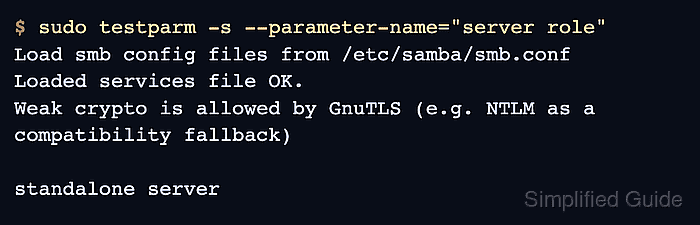
A completed install should parse the packaged configuration, report a standalone server role, and let systemd start the file-server daemons. The package does not create a usable share or Samba password entry by itself, so client access still depends on the follow-up share definition, Linux filesystem permissions, Samba users, and firewall rules.
Related: How to create a Samba share on Linux
Related: How to add a Samba user
Related: How to allow Samba through a firewall
Steps to install Samba on Ubuntu:
- Open a terminal with sudo privileges.
- Refresh the package index.
$ sudo apt update
- Install the Samba package from the Ubuntu repositories.
$ sudo apt install samba
The package pulls in samba-common-bin and related libraries, including testparm for configuration checks.
- Confirm the installed server binary.
$ smbd --version
Version 4.23.6-Ubuntu-4.23.6+dfsg-1ubuntu2.1
The exact version changes with Ubuntu security updates. The command should return a Version line instead of a command-not-found error.
- Validate the packaged Samba configuration.
$ sudo testparm -s --parameter-name="server role"
Load smb config files from /etc/samba/smb.conf
Loaded services file OK.
Weak crypto is allowed by GnuTLS (e.g. NTLM as a compatibility fallback)

standalone server
The weak-crypto notice is a compatibility warning, not an install failure. standalone server is the expected role for a basic file server before any Active Directory domain-member or domain-controller configuration is added.
Related: How to validate Samba configuration with testparm - Enable the file-server daemons at boot and start them now.
$ sudo systemctl enable --now smbd nmbd
smbd serves shares. nmbd supports NetBIOS browsing; direct access to a known server name or IP address does not always need it, but Ubuntu installs both units for the packaged file-server role.
Related: How to check Samba service status - Confirm the daemons are active.
$ systemctl is-active smbd nmbd
active
active
If either unit is inactive, inspect it with sudo systemctl status smbd nmbd and check /var/log/samba before creating shares.
Related: How to check Samba service status - Check the Samba status command before adding shares.
$ sudo smbstatus
No locked files

Samba version 4.23.6-Ubuntu-4.23.6+dfsg-1ubuntu2.1
PID     Username     Group        Machine                                   Protocol Version  Encryption           Signing
----------------------------------------------------------------------------------------------------------------------------------------

Service      pid     Machine       Connected at                     Encryption   Signing
---------------------------------------------------------------------------------------------
No active sessions are expected immediately after installation. Configure a share and user before running client access tests.