How to install Nagios Core on Ubuntu
A new Nagios Core server needs the monitoring scheduler, the web CGI interface, and check plugins before it can show useful host and service status. On Ubuntu, the distribution packages provide a system-managed install that is simpler to maintain than an upstream source build.
The packaged install uses the nagios4.service unit for the scheduler and serves the web interface through Apache at /nagios4/. The cgi module must be enabled so the packaged CGI programs execute instead of being treated as static files.
The default Ubuntu web snippet allows local and private network clients and leaves deeper CGI authorization work for a separate hardening pass. Keep the first install focused on a running daemon, a working CGI route, and a visible localhost object, then configure authentication, HTTPS, firewalls, remote hosts, and notifications before exposing the server beyond a trusted network.
Related: How to install Nagios Core from source
Related: How to install Nagios Core on Debian
Related: How to install Nagios plugins
Related: How to configure Nagios Core CGI authorization
Steps to install Nagios Core on Ubuntu:
- Open a terminal with sudo privileges on the Ubuntu monitoring server.
- Refresh the package index.
$ sudo apt update
- Install Nagios Core, the web CGI package, Apache, and the standard monitoring plugins.
$ sudo apt install --assume-yes nagios4 nagios4-cgi monitoring-plugins-basic monitoring-plugins-standard apache2
nagios4 installs the daemon and main configuration, nagios4-cgi installs the web CGI files, and the monitoring-plugins packages install common checks such as check_ping and check_http under /usr/lib/nagios/plugins. If APT cannot locate the packages, enable Ubuntu's Universe component first.
Related: How to install Nagios plugins
- Enable Apache CGI execution for the packaged web interface.
$ sudo a2enmod cgi
Enabling module cgi.
To activate the new configuration, you need to run:
  service apache2 restart
The packaged nagios4-cgi configuration creates the /nagios4/cgi-bin/ route, but Apache still needs the cgi module before statusjson.cgi and other CGI programs execute.
- Confirm the key packages are installed.
$ dpkg-query -W nagios4 nagios4-cgi monitoring-plugins-basic monitoring-plugins-standard apache2
apache2	2.4.66-2ubuntu2.2
monitoring-plugins-basic	2.4.0-1ubuntu2
monitoring-plugins-standard	2.4.0-1ubuntu2
nagios4	4.4.6-4.1ubuntu2
nagios4-cgi	4.4.6-4.1ubuntu2
- Test the Apache configuration.
$ sudo apache2ctl configtest
AH00558: apache2: Could not reliably determine the server's fully qualified domain name, using 192.0.2.10. Set the 'ServerName' directive globally to suppress this message
Syntax OK
The AH00558 line is a hostname warning, not an install failure. Syntax OK confirms Apache can parse the enabled Nagios CGI configuration.
- Validate the packaged Nagios Core configuration.
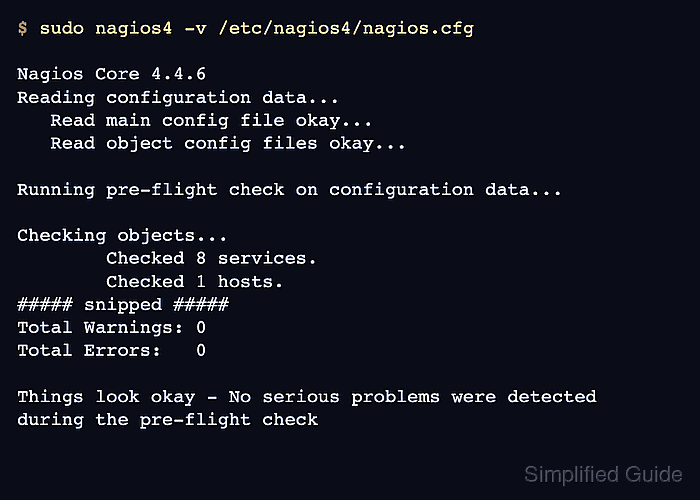
$ sudo nagios4 -v /etc/nagios4/nagios.cfg

Nagios Core 4.4.6
Copyright (c) 2009-present Nagios Core Development Team and Community Contributors
Copyright (c) 1999-2009 Ethan Galstad
Last Modified: 2020-04-28
License: GPL

Website: https://www.nagios.org
Reading configuration data...
   Read main config file okay...
   Read object config files okay...

Running pre-flight check on configuration data...

Checking objects...
	Checked 8 services.
	Checked 1 hosts.
	Checked 1 host groups.
##### snipped #####
Total Warnings: 0
Total Errors:   0

Things look okay - No serious problems were detected during the pre-flight check
- Enable Apache and Nagios Core at boot.
$ sudo systemctl enable apache2 nagios4
The package installation may already start one or both services. Enabling both units keeps the boot state explicit on a normal systemd Ubuntu server.
Related: How to manage the Nagios Core system service - Restart Apache and Nagios Core.
$ sudo systemctl restart apache2 nagios4
Restarting Apache loads the newly enabled cgi module. Restarting Nagios Core starts the scheduler with the validated packaged configuration.
Related: How to manage the Nagios Core system service - Confirm both services are active.
$ systemctl is-active apache2 nagios4
active
active
The first line is Apache, and the second line is Nagios Core because the units were requested in that order.
Related: How to manage the Nagios Core system service - Confirm the local Nagios web route returns a successful HTTP response.
$ curl --head --silent http://127.0.0.1/nagios4/
HTTP/1.1 200 OK
Date: Mon, 22 Jun 2026 01:07:11 GMT
Server: Apache/2.4.66 (Ubuntu)
Content-Type: text/html; charset=UTF-8
The packaged Apache snippet allows loopback, private IPv4 ranges, link-local ranges, and IPv6 unique-local ranges by default. Configure CGI authentication before opening the interface to broader networks.
Related: How to configure Nagios Core CGI authorization - Confirm the packaged CGI route executes through Apache.
$ curl --head --silent http://127.0.0.1/nagios4/cgi-bin/statusjson.cgi
HTTP/1.1 200 OK
Date: Mon, 22 Jun 2026 01:18:31 GMT
Server: Apache/2.4.66 (Ubuntu)
Cache-Control: no-store
Content-Type: application/json; charset=utf-8
The application/json response confirms Apache is executing statusjson.cgi through the enabled cgi module. Use the web interface status views to confirm localhost check results after the scheduler has completed its first checks.
- If UFW protects the server, allow inbound web access for trusted clients.
$ sudo ufw allow Apache
Do not expose the Nagios web interface to untrusted networks before configuring CGI authentication and HTTPS.
- Open the web interface in a browser.
http://monitor.example.net/nagios4/
Replace monitor.example.net with the monitoring server's DNS name or IP address. Open Current Status → Hosts and confirm localhost appears before adding remote hosts or notification rules.
Related: How to troubleshoot Nagios Core web interface access