Nagios Core service management controls the daemon that schedules checks, sends notifications, and accepts external commands. Operators use the service layer after validated configuration edits, package updates, maintenance windows, and recovery work so monitoring returns to the expected running state.
On Debian and Ubuntu package installs, systemd manages the scheduler through nagios4.service and starts it with /etc/nagios4/nagios.cfg. Source installs often use nagios.service, an init script, or /usr/local/nagios paths, so confirm the local unit and config file before changing service state.
A reload sends HUP to the running Nagios Core process and is normally enough after object or main configuration edits that pass the pre-flight check. A restart replaces the daemon process, while stop, start, disable, and enable change monitoring availability or boot behavior, so pair each action with a direct service-state check.
Steps to manage the Nagios Core service:
- Open a terminal on the monitoring server with an account that can use sudo.
- Identify the packaged Nagios Core service unit and boot state.
$ systemctl list-unit-files nagios4.service --no-pager
UNIT FILE       STATE    PRESET
nagios4.service disabled enabled

1 unit files listed.
The STATE column may already show enabled on an existing server. Use the local service name when the installation uses nagios.service or a custom unit.
- Validate the active Nagios Core configuration before a reload or restart.
$ sudo nagios4 -v /etc/nagios4/nagios.cfg
Nagios Core 4.4.6
##### snipped #####
Reading configuration data...
   Read main config file okay...
   Read object config files okay...
##### snipped #####
Total Warnings: 0
Total Errors:   0

Things look okay - No serious problems were detected during the pre-flight check
Use the binary and main config path for the local install. Source installs commonly use sudo /usr/local/nagios/bin/nagios -v /usr/local/nagios/etc/nagios.cfg.
Related: How to validate the Nagios Core configuration - Reload Nagios Core after a clean configuration change.
$ sudo systemctl reload nagios4
The packaged nagios4.service unit uses ExecReload to send HUP to the main daemon process.
- Confirm that Nagios Core stayed active after the reload.
$ systemctl is-active nagios4
active
If the unit is not active, read the service status, journal, and /var/log/nagios4/nagios.log before retrying the same action.
Related: How to check Nagios Core logs - Restart Nagios Core when a full daemon replacement is required.
$ sudo systemctl restart nagios4
A restart briefly stops scheduling, notifications, event handlers, and external command processing. Do not restart while Total Errors is greater than 0 in the pre-flight check.
- Review the full service status after a reload, restart, start, or failure.
$ sudo systemctl status nagios4 --no-pager --full
● nagios4.service - nagios4
     Loaded: loaded (/usr/lib/systemd/system/nagios4.service; enabled; preset: enabled)
     Active: active (running) since Thu 2026-06-25 00:24:33 UTC; 6s ago
       Docs: man:nagios4
   Main PID: 707 (nagios4)
      Tasks: 13
     Memory: 4.9M
        CPU: 43ms
##### snipped #####
Look for active (running) and a Main PID for nagios4. A failed unit usually points to the journal and the main Nagios Core log.
- Read the recent service journal when the action history matters.
$ sudo journalctl --unit=nagios4.service --no-pager --since "5 minutes ago"
Jun 25 00:24:31 monitor systemd[1]: Starting nagios4.service - nagios4...
Jun 25 00:24:31 monitor systemd[1]: Started nagios4.service - nagios4.
Jun 25 00:24:31 monitor systemd[1]: Reloading nagios4.service - nagios4...
Jun 25 00:24:31 monitor systemd[1]: Reloaded nagios4.service - nagios4.
##### snipped #####
Jun 25 00:24:32 monitor systemd[1]: Stopped nagios4.service - nagios4.
Jun 25 00:24:33 monitor systemd[1]: Started nagios4.service - nagios4.
Use the exact unit name discovered earlier if the host does not use nagios4.service.
- Stop Nagios Core when monitoring must pause during maintenance.
$ sudo systemctl stop nagios4
Stopping the daemon halts active checks, notifications, event handlers, and external command processing until the service starts again.
- Confirm the service is inactive after stopping it.
$ systemctl is-active nagios4
inactive
- Start Nagios Core after maintenance or recovery work.
$ sudo systemctl start nagios4
- Disable boot startup and stop the running daemon when Nagios Core should stay offline.
$ sudo systemctl disable --now nagios4
Synchronizing state of nagios4.service with SysV service script with /usr/lib/systemd/systemd-sysv-install.
Executing: /usr/lib/systemd/systemd-sysv-install disable nagios4
Removed '/etc/systemd/system/multi-user.target.wants/nagios4.service'.
The --now option stops the running daemon immediately after disabling boot startup.
- Enable boot startup and start Nagios Core immediately.
$ sudo systemctl enable --now nagios4
Synchronizing state of nagios4.service with SysV service script with /usr/lib/systemd/systemd-sysv-install.
Executing: /usr/lib/systemd/systemd-sysv-install enable nagios4
Created symlink '/etc/systemd/system/multi-user.target.wants/nagios4.service' -> '/usr/lib/systemd/system/nagios4.service'.
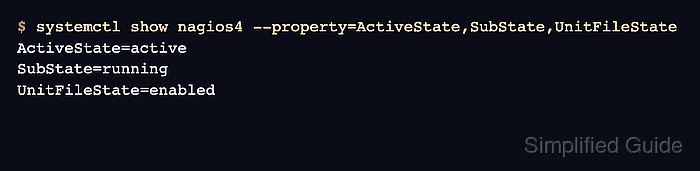
- Verify the final service state and boot policy.
$ systemctl show nagios4 --property=ActiveState,SubState,UnitFileState
ActiveState=active
SubState=running
UnitFileState=enabled

Mohd Shakir Zakaria is a cloud architect with deep roots in software development and open-source advocacy. Certified in AWS, Red Hat, VMware, ITIL, and Linux, he specializes in designing and managing robust cloud and on-premises infrastructures.


