How to back up and restore the LGTM stack
Backing up and restoring the LGTM stack protects the configuration and data paths that make Grafana, Loki, Tempo, and Mimir usable after a cluster failure or migration. A recovery plan should cover Helm values, secret references, Grafana dashboards and data sources, and backend object storage.
Object storage usually holds the durable log, trace, and metric blocks, while Kubernetes holds release state, secret references, and service configuration. Grafana may also use a database or persistent volume that needs a separate backup path.
Do not call a backup complete until a clean namespace or staging cluster can restore the stack and query retained telemetry. A restore drill should prove that Grafana comes back with the expected data sources and that each backend can return at least one known signal.
Related: How to deploy a production LGTM stack
Related: How to upgrade and roll back the LGTM stack
Related: How to configure object storage for Mimir
Related: How to configure object storage for Loki
Related: How to configure object storage for Tempo
Tool: RPO/RTO Gap Calculator
Steps to back up and restore the LGTM stack:
- Create a backup workspace outside the repository root.
$ mkdir -p ~/lgtm-backup/values ~/lgtm-backup/grafana
$ chmod 700 ~/lgtm-backup
- Export Helm release values.
$ helm get values grafana --namespace monitoring --all \
  > ~/lgtm-backup/values/grafana.yaml
$ helm get values loki --namespace monitoring --all \
  > ~/lgtm-backup/values/loki.yaml
$ helm get values tempo --namespace monitoring --all \
  > ~/lgtm-backup/values/tempo.yaml
$ helm get values mimir --namespace monitoring --all \
  > ~/lgtm-backup/values/mimir.yaml
Review exported values before storing them. Some charts can expose secret references or inline credentials depending on how the release was installed.
- Record chart versions and revisions.
$ helm list --namespace monitoring > ~/lgtm-backup/helm-list.txt
$ helm history grafana --namespace monitoring > ~/lgtm-backup/grafana-history.txt
- Export Grafana data sources through the API.
$ curl --silent --user admin:<password> \
  https://grafana.example.com/api/datasources \
  > ~/lgtm-backup/grafana/datasources.json
- Export Grafana dashboards through the approved backup mechanism.
$ curl --silent --user admin:<password> \
  https://grafana.example.com/api/search \
  > ~/lgtm-backup/grafana/dashboard-index.json
Use the organization's existing dashboard backup tool if one is already in place. The API index alone is not a full dashboard backup.
- Record object storage prefixes for each backend.
$ aws s3 ls s3://lgtm-loki-prod/ --recursive
2026-06-21 08:10:00      12000 chunks/tenant-a/...
$ aws s3 ls s3://lgtm-tempo-prod/ --recursive
2026-06-21 08:10:01      18000 traces/...
$ aws s3 ls s3://lgtm-mimir-prod/blocks/ --recursive
2026-06-21 08:10:02      22000 blocks/...
- Restore the backend releases into a clean namespace.
$ kubectl create namespace monitoring-restore
namespace/monitoring-restore created
$ helm upgrade --install loki grafana/loki \
  --namespace monitoring-restore \
  --values ~/lgtm-backup/values/loki.yaml \
  --wait
- Restore Tempo and Mimir with their saved values.
$ helm upgrade --install tempo grafana/tempo-distributed \
  --namespace monitoring-restore \
  --values ~/lgtm-backup/values/tempo.yaml \
  --wait
$ helm upgrade --install mimir grafana/mimir-distributed \
  --namespace monitoring-restore \
  --values ~/lgtm-backup/values/mimir.yaml \
  --wait
- Restore Grafana after backend endpoints are reachable.
$ helm upgrade --install grafana grafana/grafana \
  --namespace monitoring-restore \
  --values ~/lgtm-backup/values/grafana.yaml \
  --wait
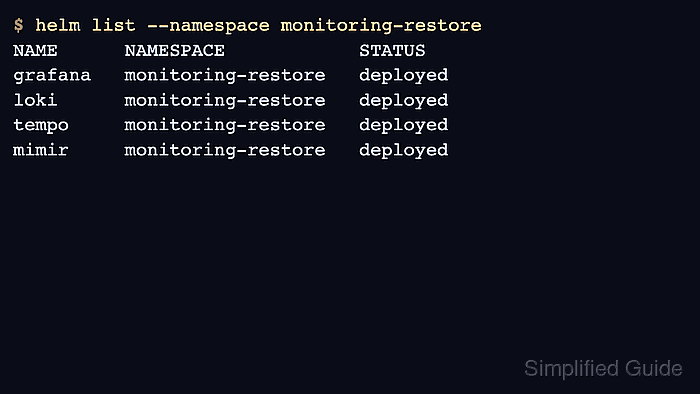
- Check restored release state.
$ helm list --namespace monitoring-restore
NAME      NAMESPACE            STATUS
grafana   monitoring-restore   deployed
loki      monitoring-restore   deployed
tempo     monitoring-restore   deployed
mimir     monitoring-restore   deployed
- Query Grafana health in the restored namespace.
$ curl --silent https://grafana-restore.example.com/api/health {"database":"ok","version":"13.0.1"} - Run one restored data query for each backend.
$ curl --silent --get https://metrics-restore.example.com/prometheus/api/v1/query \
  --data-urlencode 'query=up'
{"status":"success","data":{"resultType":"vector","result":[]}}
An empty vector proves the API responded, not that historical data exists. Use a known retained series, log stream, and trace ID for the final restore drill.