How to monitor VMware ESXi with Checkmk
Monitoring VMware ESXi in Checkmk lets the site collect hypervisor, datastore, hardware, and virtual machine data through the vSphere API without installing agents on ESXi hosts. Use it when virtualization health should appear in the same host and service views as the rest of the monitoring environment.
Checkmk runs the VMware ESX via vSphere special agent from a Checkmk source host. The source host can represent one ESXi host or a vCenter endpoint; vCenter is usually the better source when VMs move between hosts, while direct ESXi collection is still needed for hardware-specific data on individual hypervisors.
Use a dedicated read-only vSphere account and keep VM names aligned with the names that exist, or will exist, as Checkmk hosts. Service discovery on the source host proves the API connection, and piggyback orphan checks show which VMs still need matching Checkmk host objects.
Steps to monitor VMware ESXi with Checkmk:
- Create a dedicated read-only user in ESXi or vCenter for Checkmk monitoring.
Grant Global.Licenses only when Checkmk should monitor vSphere license status. Avoid using a personal administrator account because the password is stored for repeated special-agent checks.
- Sign in to the Checkmk site with permission to edit hosts, rules, passwords, and services.
- Create or open the Checkmk source host for the ESXi host or vCenter endpoint.
Use the DNS name known to the vSphere endpoint when possible, and keep Monitoring agents → Checkmk agent / API integrations set to API integrations if configured, else Checkmk agent.
Related: How to add a host in Checkmk - Store the vSphere password in Setup → General → Passwords when password-store use is required.
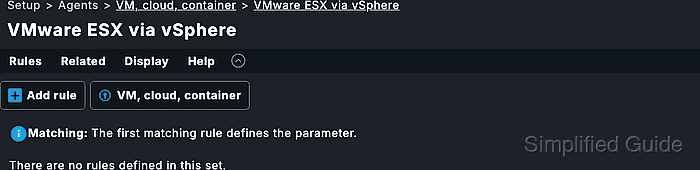
- Open Setup → Agents → VM, cloud, container → VMware ESX via vSphere.
- Create a rule in the folder that owns the source host.
Use the same folder as the source host unless the VMware rule should be inherited by a narrower folder.
Related: How to create a Checkmk rule for selected hosts - Select the query type that matches the source endpoint.
Choose a direct ESXi query for one hypervisor, or choose vCenter when the source host represents a vCenter server.
- Enter the vSphere user name and password or password-store entry.
- Select the vSphere data that Checkmk should retrieve.
For a combined vCenter plus direct-ESXi setup, collect datastores and virtual machines through vCenter, then collect host systems and performance counters directly from the ESXi hosts to avoid duplicated data while keeping hardware-specific checks.
- Configure the VM piggyback naming options.
Use the VM name when Checkmk host names already match vSphere VM names. Use the guest operating system host name only when that name is available through the vSphere API and matches the host objects that Checkmk will monitor.
- Restrict the rule to the source host under Conditions → Explicit hosts.
A VMware special-agent rule without a narrow condition can run against unrelated hosts and create confusing service discovery results.
- Save the rule.
- Run the Checkmk connection test for the source host.
Use Save & run connection tests from the host properties page or the host diagnostic view. A successful test should show vSphere sections instead of a normal Checkmk agent response.
- Query the source host from the Checkmk site shell when terminal evidence is needed.
OMD[monitoring]:~$ cmk -d vcenter01
<<<esx_vsphere_objects:sep(9)>>>
hostsystem      esx01       poweredOn
hostsystem      esx02       poweredOn
virtualmachine  app01       esx01  poweredOn
virtualmachine  db01        esx02  poweredOn
<<<<app01>>>>
<<<vmware_vm>>>
power_state poweredOn
Replace vcenter01 with the Checkmk source host name. The command prints the source host's raw agent output, including VMware sections and piggyback markers when VM data is collected.
- Run service discovery on the source host.
Accept the discovered ESXi, vCenter, datastore, license, and VM status services that should enter monitoring.
Related: How to run Checkmk service discovery - Create Checkmk hosts for VMs that should receive piggyback services.
Commercial editions can automate VM host creation with dynamic host management. In smaller or Community sites, create the VM hosts manually and keep each host name identical to the piggyback object name.
Related: How to create a Checkmk piggyback host - List orphaned piggyback data from the Checkmk site shell when expected VMs are missing.
OMD[monitoring]:~$ cmk-piggyback list orphans
app01
db01
Orphaned piggyback names have data from the VMware source but no matching Checkmk host object.
- Activate the pending Checkmk changes.
Activation publishes the source host, VMware special-agent rule, discovered services, and VM host additions into the running monitoring environment.
Related: How to activate Checkmk pending changes - Open the source host from Monitor and confirm that the ESXi or vCenter services have current check results.
- Open a VM piggyback host from Monitor and confirm that its VMware services have current data without a stale piggyback warning.