Creating a Checkmk piggyback host gives indirectly collected data a real host object in Setup. Use it when a Docker container, Podman container, VMware VM, Kubernetes object, or cloud resource already appears as piggyback data but has no matching host for service discovery.
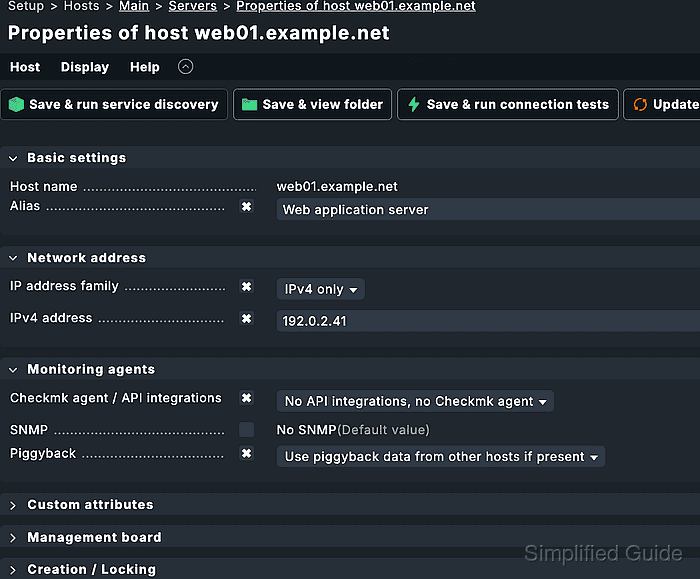
Piggyback assignment is name-based. A source host or special agent writes data for another object, Checkmk stores it under the site's ~/tmp/check_mk/piggyback directory, and the created host name must match the piggyback object exactly, including case.
Commercial editions can create many piggyback hosts through dynamic host management. Manual creation is still useful for a small number of objects, Checkmk Community sites, or environments where the operator wants to check each host name before accepting services.
Related: How to add a host in Checkmk
Related: How to run Checkmk service discovery
Related: How to activate Checkmk pending changes
Steps to create a Checkmk piggyback host:
- List piggyback data that has no matching host from the Checkmk site shell.
OMD[mysite]:~$ cmk-piggyback list orphans
prod-vm01
podman01_web
cmk-piggyback list orphans prints piggybacked object names that already have data in the site but are not present as hosts in monitoring.
- Choose the exact piggyback object name to create.
The Checkmk host name must match the piggyback directory name exactly. Case changes, prefixes, shortened domains, and renamed containers prevent automatic assignment unless a host-name translation rule handles them.
- Open Setup → Hosts → Hosts.
- Open the folder that should contain the piggybacked host.
- Click Add host.
- Enter prod-vm01 in Host name.
- Set Network address → IP address family to No IP.
Use No IP for objects such as containers or API-discovered VMs that Checkmk should not ping directly. If the object also has its own agent and reachable address, keep the address settings that belong to that direct monitoring path.
- Set Basic settings → Parents to podman01 when the relationship is known.
For container hosts, the parent is usually the Docker or Podman host that provides the piggyback data. For VMs or cloud objects, use the hypervisor, vCenter, cluster, or source host that matches the monitoring topology.
- Set Monitoring agents → Checkmk agent / API integrations to No API integrations, no Checkmk agent for a pure piggyback object.
Use this setting for objects that should receive only piggybacked services and have no direct Checkmk agent, SNMP, or special-agent check of their own.
- Set Monitoring agents → Piggyback to Always use and expect piggyback data.
This makes missing or outdated piggyback data visible on the Check_MK service instead of silently falling back to direct agent data.
- Save the host and run service discovery.
Use Save & run service discovery from the host form or open Host → Run service discovery after saving.
Related: How to run Checkmk service discovery - Accept the discovered piggyback services for the host.
The service list should show services from the piggyback data source, such as container, VM, Kubernetes object, or cloud-resource checks. Do not accept an empty discovery result until the source host has been checked again and the piggyback name has been compared.
- Activate the pending Checkmk changes.
Activation makes the created host and accepted services available in monitoring.
Related: How to activate Checkmk pending changes - Open the host in Monitor and confirm the piggyback services are monitored.
The Check_MK service should show that piggyback data is used. Missing or stale piggyback data should affect the host according to the Piggyback setting and the site rules for processing outdated piggyback data.

Mohd Shakir Zakaria is a cloud architect with deep roots in software development and open-source advocacy. Certified in AWS, Red Hat, VMware, ITIL, and Linux, he specializes in designing and managing robust cloud and on-premises infrastructures.


