How to install a Certbot certificate for Apache
An Apache certificate install is only finished when the public hostname serves HTTPS from the virtual host that Certbot changed. A stale DNS record, unmatched ServerName, blocked port 80, or overlapping alias can stop validation or leave the certificate attached to the wrong site.
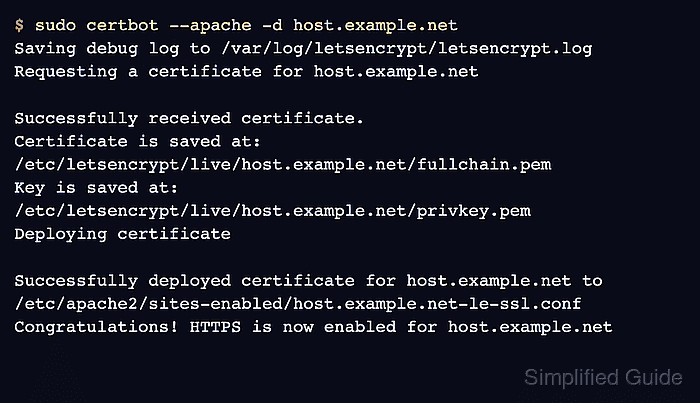
The Certbot Apache plugin uses the ACME HTTP-01 challenge for ordinary hostnames, requests the certificate, edits the matching Apache virtual host, and stores certificate files under /etc/letsencrypt/live. Current Certbot instructions recommend the snap package on modern Linux systems because it keeps Certbot current and includes automated renewal handling.
Examples below use the Debian and Ubuntu Apache layout with apache2ctl, systemctl, snapd, and the snap-installed certbot command. Replace host.example.net with the exact public name in the Apache virtual host, repeat -d for each additional name that should be covered, and use a DNS-based Certbot challenge instead when the certificate needs a wildcard name.
Related: Create an Apache virtual host
Related: Configure Let's Encrypt SSL in Apache
Steps to install a Certbot certificate for Apache:
- Confirm that the hostname resolves to the server public address.
$ getent ahosts host.example.net
203.0.113.10    STREAM host.example.net
203.0.113.10    DGRAM
203.0.113.10    RAW
If the hostname has an .AAAA record, the IPv6 address must also reach this Apache host or Let's Encrypt validation can fail over IPv6.
- Confirm that Apache answers HTTP on port 80 for the hostname.
$ curl -I http://host.example.net
HTTP/1.1 200 OK
Server: Apache/2.4.66 (Ubuntu)
##### snipped #####
The default HTTP-01 flow needs public access to port 80. A site that only works through a VPN, private address, CDN-only origin rule, or alternate port will not validate with this method.
- Confirm that Apache maps the hostname to the intended virtual host.
$ sudo apache2ctl -S
VirtualHost configuration:
*:80                   host.example.net (/etc/apache2/sites-enabled/host.example.net.conf:1)
ServerRoot: "/etc/apache2"
##### snipped #####
Overlapping ServerName or ServerAlias values can cause Certbot to edit a different virtual host than the one visitors use.
Related: Find Apache configuration files
- Install snapd if the server does not already have it.
$ sudo apt install snapd
Ubuntu servers usually include snapd already. On Debian, install it from the distribution package and follow the platform instructions for enabling classic snap support before continuing.
- Remove old operating-system Certbot packages before installing the snap.
$ sudo apt remove certbot python3-certbot-apache
Do not remove /etc/letsencrypt when replacing the Certbot package source unless the certificate lineages are intentionally being retired.
- Install the Certbot snap.
$ sudo snap install --classic certbot
certbot 5.6.0 from Certbot Project installed
- Link the snap command into a standard command path.
$ sudo ln -s /snap/bin/certbot /usr/local/bin/certbot
If /usr/local/bin/certbot already exists, confirm that it is not an older package-manager binary before replacing it.
- Confirm that Certbot can see the Apache plugin.
$ sudo certbot plugins
Saving debug log to /var/log/letsencrypt/letsencrypt.log

* apache
Description: Apache Web Server plugin
Interfaces: Authenticator, Installer, Plugin
##### snipped #####
- Run Certbot with the Apache installer for the hostname.
$ sudo certbot --apache -d host.example.net
Saving debug log to /var/log/letsencrypt/letsencrypt.log
Requesting a certificate for host.example.net

Successfully received certificate.
Certificate is saved at: /etc/letsencrypt/live/host.example.net/fullchain.pem
Key is saved at:         /etc/letsencrypt/live/host.example.net/privkey.pem
Deploying certificate

Successfully deployed certificate for host.example.net to /etc/apache2/sites-enabled/host.example.net-le-ssl.conf
Congratulations! HTTPS is now enabled for host.example.net
Add another -d option for each name on the same certificate, such as www.host.example.net. Use --no-redirect when HTTP must stay reachable during a staged rollout.
- Test the Apache configuration after Certbot edits the virtual host.
$ sudo apache2ctl configtest
Syntax OK
Do not reload Apache until the SSL virtual host parses cleanly.
Related: Test Apache configuration
- Reload Apache to apply the certificate-backed virtual host.
$ sudo systemctl reload apache2
Related: Manage the Apache service
- Confirm that Apache stayed active after the reload.
$ sudo systemctl is-active apache2
active
Related: Manage the Apache service
- Verify that the hostname responds over HTTPS.
$ curl -I https://host.example.net
HTTP/1.1 200 OK
Server: Apache/2.4.66 (Ubuntu)
##### snipped #####
- Verify the HTTP redirect when Certbot enabled one.
$ curl -I http://host.example.net
HTTP/1.1 301 Moved Permanently
Location: https://host.example.net/
##### snipped #####
Skip this check when --no-redirect was used intentionally or another layer owns the HTTP-to-HTTPS redirect.
Related: Redirect HTTP to HTTPS in Apache - List the saved Certbot certificate lineage.
$ sudo certbot certificates
Saving debug log to /var/log/letsencrypt/letsencrypt.log

Certificate Name: host.example.net
    Domains: host.example.net
    Expiry Date: 2026-09-04 03:51:58+00:00 (VALID: 84 days)
    Certificate Path: /etc/letsencrypt/live/host.example.net/fullchain.pem
    Private Key Path: /etc/letsencrypt/live/host.example.net/privkey.pem
The local lineage confirms where Certbot stored the certificate. The live HTTPS check confirms what Apache is serving to clients.
- Test the renewal path.
$ sudo certbot renew --dry-run
Saving debug log to /var/log/letsencrypt/letsencrypt.log
##### snipped #####
Congratulations, all simulated renewals succeeded:
  /etc/letsencrypt/live/host.example.net/fullchain.pem (success)
--dry-run uses the Let's Encrypt staging service and does not replace the active production certificate.
Related: Test Certbot certificate renewal
- Confirm that the snap renewal timer exists.
$ systemctl status snap.certbot.renew.timer --no-pager
● snap.certbot.renew.timer - Timer renew for snap application certbot.renew
     Loaded: loaded (/etc/systemd/system/snap.certbot.renew.timer; enabled)
     Active: active (waiting)
##### snipped #####
The snap package normally creates its own renewal timer. If the unit name differs on the server, use systemctl list-timers and look for the timer that runs certbot renew.