Serving an Apache site over HTTPS with a Let's Encrypt certificate protects logins, sessions, and API traffic from interception while removing browser trust warnings from the public hostname.
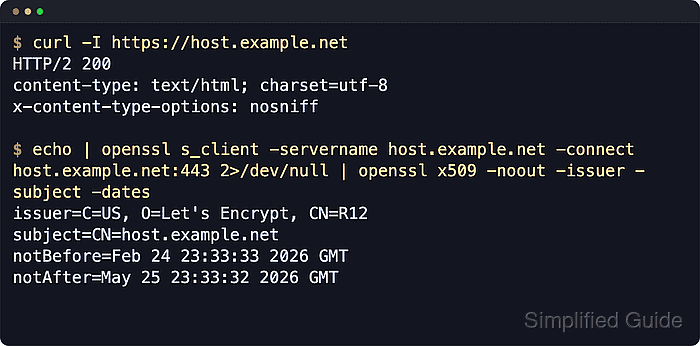
Let's Encrypt uses the ACME protocol to prove control of each requested name before it issues a certificate. With the Apache plugin, certbot can request the certificate, update the matching virtual host, store the certificate material under /etc/letsencrypt/live/, and leave renewal to the packaged systemd timer.
Examples below use the Debian and Ubuntu Apache layout with apache2ctl, the apache2 service name, and the distro packages certbot plus python3-certbot-apache. Public DNS, port 80 reachability, and a working /.well-known/acme-challenge/ path all need to line up before issuance, so reverse proxies, CDNs, load balancers, and stale .AAAA records can block validation even when one local HTTP test still succeeds.
Related: How to harden Apache web server security
Related: How to enable HSTS in Apache
Tool: SSL Expiry Checker
Steps to configure Let's Encrypt SSL in Apache:
- Confirm that the domain resolves to the server public IP address.
$ getent ahosts host.example.net
203.0.113.10   STREAM host.example.net
203.0.113.10   DGRAM
203.0.113.10   RAW
If the name also has an .AAAA record, that IPv6 address must reach the same Apache virtual host or the ACME validation can fail from validators that choose IPv6.
- Confirm that Apache serves the site over HTTP on port 80.
$ curl -I http://host.example.net
HTTP/1.1 200 OK
Server: Apache/2.4.66 (Ubuntu)
##### snipped #####
The default HTTP-01 validation path uses port 80, so a site that only works through a private address, alternate port, or VPN path will not validate.
- Confirm that the Apache virtual host selection matches the intended site for the domain.
$ sudo apache2ctl -S
VirtualHost configuration:
*:80                   host.example.net (/etc/apache2/sites-enabled/host.example.net.conf:1)
ServerRoot: "/etc/apache2"
##### snipped #####
Multiple vhosts with overlapping ServerName or ServerAlias entries can cause certbot to edit the wrong site.
- Refresh the package index on Debian or Ubuntu.
$ sudo apt update
Hit:1 http://archive.ubuntu.com/ubuntu resolute InRelease
Get:2 http://archive.ubuntu.com/ubuntu resolute-updates InRelease [137 kB]
##### snipped #####
Reading package lists... Done
- Install certbot and the Apache plugin.
$ sudo apt install --assume-yes certbot python3-certbot-apache
The following NEW packages will be installed:
  certbot python3-certbot-apache
##### snipped #####
Other packaged install paths, including snap, use different renewal unit names, so match the later timer check to the install method actually used.
- Run certbot with the Apache plugin for the domain.
$ sudo certbot --apache -d host.example.net -d www.host.example.net
Saving debug log to /var/log/letsencrypt/letsencrypt.log
Requesting a certificate for host.example.net and www.host.example.net
##### snipped #####
Successfully received certificate.
Certificate is saved at: /etc/letsencrypt/live/host.example.net/fullchain.pem
Key is saved at:         /etc/letsencrypt/live/host.example.net/privkey.pem
Deploying certificate
##### snipped #####
The Apache plugin both authenticates and installs the certificate, and its default validation flow uses HTTP-01 on port 80. Wildcard names require a DNS-based validation plugin instead.
Current certbot install or run mode defaults to HTTP→HTTPS redirects unless --no-redirect is supplied, so use --no-redirect when HTTP must stay reachable during rollout or another layer already handles redirects.
Use --test-cert to rehearse against the Let's Encrypt staging service before requesting a live certificate.
- Validate the Apache configuration syntax after the SSL vhost change.
$ sudo apache2ctl configtest
Syntax OK
Reloading with a broken SSL vhost can take HTTPS offline for the entire server.
Related: How to test Apache configuration
- Reload the Apache service to apply the SSL configuration.
$ sudo systemctl reload apache2
- Confirm that the Apache service stayed active after the reload.
$ sudo systemctl is-active apache2
active
If the service does not return active, inspect the journal before retrying the reload because the certificate paths, permissions, or vhost selection may still be wrong.
- Verify HTTPS responses for the site.
$ curl -I https://host.example.net
HTTP/1.1 200 OK
Server: Apache/2.4.66 (Ubuntu)
##### snipped #####
- Verify that HTTP redirects to HTTPS when redirect is enabled.
$ curl -I http://host.example.net
HTTP/1.1 301 Moved Permanently
Location: https://host.example.net/
##### snipped #####
- Verify the certificate chain and expiry served by the site using openssl.
$ echo | openssl s_client -servername host.example.net -connect host.example.net:443 2>/dev/null | openssl x509 -noout -issuer -subject -dates
issuer=C=US,O=Let's Encrypt,CN=YE1
subject=CN=host.example.net
notBefore=Jun  6 03:51:59 2026 GMT
notAfter=Sep  4 03:51:58 2026 GMT
The intermediate name can differ by profile and key type, but the subject, dates, and issuer organization should match the deployed certificate.
- Validate that the certbot renewal timer is active.
$ sudo systemctl status certbot.timer --no-pager
● certbot.timer - Run certbot twice daily
     Loaded: loaded (/lib/systemd/system/certbot.timer; enabled; preset: enabled)
     Active: active (waiting) since Sat 2026-06-06 03:50:40 UTC; 2min ago
    Trigger: Sat 2026-06-06 11:02:18 UTC
##### snipped #####
snap installs use snap-managed unit names instead of certbot.timer, so check the timer or service that matches the packaging method actually in use.
- Perform a renewal dry run to confirm automated renewal works.
$ sudo certbot renew --dry-run
Saving debug log to /var/log/letsencrypt/letsencrypt.log
##### snipped #####
Congratulations, all simulated renewals succeeded:
  /etc/letsencrypt/live/host.example.net/fullchain.pem (success)
--dry-run uses the staging service and does not replace the active production certificate.

Mohd Shakir Zakaria is a cloud architect with deep roots in software development and open-source advocacy. Certified in AWS, Red Hat, VMware, ITIL, and Linux, he specializes in designing and managing robust cloud and on-premises infrastructures.


