How to update Appium drivers and plugins
Mobile test suites can keep using an old Appium driver or plugin even when the core server package is current. Updating extensions through the Appium Extension CLI refreshes the packages stored in the active APPIUM_HOME directory, so the next server start loads the intended driver and plugin versions.
Appium manages drivers and plugins separately from the server package. The list --updates check shows whether an installed npm-managed extension has a newer release, while the update command changes the extension package inside the selected extension home.
Stop the Appium server before changing extensions and restart it from the same environment after the version check passes. By default, extension updates stay within minor and patch releases; use --unsafe only after reviewing the extension release notes because it allows major-version changes.
Related: How to install Appium
Related: How to install the Appium Android driver
Related: How to install and enable an Appium plugin
Steps to update Appium drivers and plugins:
- Stop any running Appium server.
A running server keeps the driver and plugin code it loaded at startup. Restart it only after the updated extension list shows the expected versions.
- Set the project Appium home when the extensions are not in the default directory.
$ export APPIUM_HOME="$PWD/.appium-home/android"
Skip this step when Appium should use the default ~/.appium directory. Use the same APPIUM_HOME value for list, update, doctor, and server commands.
Related: How to use APPIUM_HOME for Appium extensions - Check the npm version used by the Appium CLI.
$ npm --version
10.9.8
Appium 3 requires npm version 10 or newer. Upgrade npm before updating extensions if this command prints 9.x or older.
- Check the installed Appium server version.
$ appium --version
3.5.0
Update the server package separately when the core Appium version also needs to change.
Related: How to update the Appium server - List installed driver updates.
$ appium driver list --installed --updates
- Listing installed drivers (rerun with --verbose for more info)
✔ Listing installed drivers (rerun with --verbose for more info)
- uiautomator2@7.5.2 [installed (npm)] [7.6.1 available]
No [version available] marker means the selected APPIUM_HOME has no npm-managed driver update for that row.
- Update the driver that has an available version.
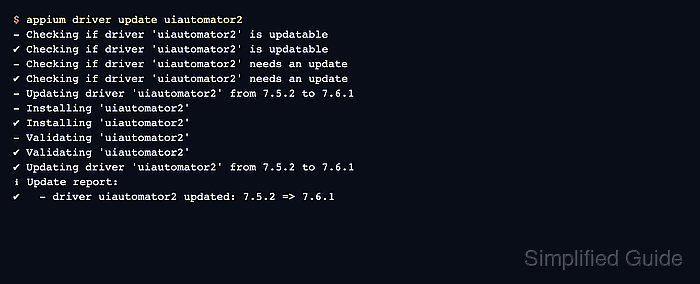
$ appium driver update uiautomator2
- Checking if driver 'uiautomator2' is updatable
✔ Checking if driver 'uiautomator2' is updatable
- Checking if driver 'uiautomator2' needs an update
✔ Checking if driver 'uiautomator2' needs an update
- Updating driver 'uiautomator2' from 7.5.2 to 7.6.1
- Installing 'uiautomator2'
✔ Installing 'uiautomator2'
- Validating 'uiautomator2'
✔ Validating 'uiautomator2'
✔ Updating driver 'uiautomator2' from 7.5.2 to 7.6.1
ℹ Update report:
✔   - driver uiautomator2 updated: 7.5.2 => 7.6.1
Replace uiautomator2 with the short extension name shown by the list command. Use installed instead of one name only when the maintenance window should update every installed driver in the selected APPIUM_HOME.
- Confirm the updated driver version.
$ appium driver list --installed
- Listing installed drivers (rerun with --verbose for more info)
✔ Listing installed drivers (rerun with --verbose for more info)
- uiautomator2@7.6.1 [installed (npm)]
Run the driver doctor check when the driver controls a local SDK or device toolchain.
Related: How to run Appium driver doctor checks - List installed plugin updates.
$ appium plugin list --installed --updates
- Listing installed plugins (rerun with --verbose for more info)
✔ Listing installed plugins (rerun with --verbose for more info)
- relaxed-caps@2.2.0 [installed (npm)] [2.2.3 available]
- Update installed plugins after reviewing the available versions.
$ appium plugin update installed
If the update report contains a failed row, that plugin stayed on its previous version. Leave Appium stopped and resolve the npm or extension install error before treating the plugin as updated.
- Confirm plugin versions before restarting the server.
$ appium plugin list --installed
- Listing installed plugins (rerun with --verbose for more info)
✔ Listing installed plugins (rerun with --verbose for more info)
- relaxed-caps@2.2.3 [installed (npm)]
The row must show the new version from the earlier [version available] marker. If it still shows the old version, the plugin update did not complete.
- Start Appium again with the same extension home.
$ appium --address 127.0.0.1 --port 4723
[Appium] Welcome to Appium v3.5.0
[Appium] The autodetected Appium home path: .appium-home/android
[Appium] Appium REST http interface listener started on http://127.0.0.1:4723
Run the project driver or plugin smoke test after the server starts. A status endpoint check proves the server is listening, but a real driver or plugin change still needs the relevant mobile test path.