An Xcode test plan groups the test targets and run configurations that belong to a scheme. It keeps XCUITest settings such as localization, repetition, screenshot capture, and CI-specific options in a versioned .xctestplan file instead of burying them in one-off scheme edits.
Test plans are selected from the active app scheme. The scheme still decides which app builds, while the test plan decides which test bundles and configurations run when Product → Test or xcodebuild test starts the test action.
The starting point is an existing app scheme and an existing UI test target such as MyAppUITests. A small first plan should include the UI test bundle, add one named CI configuration, attach the plan to the scheme, and produce a test report that shows the configuration was used.
Related: How to add an XCUITest UI testing target
Related: How to write a first XCUITest UI test
Related: How to run XCUITest tests locally
Steps to create an XCUITest test plan in Xcode:
- Open the project in Xcode and select the app scheme that builds MyApp.
- Choose Product → Test Plan → New Test Plan.
- Name the plan MyAppUITests and save MyAppUITests.xctestplan inside the project directory.
- Open MyAppUITests.xctestplan from the Project navigator.
- Include MyAppUITests in the Test Targets section.
Add the UI test target if the plan opens empty. Keep the app target as the target for variable expansion when Xcode asks which host app should supply runtime variables.
- Open the Configurations tab.
- Keep the first configuration named Default.
- Add a second configuration named CI.
- Select the CI configuration and set Language to English and Region to United States under the localization options.
Use one observable setting first. Add timeout, repetition, screenshot, or parallel execution options after the plan is attached to the scheme and runs once.
- Open Product → Scheme → Edit Scheme.
- Select the Test action and confirm MyAppUITests appears in the Test Plans list.
If the scheme still lists individual test bundles, convert the scheme to use test plans or add MyAppUITests.xctestplan from the plus button in the Test action.
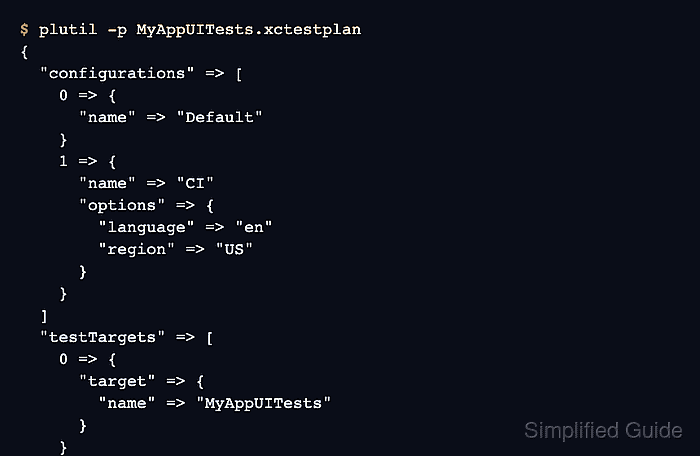
- Inspect the saved plan file from the project root.
$ plutil -p MyAppUITests.xctestplan { "configurations" => [ 0 => { "name" => "Default" } 1 => { "name" => "CI" "options" => { "language" => "en" "region" => "US" } } ] "testTargets" => [ 0 => { "target" => { "name" => "MyAppUITests" } } ] } - Run the plan once against a simulator.
$ xcodebuild test -scheme MyApp -testPlan MyAppUITests -destination 'platform=iOS Simulator,name=iPhone 16,OS=latest' -resultBundlePath TestResults/MyAppUITests.xcresult ##### snipped ##### ** TEST SUCCEEDED ** Result bundle written to path: TestResults/MyAppUITests.xcresult - Open the latest Test Report and confirm the MyAppUITests target and CI configuration appear in the run summary.

Mohd Shakir Zakaria is a cloud architect with deep roots in software development and open-source advocacy. Certified in AWS, Red Hat, VMware, ITIL, and Linux, he specializes in designing and managing robust cloud and on-premises infrastructures.


