Recurring wget jobs can waste bandwidth and rewrite local files when they fetch the same unchanged target on every run. Timestamping lets the same command act like an incremental check by downloading missing or newer server files and leaving unchanged files alone.
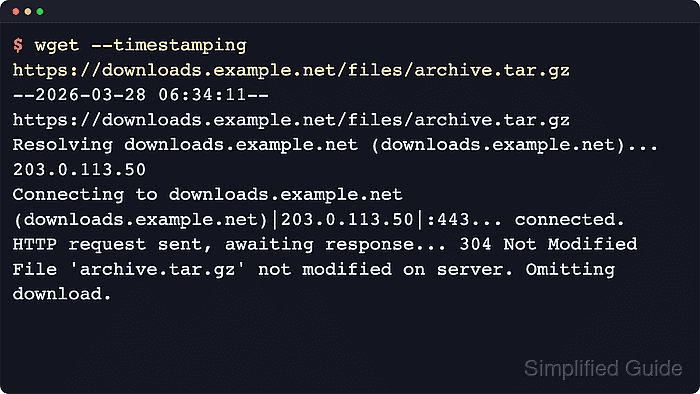
GNU wget uses --timestamping (-N) to compare the local file with the remote timestamp and size. On HTTP, wget normally saves the server timestamp on the local file, sends a conditional request on the next run, and treats 304 Not Modified as proof that no new file data is needed.
The repeated command must run from a directory where the saved filename is still present, and the server must expose usable metadata such as an HTTP Last-Modified header or parseable FTP dates. Avoid --output-document for recurring timestamp checks because GNU wget warns that a fixed output file defeats the comparison.
Steps to download only newer files with wget:
- Download the file with --timestamping so the first run also stores the remote modification time locally.
$ wget --timestamping https://example.net/manifest.txt
--2026-06-06 02:31:28--  https://example.net/manifest.txt
Connecting to example.net... connected.
HTTP request sent, awaiting response... 200 OK
Length: 12 [text/plain]
Saving to: 'manifest.txt'

     0K                                                       100% 2.83M=0s

2026-06-06 02:31:28 (2.83 MB/s) - 'manifest.txt' saved [12/12]
Run later checks from the same directory so wget compares against this local file instead of creating a second copy elsewhere.
- Run the same command again and confirm that unchanged content is skipped.
$ wget --timestamping https://example.net/manifest.txt
--2026-06-06 02:31:28--  https://example.net/manifest.txt
Connecting to example.net... connected.
HTTP request sent, awaiting response... 304 Not Modified
File 'manifest.txt' not modified on server. Omitting download.
A 304 Not Modified response is the usual HTTP proof that the saved local file is already current.
- Repeat the same command after the remote file changes and confirm that wget downloads the newer copy.
$ wget --timestamping https://example.net/manifest.txt
--2026-06-06 02:31:30--  https://example.net/manifest.txt
Connecting to example.net... connected.
HTTP request sent, awaiting response... 200 OK
Length: 31 [text/plain]
Saving to: 'manifest.txt'

     0K                                                       100% 12.0M=0s

2026-06-06 02:31:30 (12.0 MB/s) - 'manifest.txt' saved [31/31]
The URL and command stay the same. The newer server timestamp or size is what causes the fresh download.
- Run the timestamped command once more to confirm that the updated local copy is now current again.
$ wget --timestamping https://example.net/manifest.txt
--2026-06-06 02:31:30--  https://example.net/manifest.txt
Connecting to example.net... connected.
HTTP request sent, awaiting response... 304 Not Modified
File 'manifest.txt' not modified on server. Omitting download.
Do not combine --timestamping with --output-document for repeated checks. GNU wget warns that the fixed output file breaks the timestamp comparison and forces a new download.

Mohd Shakir Zakaria is a cloud architect with deep roots in software development and open-source advocacy. Certified in AWS, Red Hat, VMware, ITIL, and Linux, he specializes in designing and managing robust cloud and on-premises infrastructures.


