Tomcat memory changes under systemd need to reach the Java process that the service wrapper starts. Exporting heap flags in an interactive shell or editing a user profile does not affect tomcat10.service, and a saved setting only matters after the service restarts and the running Java command line shows the new heap limits.
On current Ubuntu and Debian packages, tomcat10.service starts /usr/libexec/tomcat10/tomcat-start.sh, and that script reads /etc/default/tomcat10 before launching catalina.sh run. That makes /etc/default/tomcat10 the service-scoped place for this packaged unit; a custom /opt/tomcat service may use a drop-in, an environment file, or setenv.sh instead.
The sample commands use tomcat10.service and set -Xms256m -Xmx512m. Choose values that leave memory for the operating system, native threads, direct buffers, and nearby services, then verify both the systemd service state and the running Java process before treating the change as complete.
Steps to set Tomcat memory options with systemd:
- Identify the Tomcat unit name.
$ systemctl list-unit-files 'tomcat*.service'
UNIT FILE         STATE   PRESET
tomcat10.service  enabled enabled
Use tomcat10 only when that is the unit that starts the target instance. Replace it with tomcat, tomcat11, or a local instance unit when the host uses a different name.
- Confirm the unit starts the packaged Tomcat wrapper.
$ systemctl cat tomcat10
# /usr/lib/systemd/system/tomcat10.service
##### snipped #####

[Service]
Environment="CATALINA_HOME=/usr/share/tomcat10"
Environment="CATALINA_BASE=/var/lib/tomcat10"
Environment="CATALINA_TMPDIR=/tmp"
Environment="JAVA_OPTS=-Djava.awt.headless=true"
##### snipped #####
ExecStart=/bin/sh /usr/libexec/tomcat10/tomcat-start.sh
- Confirm the startup wrapper reads the package settings file.
$ sudo cat /usr/libexec/tomcat10/tomcat-start.sh
#!/bin/sh
##### snipped #####

# Load the service settings
. /etc/default/tomcat10
##### snipped #####
If the unit launches Java directly instead of using the package wrapper, set the memory options in that unit's documented environment file or a systemctl edit drop-in and verify the running command line after restart.
- Check the current package-level Java options.
$ sudo grep '^JAVA_OPTS=' /etc/default/tomcat10
JAVA_OPTS="-Djava.awt.headless=true"
- Back up the Tomcat defaults file before changing memory options.
$ sudo cp /etc/default/tomcat10 /etc/default/tomcat10.bak
- Open the package settings file.
$ sudoedit /etc/default/tomcat10
- Set the Tomcat Java options with the desired heap limits.
JAVA_OPTS="-Djava.awt.headless=true -Xms256m -Xmx512m"
Keep one active JAVA_OPTS assignment and preserve required existing options such as -Djava.awt.headless=true. Duplicate heap flags can make it unclear which value the JVM will use.
Upstream Tomcat startup scripts usually put heap settings in CATALINA_OPTS through setenv.sh. The Ubuntu and Debian tomcat10 package shown here exports JAVA_OPTS from /etc/default/tomcat10 for the systemd-managed service.
- Restart Tomcat so the service reads the updated settings file.
$ sudo systemctl restart tomcat10
Editing /etc/default/tomcat10 does not require systemctl daemon-reload because the unit file did not change. Run daemon-reload only after editing a unit file or drop-in.
- Confirm the service remains active after the restart.
$ systemctl is-active tomcat10
active
- Confirm which service account runs the Tomcat Java process.
$ systemctl show tomcat10 -p User --value
tomcat
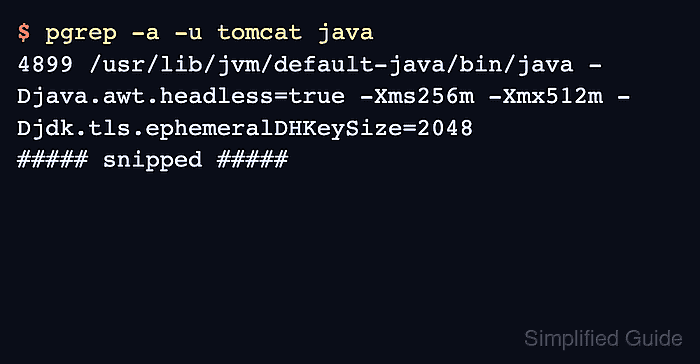
- Verify the running Java command line includes the heap options.
$ pgrep -a -u tomcat java
4899 /usr/lib/jvm/default-java/bin/java -Djava.util.logging.config.file=/var/lib/tomcat10/conf/logging.properties -Djava.util.logging.manager=org.apache.juli.ClassLoaderLogManager -Djava.awt.headless=true -Xms256m -Xmx512m -Djdk.tls.ephemeralDHKeySize=2048
##### snipped #####
If the unit uses a different User= value, replace tomcat in the command with that service account.
- Check the Catalina startup log for the same JVM arguments.
$ sudo cat /var/log/tomcat10/catalina.2026-06-10.log
10-Jun-2026 20:52:37.318 INFO [main] org.apache.catalina.startup.VersionLoggerListener.log Command line argument: -Xms256m
10-Jun-2026 20:52:37.318 INFO [main] org.apache.catalina.startup.VersionLoggerListener.log Command line argument: -Xmx512m
##### snipped #####
10-Jun-2026 20:52:37.919 INFO [main] org.apache.catalina.startup.Catalina.start Server startup in [437] milliseconds
Use the dated Catalina log that changed during the restart on your host. If the restart fails, read the journal and Catalina log before raising the heap again.
Related: How to view Tomcat logs on Linux
- Confirm Tomcat still answers on the local HTTP connector.
$ curl -I http://127.0.0.1:8080/
HTTP/1.1 200
Accept-Ranges: bytes
ETag: W/"1905-1781124756690"
Last-Modified: Wed, 10 Jun 2026 20:52:36 GMT
Content-Type: text/html
Content-Length: 1905
Date: Wed, 10 Jun 2026 20:52:40 GMT

Mohd Shakir Zakaria is a cloud architect with deep roots in software development and open-source advocacy. Certified in AWS, Red Hat, VMware, ITIL, and Linux, he specializes in designing and managing robust cloud and on-premises infrastructures.


