Tomcat can start with a different Java runtime than the one shown in an interactive shell. When systemd launches the service, it uses the unit environment and service startup script, so a value in .bashrc, .profile, or /etc/profile.d may leave Tomcat running on the previous JDK.
A service drop-in keeps JAVA_HOME attached to the Tomcat unit instead of changing the whole host. Ubuntu packages name the unit tomcat10.service, while custom installations may use tomcat.service or another local unit name; use the unit name that actually starts the application.
JAVA_HOME must point at the JDK or JRE directory, not the bin/java executable. Check package defaults such as /etc/default/tomcat10 before restarting, because a startup script that sources a later file can override the service environment.
Steps to set JAVA_HOME for a Tomcat systemd service:
- Identify the Tomcat unit name.
$ systemctl list-unit-files 'tomcat*.service'
UNIT FILE         STATE   PRESET
tomcat10.service  enabled enabled
Examples below use tomcat10. Replace it with the unit name from your host, such as tomcat for a custom service.
- Resolve the Java executable path.
$ readlink -f /usr/bin/java
/usr/lib/jvm/java-25-openjdk-arm64/bin/java
Use the parent JDK directory as JAVA_HOME. For the output above, the value is /usr/lib/jvm/java-25-openjdk-arm64.
- Open a service drop-in for the Tomcat unit.
$ sudo systemctl edit tomcat10 --drop-in=java-home.conf
- Add the JAVA_HOME environment setting.
[Service]
Environment="JAVA_HOME=/usr/lib/jvm/java-25-openjdk-arm64"
If /etc/default/tomcat10 or another startup file already sets JAVA_HOME, update that file to the same path or remove the conflicting value before restarting.
- Reload the systemd manager configuration.
$ sudo systemctl daemon-reload
- Confirm the drop-in is part of the merged Tomcat unit.
$ systemctl cat tomcat10
# /usr/lib/systemd/system/tomcat10.service
##### snipped #####

# /etc/systemd/system/tomcat10.service.d/java-home.conf
[Service]
Environment="JAVA_HOME=/usr/lib/jvm/java-25-openjdk-arm64"
- Restart Tomcat to apply the service environment.
$ sudo systemctl restart tomcat10
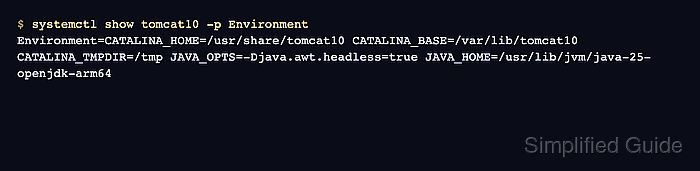
- Check that systemd has the new environment value.
$ systemctl show tomcat10 -p Environment
Environment=CATALINA_HOME=/usr/share/tomcat10 CATALINA_BASE=/var/lib/tomcat10 CATALINA_TMPDIR=/tmp JAVA_OPTS=-Djava.awt.headless=true JAVA_HOME=/usr/lib/jvm/java-25-openjdk-arm64
- Check which service user runs Tomcat.
$ systemctl show tomcat10 -p User --value
tomcat
- Confirm the running Tomcat Java process starts from the chosen JDK.
$ pgrep -a -u tomcat java
1432 /usr/lib/jvm/java-25-openjdk-arm64/bin/java -Djava.util.logging.config.file=/var/lib/tomcat10/conf/logging.properties
##### snipped #####
If the service uses a different User= value, replace tomcat in the command with that account.
- Confirm Tomcat still answers on its HTTP connector.
$ curl -I http://127.0.0.1:8080/
HTTP/1.1 200
Accept-Ranges: bytes
Content-Type: text/html
##### snipped #####

Mohd Shakir Zakaria is a cloud architect with deep roots in software development and open-source advocacy. Certified in AWS, Red Hat, VMware, ITIL, and Linux, he specializes in designing and managing robust cloud and on-premises infrastructures.


