Querying Tempo traces in Grafana lets an operator inspect request spans, duration, and service attributes from the Explore view. Use this when traces are already reaching Tempo and the task is to find one trace or a small set of traces for investigation.
The Tempo data source supports multiple query modes in Explore. The search builder helps locate recent traces by service or span fields, direct trace ID lookup opens a known trace, and TraceQL provides a query language for trace selection.
Set the Grafana time range to cover the trace timestamps before querying. A valid trace ID can still return nothing when the selected time range excludes the span or when the trace has not yet flushed through the backend.
Steps to query Tempo traces in Grafana:
- Confirm the Tempo data source exists in Grafana.
$ curl --silent --user admin:admin http://127.0.0.1:3000/api/datasources/uid/tempo {"uid":"tempo","name":"Tempo","type":"tempo","url":"http://tempo:3200"} - Open Grafana.
- Open Explore from the left navigation.
- Select the Tempo data source.
- Set the time range to include the trace being investigated.
- Select the Search query type.
- Enter the service name in the search fields and click Run query.
service.name = checkout-api
- Select a returned trace from the result list.
- Confirm the trace view shows the expected service and span.
service.name: checkout-api
span: checkout-request
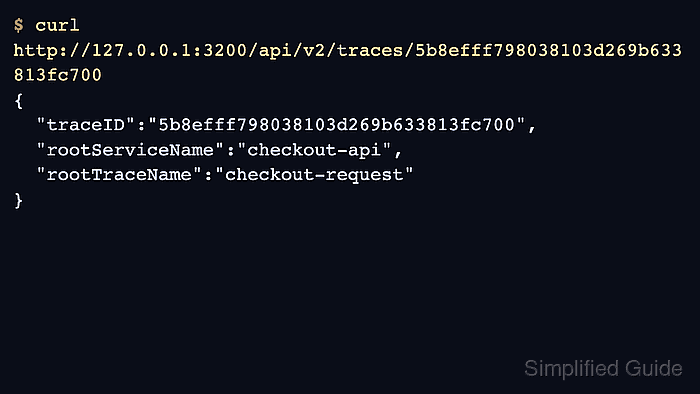
traceID: 5b8efff798038103d269b633813fc700
- Use direct trace lookup when the trace ID is already known.
5b8efff798038103d269b633813fc700
Direct lookup is the fastest path when the trace ID came from a log line, alert annotation, support ticket, or API response.
- Run a TraceQL query for a reusable filter.
{ resource.service.name = "checkout-api" }TraceQL filters can be saved into dashboards or reused during investigations where service, span, duration, or status attributes matter.

Mohd Shakir Zakaria is a cloud architect with deep roots in software development and open-source advocacy. Certified in AWS, Red Hat, VMware, ITIL, and Linux, he specializes in designing and managing robust cloud and on-premises infrastructures.


