Linking Tempo traces to Loki logs in Grafana adds a navigation path from a span to log lines from the same request or service. It is useful when a trace shows where latency or an error happened and the matching logs contain the application detail.
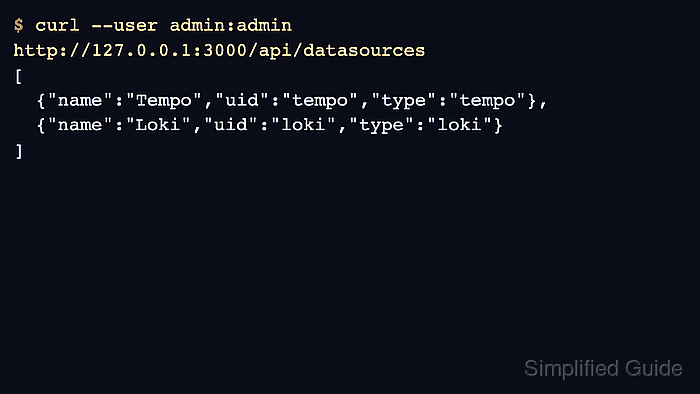
Trace-to-log linking is configured on the Tempo data source, while log-to-trace linking is configured on the Loki data source. Both sides need to agree on the data source UIDs and on the fields that connect records, such as service.name and a trace ID in the log body.
Do not use trace IDs as Loki labels. Use low-cardinality labels such as service, namespace, or cluster for stream selection, then match trace IDs from structured metadata or message content.
Steps to link Tempo traces to Loki logs:
- Confirm the Tempo and Loki data source UIDs.
$ curl --silent --user admin:admin http://127.0.0.1:3000/api/datasources [ {"uid":"tempo","name":"Tempo","type":"tempo"}, {"uid":"loki","name":"Loki","type":"loki"} ] - Open Connections → Data sources in Grafana.
- Select the Tempo data source.
- Open or scroll to the Trace to logs section.
- Select the Loki data source in the Data source field.
- Set Span start time shift to -2s and Span end time shift to 2s.
Widen the window when log writes happen noticeably before or after span timestamps.
- Add a tag mapping from service.name to service_name.
The Loki label must match the actual stream label. A mismatch returns no logs without proving that the trace has no matching log lines.
- Enable trace ID filtering when log lines contain the trace ID.
- Save and test the Tempo data source.
- Select the Loki data source.
- Add a derived field that extracts trace IDs from log lines.
name: TraceID matcherRegex: trace_id=([0-9a-fA-F]{32}) datasourceUid: tempo url: ${__value.raw} - Save and test the Loki data source.
- Open a trace in Grafana Explore and click Logs for this span.
- Confirm that Grafana opens a Loki query for the matching service and time window.
{service_name="checkout-api"} |= "5b8efff798038103d269b633813fc700" - Open a matching Loki log line and confirm the TraceID link opens the Tempo trace.
If one direction works but the other does not, review the data source UID and regular expression on the failing side.

Mohd Shakir Zakaria is a cloud architect with deep roots in software development and open-source advocacy. Certified in AWS, Red Hat, VMware, ITIL, and Linux, he specializes in designing and managing robust cloud and on-premises infrastructures.


