Mapping an SMB share to a drive letter helps Windows 11 users reach a shared folder from File Explorer, desktop shortcuts, and applications that expect a local-looking path. The mapped drive still depends on the remote SMB/CIFS server, but the user no longer needs to type the full network address each time.
The Map network drive dialog stores a per-user drive letter for a UNC path such as \\files.example.net\projects. Reconnect at sign-in asks Windows to restore the mapping after logon, while Connect using different credentials forces a credential prompt instead of silently trying the current Windows account.
Use the exact server and share name published by the Samba server, storage appliance, or Windows file server. Existing connections to the same server can block a second login with different credentials, so disconnect old mappings or clear saved credentials when Windows keeps reusing the wrong account.
Steps to map an SMB share as a Windows network drive:
- Open File Explorer with Win + E.
- Select This PC in the left pane.
- Open the See more menu and select Map network drive.
On Windows 10, open This PC and select Map network drive from the Computer tab.
- Select an unused drive letter from the Drive list.
- Enter the SMB share path in the Folder field.
\\files.example.net\projects
Use a UNC path in the form \\server\share. Add a subfolder only when the share owner expects users to start inside that folder.
- Enable Reconnect at sign-in when the drive should return after the user signs back in.
- Enable Connect using different credentials when the share requires an account other than the current Windows sign-in.
- Click Finish to create the mapping.
- Enter the SMB username and password when Windows Security prompts for credentials.
Use DOMAIN\username for a domain account, SERVER\username for a local account on a Windows or Samba server, or the account format supplied by the storage provider.
Selecting Remember my credentials stores the password in Credential Manager for the signed-in Windows account.
- Open the new drive under This PC and confirm the expected folder contents appear.
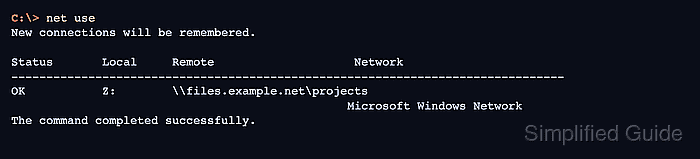
- Verify the mapped drive from Command Prompt when a script or support ticket needs text proof.
C:\> net use
New connections will be remembered.

Status       Local     Remote                    Network
-------------------------------------------------------------------------------
OK           Z:        \\files.example.net\projects
                                                Microsoft Windows Network
The command completed successfully.

Mohd Shakir Zakaria is a cloud architect with deep roots in software development and open-source advocacy. Certified in AWS, Red Hat, VMware, ITIL, and Linux, he specializes in designing and managing robust cloud and on-premises infrastructures.


