Browser file controls hand selection to a native picker that WebDriver does not automate. Selenium bypasses that desktop dialog by sending an absolute path to the page's input[type=file] element.
A complete upload test should submit the form and inspect the response returned by the application. A populated file input proves only that the browser accepted the path; it does not prove that the server accepted the file.
The Python example uses local Chrome and a small text fixture stored beside the test script. Remote WebDriver uses a local file detector by default, but the remote server must support file transfer from the test runner to the browser node.
Steps to upload a file with Selenium:
- Create sample-upload.txt beside the Selenium test script.
- sample-upload.txt
Quarterly report
- Create upload_file_test.py with the imports and absolute fixture path.
- upload_file_test.py
from pathlib import Path
import shutil

from selenium import webdriver
from selenium.webdriver.common.by import By
from selenium.webdriver.support.ui import WebDriverWait


upload_file = Path("sample-upload.txt").resolve()
- Append the initial browser-session section for the file-selection page.
options = webdriver.ChromeOptions()
options.add_argument("--headless")
driver_path = shutil.which("chromedriver")
service = webdriver.ChromeService(executable_path=driver_path) if driver_path else None
driver = webdriver.Chrome(service=service, options=options)

try:
    driver.get("https://the-internet.herokuapp.com/upload")
If Chrome cannot start, configure the matching browser driver before continuing.
Related: How to configure ChromeDriver for Selenium - Add file selection and form submission inside the existing try block.
    file_input = driver.find_element(By.CSS_SELECTOR, "input[type='file']")
    file_input.send_keys(str(upload_file))
    driver.find_element(By.ID, "file-submit").click()
The absolute path belongs on the file input itself; clicking the control opens an operating system picker that WebDriver cannot automate.
- Complete the script with filename verification and browser cleanup.
    uploaded_name = WebDriverWait(driver, 10).until(
        lambda browser: browser.find_element(By.ID, "uploaded-files").text
    )
    assert uploaded_name == upload_file.name, uploaded_name
    print(f"Uploaded: {uploaded_name}")
finally:
    driver.quit()
The assertion fails when the response does not name the selected file, so the test checks server-side upload completion rather than file-input state alone.
Related: How to use explicit waits in Selenium - Run the completed upload test from the directory containing both files.
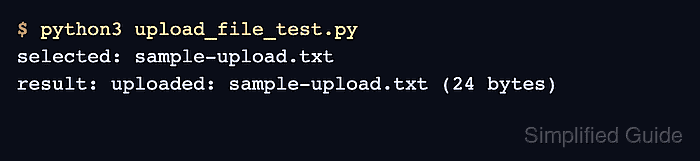
$ python3 upload_file_test.py
Uploaded: sample-upload.txt

Mohd Shakir Zakaria is a cloud architect with deep roots in software development and open-source advocacy. Certified in AWS, Red Hat, VMware, ITIL, and Linux, he specializes in designing and managing robust cloud and on-premises infrastructures.


