A local Selenium Grid in Docker lets UI tests send Remote WebDriver commands to a browser that is separate from the test runner. Running Grid as a standalone container is a quick way to reproduce CI-style browser execution on a workstation before the same endpoint is wired into a larger suite.
The standalone Selenium image starts the Grid router, node, and browser runtime in one container. The commands use the full-tagged standalone-chromium image because it works on common Linux AMD64 and ARM64 Docker hosts, while the standalone-chrome image is limited to AMD64 hosts.
Grid is ready only after the status endpoint reports ready as true and a client can create a browser session. Publish port 4444 only where the test runner needs to reach it, and give browser images enough shared memory with --shm-size so Chromium does not crash under normal UI test load.
Steps to run Selenium Grid in Docker:
- Start a standalone Selenium Grid container with Chromium.
$ docker run --detach --name selenium-grid --publish 4444:4444 --shm-size=2g selenium/standalone-chromium:4.44.0-20260505
134d42fc7200
The container advertises browserName=chrome because Selenium drives Chromium through Chrome-compatible WebDriver capabilities. On Linux AMD64 hosts that require Google Chrome itself, substitute selenium/standalone-chrome:4.44.0-20260505.
- Check that the Grid router is ready.
$ curl --silent http://localhost:4444/status | python3 -m json.tool
{
    "value": {
        "nodes": [
##### snipped #####
        ],
        "message": "Selenium Grid ready.",
        "ready": true
    }
}
Wait for ready to become true before starting tests, because the container can be running before the Grid has registered its browser slot.
- Install the Selenium Python client in the active project environment.
$ python3 -m pip install selenium
Skip this step when the project lock file or virtual environment already includes selenium.
Related: How to install Selenium WebDriver for Python - Create a remote browser smoke-test script.
$ cat > selenium-grid-smoke.py <<'PY'
from selenium import webdriver
from selenium.webdriver.common.by import By
from selenium.webdriver.support import expected_conditions as EC
from selenium.webdriver.support.ui import WebDriverWait


options = webdriver.ChromeOptions()
driver = webdriver.Remote(command_executor="http://localhost:4444", options=options)

try:
    driver.get("data:text/html,<title>Grid smoke</title><h1>Selenium Grid</h1>")
    WebDriverWait(driver, 10).until(
        EC.presence_of_element_located((By.TAG_NAME, "h1"))
    )
    print(f"browser={driver.capabilities.get('browserName')}")
    print(f"title={driver.title}")
finally:
    driver.quit()
PY
localhost works when the test process runs on the host that published port 4444. Use the Grid service name, host address, or CI network address when the test runs from another container or machine.
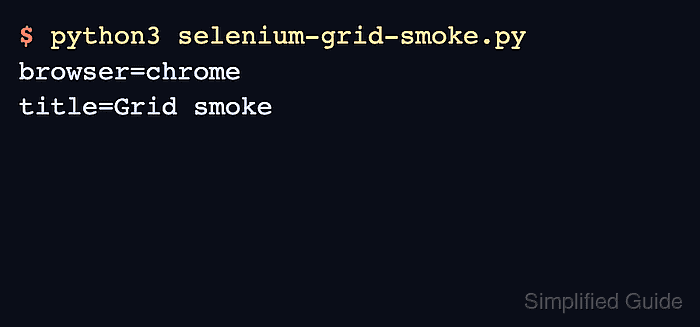
- Run the smoke test through the Docker Grid.
$ python3 selenium-grid-smoke.py
browser=chrome
title=Grid smoke
- Remove the temporary smoke-test script after the project test configuration uses the working remote URL.
$ rm selenium-grid-smoke.py
- Stop the Grid container when the test run is finished.
$ docker rm --force selenium-grid
selenium-grid

Mohd Shakir Zakaria is a cloud architect with deep roots in software development and open-source advocacy. Certified in AWS, Red Hat, VMware, ITIL, and Linux, he specializes in designing and managing robust cloud and on-premises infrastructures.


