Leaving an attached Screen display unlocked exposes every shell, editor, and command running inside that terminal. Locking the display blocks Screen command keys and keeps the windows running, so a shared workstation or jump host terminal can be left at a lock prompt without stopping active work.
The lockscreen command is bound to C-a x and C-a C-x by default. Screen runs the lock program from $LOCKPRG when that variable was set before Screen started, otherwise it falls back to a system lock helper or its built-in lock prompt.
Treat this as a terminal lock, not a full account lock. If another unlocked shell for the same account can run screen -r and the Screen session has no password protection, that shell can reattach around the locked display. Detach the session or use the operating system lock screen when other terminals are reachable.
Steps to lock a Screen session display:
- Confirm the terminal is inside the Screen session that should be locked.
$ echo "$STY"
193.lockdemo
An empty STY value means the current shell is outside Screen. Attach to the target session before using the lock key.
- Press the default lock key.
C-a x
C-a means press Ctrl+a, release it, and then press x. If the Screen prefix was changed, use the configured prefix followed by x.
- Leave the terminal at the lock prompt.
Key:
The built-in Screen lock can show Key:, while external lock helpers may show a password prompt. While the prompt is active, Screen does not accept normal Screen command keys from that display.
- Check the session from another trusted terminal when proof is needed.
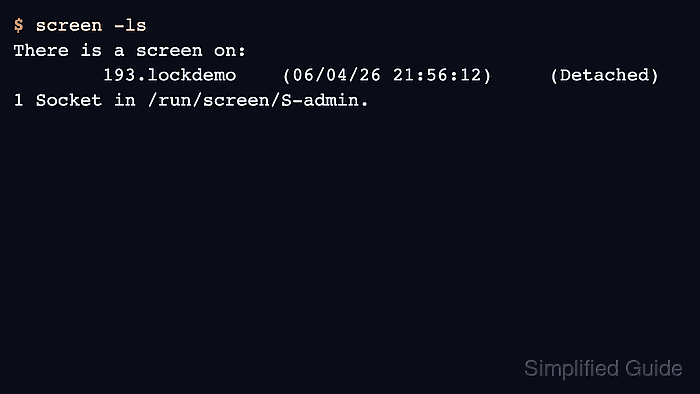
$ screen -ls
There is a screen on:
        193.lockdemo    (06/04/26 21:56:12)     (Detached)
1 Socket in /run/screen/S-admin.
The session should still be listed while the display is locked. It can appear as Detached because the lock program owns the display, but the windows inside the session continue running.
- Unlock the display with the key, password, or action requested by the lock program.
After the lock program exits, Screen redraws the session and accepts command keys again. If the prompt accepts an empty key, do not treat the terminal lock as protection on a shared workstation.
- Detach instead when the terminal should stop controlling the session.
C-a d
[detached from 193.lockdemo]
Detach leaves the session running without leaving a locked display attached to the terminal.