Attaching to a detached Screen session brings a saved terminal workspace back to the current shell after an SSH drop, terminal close, or deliberate detach. Listing sessions first matters when more than one session belongs to the account because the attach command takes over the current terminal.
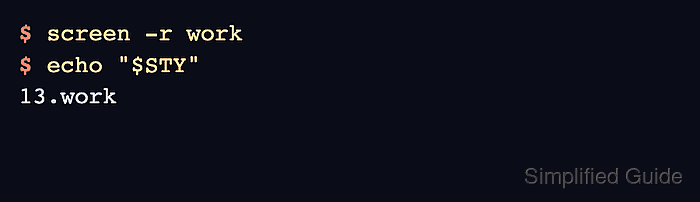
The screen -r option resumes a detached session identified by a name such as work or by the full process-qualified identifier printed by screen -ls. When the target is still attached elsewhere, screen -d -r detaches that other display before reattaching here, while screen -x opens another display against the same session.
Choose takeover and multi-display modes deliberately on shared hosts. Detaching another display can interrupt the person using it, and multi-display attach lets both terminals type into the same session, so identify the target name and confirm the STY value after attach before continuing work. The example output below was verified in an Ubuntu 26.04 container, but process IDs and socket users change on each host.
Steps to attach to a Screen session:
- List available Screen sessions and confirm the target is detached.
$ screen -ls
There is a screen on:
        13.work         (06/05/26 07:00:06)     (Detached)
1 Socket in /run/screen/S-admin.
Use the name after the process prefix as the normal attach target. In this output, the target name is work.
- Attach to the detached session by name.
$ screen -r work
Screen takes over the current terminal and redraws the session. Use the full identifier, such as 13.work, when several sessions have similar names.
- Confirm the shell is inside the intended session.
$ echo "$STY"
13.work
The STY value should match the session selected from screen -ls.
- Detach the display when finished while leaving the session running.
C-a d
[detached from 13.work]
- Detach another display first when the session is attached elsewhere and must move to this terminal.
$ screen -d -r work
This disconnects the other display immediately, so use it only when taking over that terminal is intentional.
- Attach in multi-display mode when another terminal should stay connected.
$ screen -x work
Both displays can type into the same Screen session, so use multi-display attach only when shared control is expected.