A named Screen session gives a shell or command its own workspace that can keep running after the terminal disconnects. Starting the session with a short job name makes later list, attach, and cleanup commands point at the intended workspace instead of a default process-and-terminal name.
The attached form, screen -S work, opens the new session in the current terminal so the first shell, editor, or command can be started by hand. The detached form, screen -dmS build command, creates the session in the background and starts the first command without taking over the terminal.
Use one descriptive name per job, service, or host role. Screen allows duplicate names, and duplicate rows make later screen -r, screen -X, and cleanup commands require the full process-qualified name such as 12345.build.
Steps to create a Screen session:
- Create a named session and attach to it.
$ screen -S work
The terminal switches into the new work session. Start the shell, editor, or command that should keep running inside that session. Use screen -dmS build sleep 300 instead when the first command can start unattended.
- Detach from the session when the work should continue in the background.
C-a d
The default detach binding returns to the parent shell while the work session and its windows continue running. Related: How to detach from a Screen session
- List sessions to confirm the name exists.
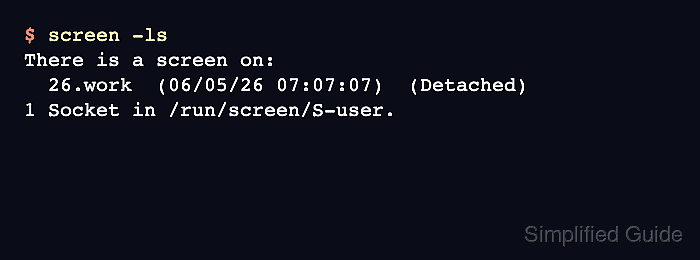
$ screen -ls
There is a screen on:
        26.work  (06/05/26 07:07:07)  (Detached)
1 Socket in /run/screen/S-user.
The list should show the chosen name after the process prefix and a state such as Attached or Detached. If several rows end in the same name, later commands such as screen -S work -X quit need the full process-qualified target, such as 26.work.