A terminal can find the conda executable and still fail to activate environments when the shell startup hook is missing. Initializing Conda for that shell adds the shell function that lets conda activate change PATH and environment variables in the current session.
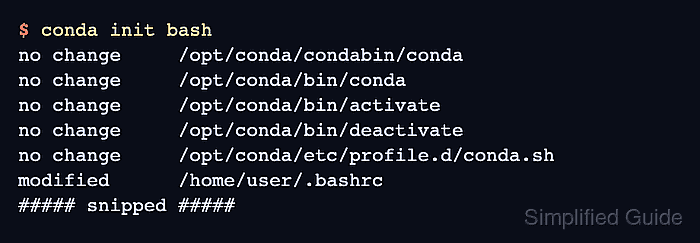
conda init writes shell-specific startup code for the selected shell. On Linux with Bash, the user-level target is usually ~/.bashrc; zsh, fish, tcsh, xonsh, and PowerShell use their own matching startup files or profiles.
Preview the change before writing it, initialize only the shell that opens the terminal, and restart the terminal before testing activation. The default user mode changes only the current user's startup files; use --system only for a managed multi-user installation, and avoid --condabin when the goal is conda activate because that option adds only the condabin directory to PATH.
Steps to initialize Conda for Bash:
- Confirm the terminal can run Conda.
$ conda --version
conda 26.3.2
The exact version changes over time. If the command is not found, start from the shell that was opened by the installer or add the installation's condabin directory to PATH before running conda init.
- Preview the Bash startup change.
$ conda init bash --dry-run
no change     /opt/conda/condabin/conda
no change     /opt/conda/bin/conda
no change     /opt/conda/bin/activate
no change     /opt/conda/bin/deactivate
no change     /opt/conda/etc/profile.d/conda.sh
##### snipped #####
modified      /home/user/.bashrc

==> DRY RUN: The above changes would have been made. NO ACTUAL CHANGES WERE MADE. <==
Replace bash with zsh, fish, tcsh, xonsh, or powershell when that is the shell being initialized. Add --verbose to the dry run when the exact inserted startup block needs review.
- Initialize Conda for Bash.
$ conda init bash
no change     /opt/conda/condabin/conda
no change     /opt/conda/bin/conda
no change     /opt/conda/bin/activate
no change     /opt/conda/bin/deactivate
no change     /opt/conda/etc/profile.d/conda.sh
##### snipped #####
modified      /home/user/.bashrc

==> For changes to take effect, close and re-open your current shell. <==
This command edits the startup file for the selected shell. Use conda init --reverse bash if the wrong shell was initialized and the last Conda initialization block needs to be removed.
- Close the current terminal window.
- Open a new Bash terminal.
- Activate an existing Conda environment.
$ conda activate analytics-env
Replace analytics-env with an environment that already exists. Create the environment first if Conda reports that the name cannot be found.
Related: How to activate a Conda environment - Confirm the selected environment is active.
$ conda info --envs

# conda environments:
#
# * -> active
# + -> frozen
base                     /opt/conda
analytics-env        *   /opt/conda/envs/analytics-env
- Preview the initialization state again if activation still fails.
$ conda init bash --dry-run
no change     /opt/conda/condabin/conda
no change     /opt/conda/bin/conda
no change     /opt/conda/bin/activate
no change     /opt/conda/bin/deactivate
no change     /opt/conda/etc/profile.d/conda.sh
##### snipped #####
no change     /home/user/.bashrc
DRY RUN: No action would have been taken.
No action would have been taken means Conda already sees the startup hook for that shell. Check that the reopened terminal is actually Bash and that it reads the startup file shown by conda init.

Mohd Shakir Zakaria is a cloud architect with deep roots in software development and open-source advocacy. Certified in AWS, Red Hat, VMware, ITIL, and Linux, he specializes in designing and managing robust cloud and on-premises infrastructures.


