Miniconda gives a Linux user the conda package and environment manager without installing the larger Anaconda Distribution package set. A smaller base install keeps the first setup light, then project environments can be built with only the Python version and packages they need.
Anaconda publishes Linux shell installers for x86_64 and aarch64 systems at repo.anaconda.com/miniconda. The command path uses the aarch64 installer because the verified host is ARM64; use the x86_64 filename when uname -m reports x86_64.
Silent mode installs into a user-owned prefix and waits for a separate conda init step before changing shell startup files. Review Anaconda's legal terms before running the silent installer, and choose an empty destination because installing over an existing conda prefix can damage environments already in use.
Related: Install Anaconda on Ubuntu or Debian
Related: How to create a Conda environment
Related: How to uninstall Anaconda
Steps to install Miniconda on Linux:
- Open a terminal on a supported 64-bit Linux host.
- Check the CPU architecture.
$ uname -m
aarch64
Use Miniconda3-latest-Linux-aarch64.sh when this command returns aarch64. Use Miniconda3-latest-Linux-x86_64.sh when it returns x86_64. Current installers require glibc 2.28 or newer.
- Download the current aarch64 Linux installer.
$ curl --fail --location --remote-name --silent --show-error https://repo.anaconda.com/miniconda/Miniconda3-latest-Linux-aarch64.sh
For x86_64 hosts, replace the filename and URL suffix with Miniconda3-latest-Linux-x86_64.sh.
- Generate the installer SHA-256 hash.
$ sha256sum Miniconda3-latest-Linux-aarch64.sh
81a5e828724478a7a036027a74356ceff0206147d3b1243c8ba32e0cfa187967  Miniconda3-latest-Linux-aarch64.sh
Compare the printed hash with the official entry at https://repo.anaconda.com/miniconda/ before running the installer. The value changes when Anaconda replaces the latest installer.
- Review Anaconda's legal terms.
https://www.anaconda.com/legal
- Install Miniconda into the current user's home directory.
$ bash ./Miniconda3-latest-Linux-aarch64.sh -b -p "$HOME/miniconda3"
PREFIX=/home/user/miniconda3
Unpacking bootstrapper...
Unpacking payload...

Installing base environment...

Preparing transaction: ...working... done
Executing transaction: ...working... done
installation finished.
Use a new empty directory such as $HOME/miniconda3. Do not point the installer at an existing Anaconda or Miniconda prefix.
- Activate Miniconda in the current terminal.
$ source "$HOME/miniconda3/bin/activate"
- Initialize conda for future Bash terminals.
$ conda init bash
no change     /home/user/miniconda3/condabin/conda
##### snipped #####
modified      /home/user/.bashrc

==> For changes to take effect, close and re-open your current shell. <==
conda init bash modifies ~/.bashrc. Run conda init bash --dry-run first when shell startup files are managed by another tool.
Related: How to initialize Conda for a shell
Related: How to disable automatic activation of the Conda base environment - Open a new Bash terminal.
- Confirm that the shell can run conda.
$ conda --version
conda 26.3.2
The exact conda version changes with the installer release. The command should run without command not found.
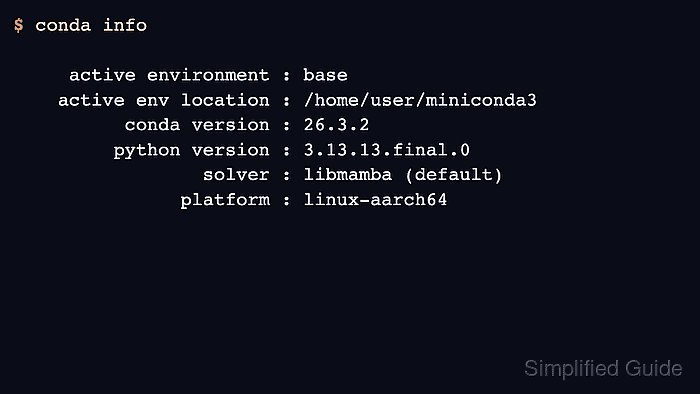
- Confirm that base points to the Miniconda prefix.
$ conda info active environment : base active env location : /home/user/miniconda3 conda version : 26.3.2 python version : 3.13.13.final.0 solver : libmamba (default) platform : linux-aarch64 ##### snipped ##### - Run a local Python smoke test from base.
$ python -c "import sys; print(sys.executable)"
/home/user/miniconda3/bin/python
- Remove the downloaded installer after Miniconda is verified.
$ rm Miniconda3-latest-Linux-aarch64.sh
This removes only the downloaded shell installer. It does not remove the installed Miniconda prefix under $HOME/miniconda3.

Mohd Shakir Zakaria is a cloud architect with deep roots in software development and open-source advocacy. Certified in AWS, Red Hat, VMware, ITIL, and Linux, he specializes in designing and managing robust cloud and on-premises infrastructures.


