A Redmine project is the workspace that holds issues, wiki pages, files, versions, time entries, and member permissions for one team or deliverable. Creating it carefully matters because the identifier becomes part of project URLs and cannot be changed after the first save.
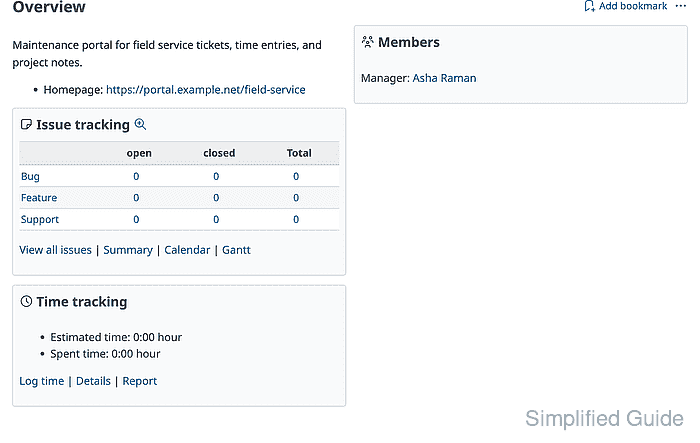
Redmine creates the project shell first, then exposes project settings for issue tracking, modules, members, versions, repositories, forums, and time tracking. The project form controls visibility and enabled modules, while the issue tracking and members tabs confirm which work items and users can operate inside the workspace.
Plan the project identifier, visibility, trackers, and first member role before saving. A private project with no assigned members exists in Redmine, but normal users will not have a team workspace to open until a user or group is added with a role.
Related: How to create a Redmine user
Steps to create a Redmine project:
- Sign in to Redmine with an administrator account.
- Open Projects and click New project.
- Complete the New project form with the project fields, visibility setting, and enabled modules.
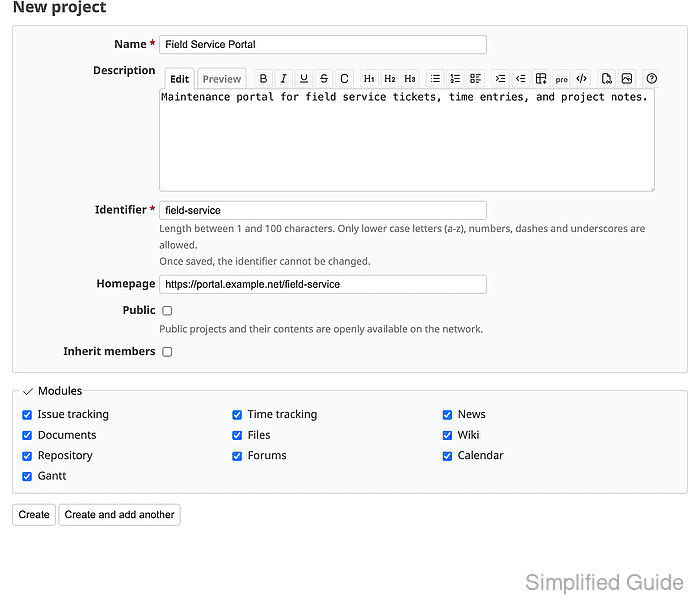
Use a lowercase identifier made from letters, numbers, dashes, or underscores. Redmine locks the identifier after the project is saved.
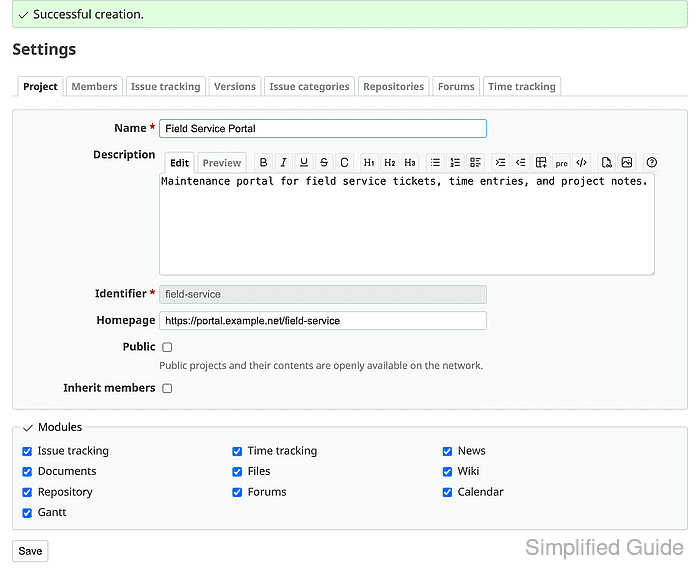
- Click Create and confirm that Redmine shows Successful creation on the project settings page.
- Open the Issue tracking tab and keep only the trackers the project should use.
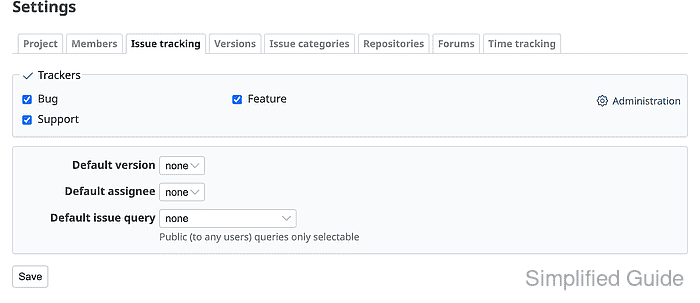
Trackers appear here only when they exist in Redmine administration.
Related: How to create a Redmine tracker - Open the Project tab and review the enabled modules.
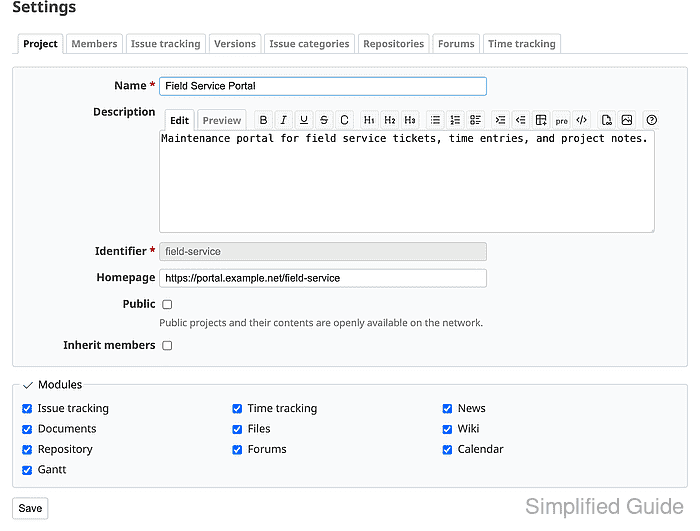
Enabled modules control which project menu items appear, such as Issue tracking, Wiki, Repository, Calendar, and Gantt.
- Open the Members tab and click New member.
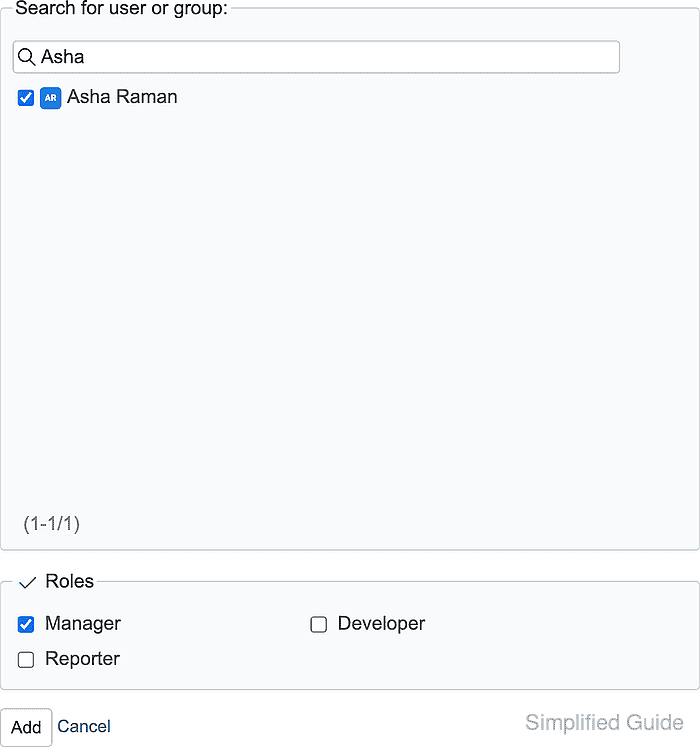
- Search for the existing user or group, select the project role, and click Add.
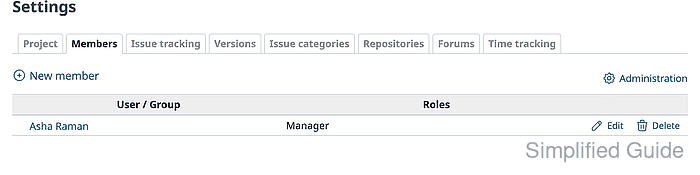
- Confirm that the member list shows the user or group with the selected role.
- Open the project Overview and confirm that the issue tracking panel, enabled modules, and member summary match the project setup.

Mohd Shakir Zakaria is a cloud architect with deep roots in software development and open-source advocacy. Certified in AWS, Red Hat, VMware, ITIL, and Linux, he specializes in designing and managing robust cloud and on-premises infrastructures.


