Redmine trackers separate issues into work types such as bug reports, feature requests, support tickets, and maintenance tasks. A tracker controls the default issue status, the standard and custom fields shown on issue forms, and the workflow rules that let each role move issues through the lifecycle.
The tracker is a site-level administration object. Projects must enable it before users can select it from the New issue form, and workflow rules must exist before the tracker can support normal status changes after issue creation.
Start with a short tracker name, a default status, the fields that users should fill in, and the projects that should receive the tracker. Use an existing issue custom field when one already captures the extra value, or create the field first when the tracker needs a new dropdown, date, text, or user field.
Steps to create a Redmine tracker:
- Sign in to Redmine with an administrator account and open Administration → Trackers.
https://redmine.example.net/trackers
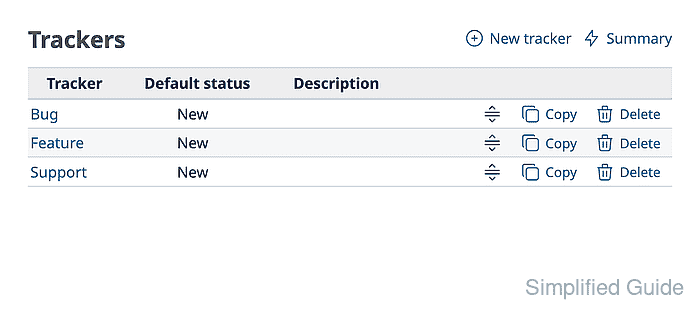
Replace the hostname with the URL for your Redmine site.
- Click New tracker.
- Enter Maintenance in Name and select New in Default status.
- Choose whether issues from the tracker should appear in the Roadmap.
- Keep the standard fields that Maintenance issues should expose, select Customer impact under Custom fields, and choose Bug in Copy workflow from.
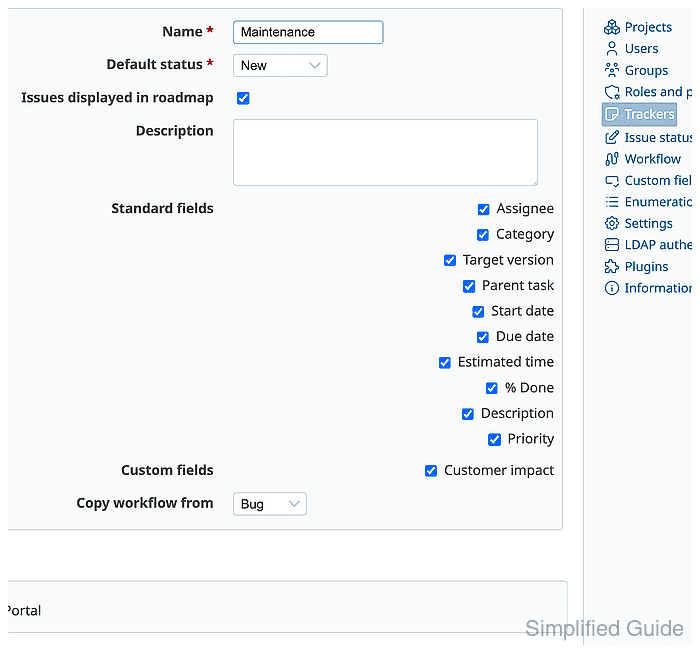
Copy workflow from gives the tracker existing status transitions at creation time.
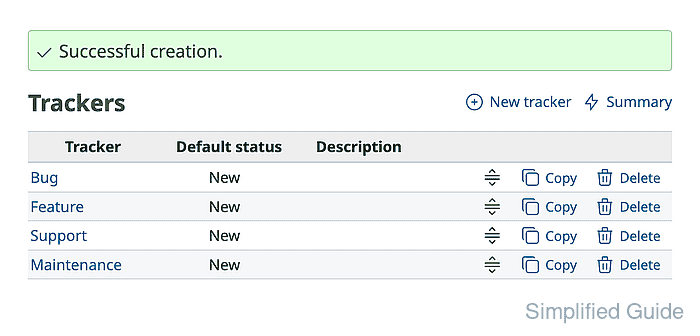
Related: How to create a Redmine custom field - Click Create and confirm that the tracker list shows Maintenance with New as the default status.
- Open Administration → Workflow → Summary and confirm that the Maintenance row shows transition counts for the roles that will use the tracker.
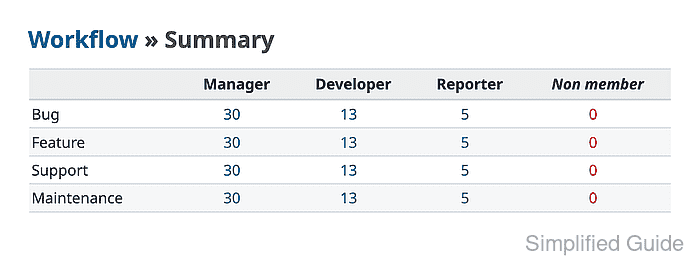
- Open the transition count for the target role and review the allowed Maintenance status changes.
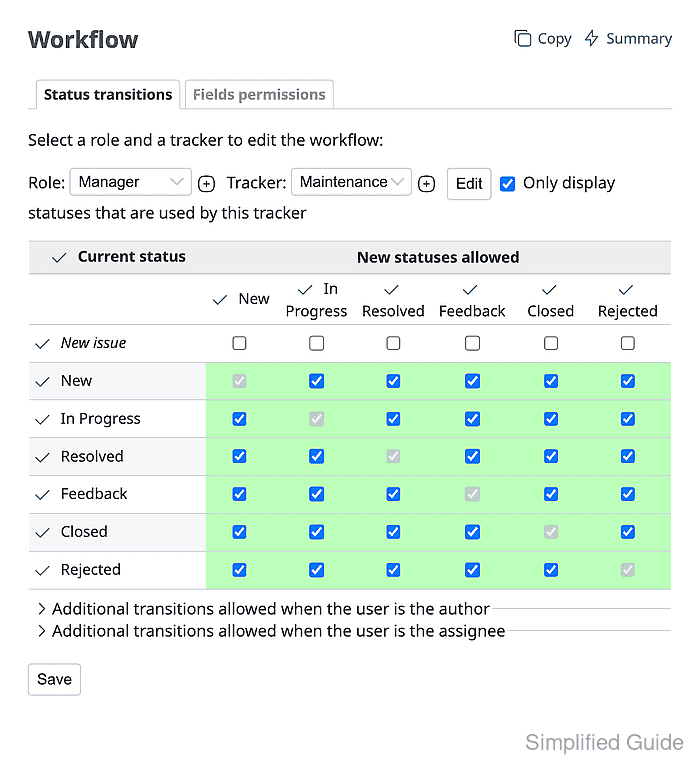
Adjust the matrix when the copied workflow allows too many or too few status changes.
Related: How to configure a Redmine workflow - Open the target project settings and select Maintenance under Issue tracking → Trackers.

Trackers are not visible in a project until the project enables them.
Related: How to create a Redmine project - Click Save and confirm that Redmine reports a successful update.
- Open a new issue in the project and select Maintenance from Tracker.
- Enter a test subject and choose High for Customer impact.
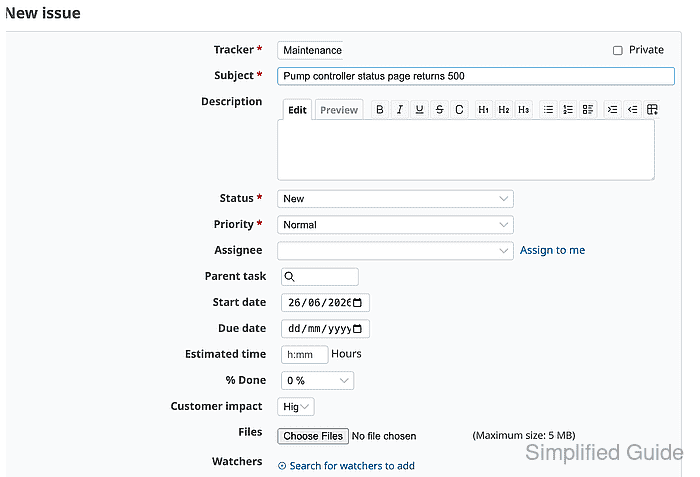
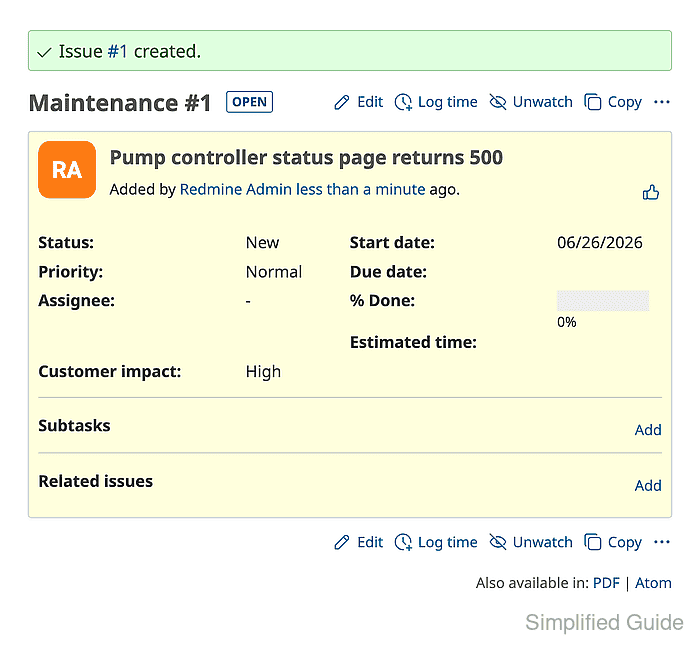
- Click Create and confirm that the saved issue shows Maintenance, New status, and Customer impact: High.
Related: How to create a Redmine issue

Mohd Shakir Zakaria is a cloud architect with deep roots in software development and open-source advocacy. Certified in AWS, Red Hat, VMware, ITIL, and Linux, he specializes in designing and managing robust cloud and on-premises infrastructures.


