Project membership in Redmine controls who can enter a project and which project actions are available after login. Add a member when a user or group needs access to a private workspace, issue tracker, wiki, files, time entries, or another project module under a named role.
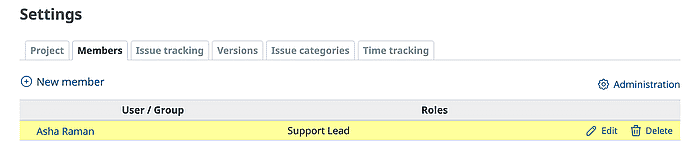
The Members tab in project settings accepts active users and groups. Redmine can assign more than one role to the same member, and the permissions from those roles are combined for that project.
Use an administrator account or a project role with Manage members permission before changing access. For private projects, the member row is the access grant; a signed-in check with the added account confirms that the project opens with the role visible on the overview page.
Related: How to create a Redmine user
Related: How to create a Redmine group
Related: How to set Redmine role permissions
Steps to add a Redmine project member:
- Open the target project in Redmine.
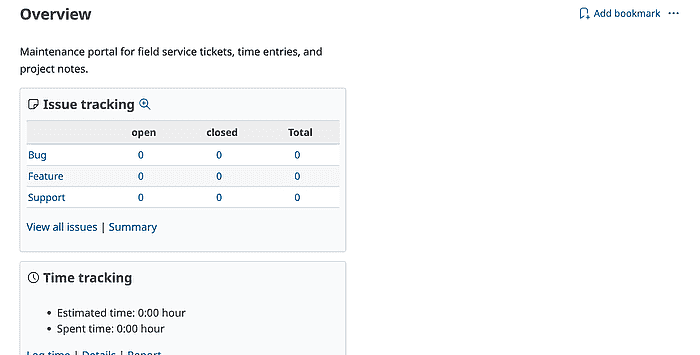
- Click Settings.
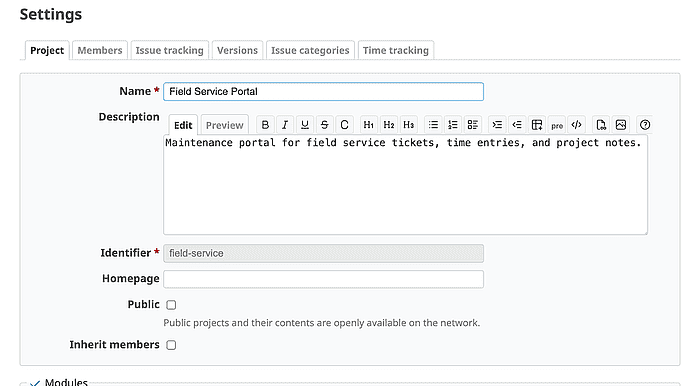
The signed-in account needs Manage members permission for the project, or the Members tab cannot be changed.
- Open the Members tab.
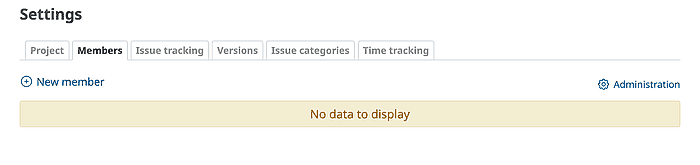
- Click New member.
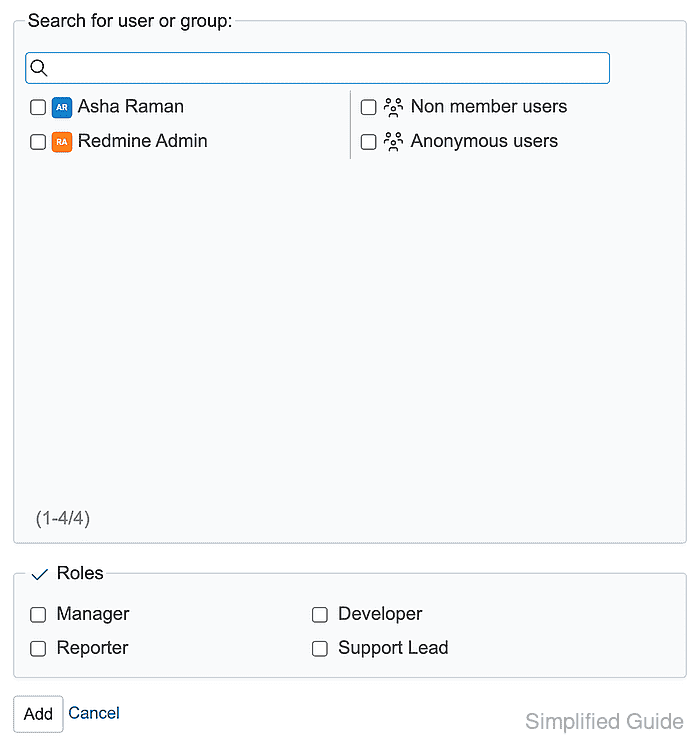
- Search for the active user or group.
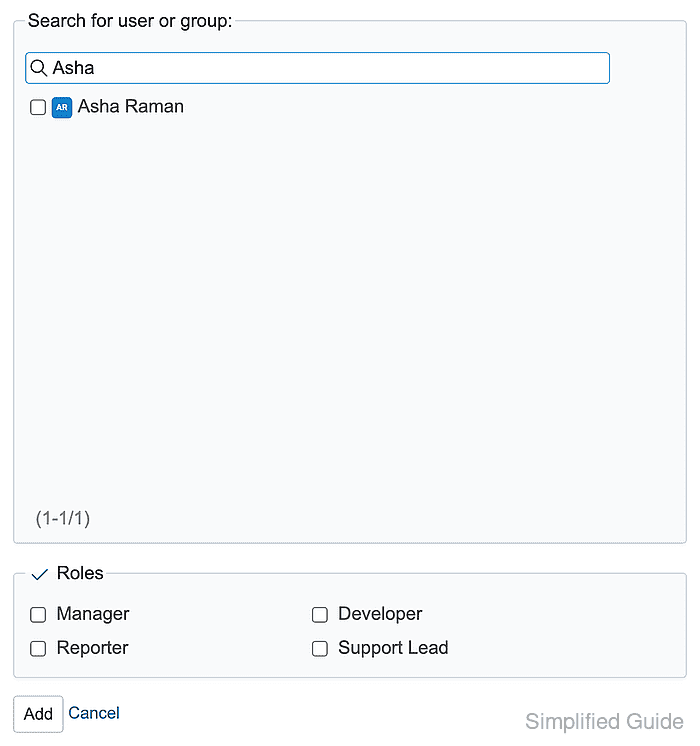
Locked or unactivated users cannot sign in to confirm project access. Activate the account first when the membership is for an individual user.
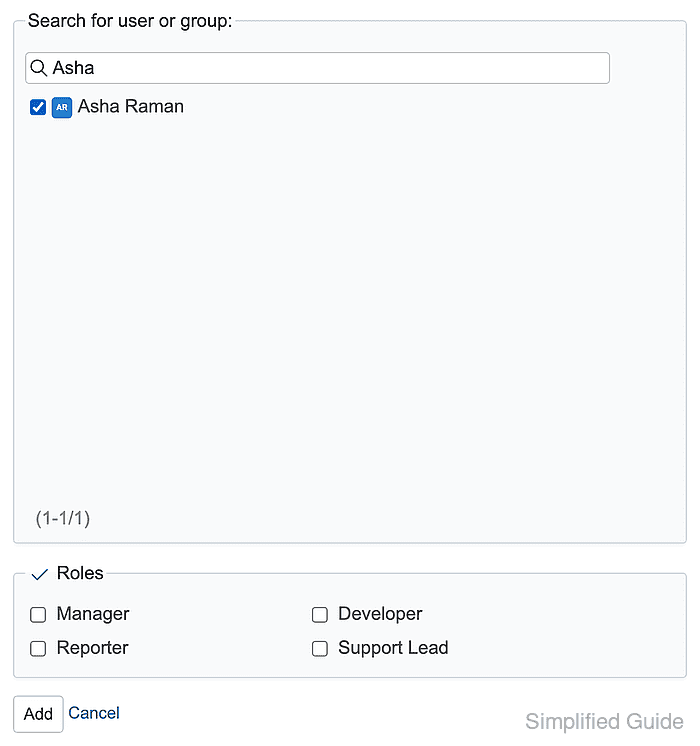
- Select the user or group checkbox.
- Select one or more project roles.
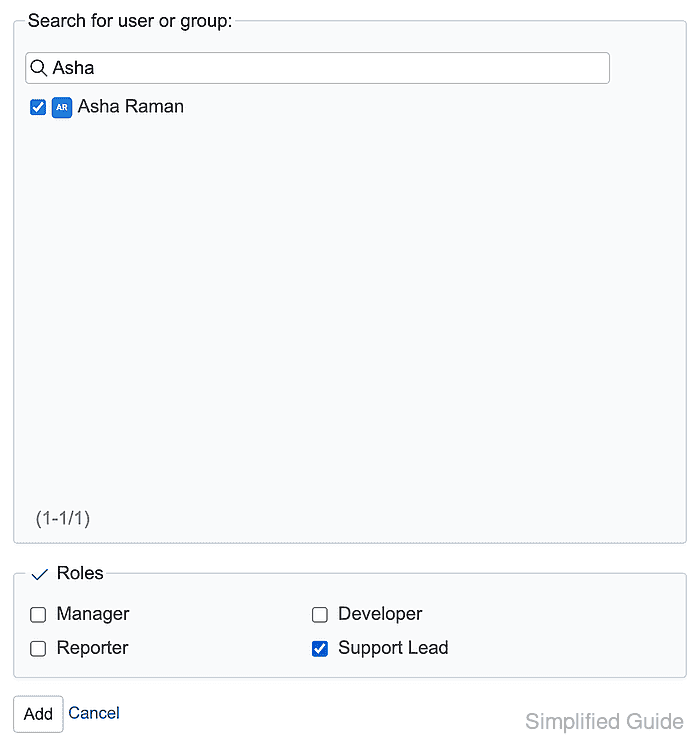
Multiple roles combine their permissions for the same project member.
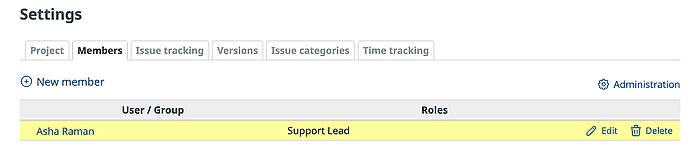
- Click Add and confirm the member row shows the expected name and role.
- Open the project as the added user.
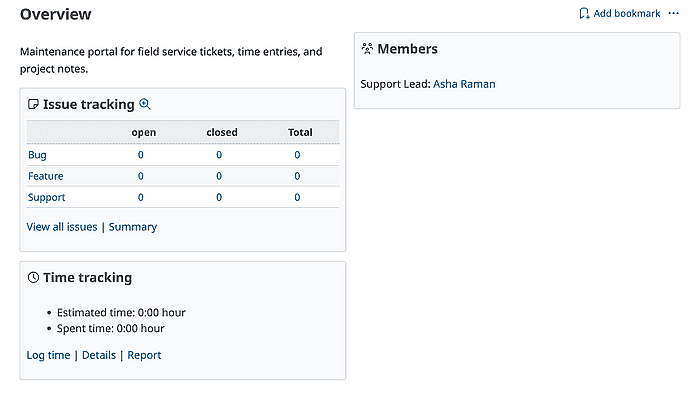
The project overview should load for the member account and show the assigned role under Members.

Mohd Shakir Zakaria is a cloud architect with deep roots in software development and open-source advocacy. Certified in AWS, Red Hat, VMware, ITIL, and Linux, he specializes in designing and managing robust cloud and on-premises infrastructures.


