PyTorch only reports a GPU when the Python process can see a compatible accelerator through its installed backend. A machine can have an NVIDIA GPU and still run on CPU when the driver is not visible, the active environment has a CPU-only torch wheel, or a notebook kernel is still using an older import.
The CUDA path has two separate layers to check. nvidia-smi proves that the operating system or container can see the NVIDIA driver and GPU, while torch.version.cuda and torch.cuda.is_available() prove that the active PyTorch build can initialize CUDA from the same Python runtime.
Use the CUDA repair path only on NVIDIA hardware. AMD ROCm and Apple MPS use different package and backend checks, so a CUDA wheel will not make those devices appear through torch.cuda on non-NVIDIA systems.
Related: How to enable CUDA in PyTorch
Related: How to enable ROCm in PyTorch
Related: How to enable MPS in PyTorch
Related: How to select a device in PyTorch
Steps to fix PyTorch CUDA GPU detection:
- Open a shell in the same environment that runs the PyTorch job.
- Confirm that the NVIDIA driver is visible to that runtime.
$ nvidia-smi
+-----------------------------------------------------------------------------------------+
| NVIDIA-SMI 570.86.15              Driver Version: 570.86.15      CUDA Version: 12.8     |
| GPU  Name                  Persistence-M | Bus-Id          Disp.A | Volatile Uncorr. ECC |
|   0  NVIDIA RTX 6000 Ada Generation  Off |   00000000:01:00.0 Off |                  Off |
##### snipped #####
If nvidia-smi is missing, reports no devices, or fails inside the container or job runner, fix the NVIDIA driver or GPU passthrough before reinstalling PyTorch.
- Create a temporary PyTorch CUDA probe in the active project directory.
- check_torch_cuda.py
import torch

print(f"torch={torch.__version__}")
print(f"torch_cuda={torch.version.cuda}")
print(f"cuda_available={torch.cuda.is_available()}")

if torch.cuda.is_available():
    print(f"device_count={torch.cuda.device_count()}")
    print(f"device_name={torch.cuda.get_device_name(0)}")
    x = torch.tensor([1.0, 2.0], device="cuda")
    print(f"tensor_device={x.device}")
- Run the probe with the same python command used by the application.
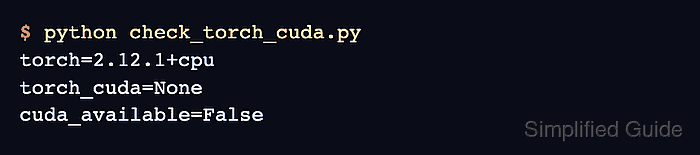
$ python check_torch_cuda.py
torch=2.12.1+cpu
torch_cuda=None
cuda_available=False
A +cpu version suffix or torch_cuda=None means the active environment imported a CPU-only PyTorch build, even if the host driver can see the GPU.
- Reinstall PyTorch in the active environment with the CUDA wheel that matches the driver capability.
$ python -m pip install --upgrade --force-reinstall torch torchvision torchaudio --index-url https://download.pytorch.org/whl/cu128
Use the install command from the current PyTorch selector when it recommends a different compute platform. For example, CUDA 12.6 uses cu126 and CUDA 11.8 uses cu118.
- Run the probe again and confirm that CUDA initializes.
$ python check_torch_cuda.py
torch=2.12.1+cu128
torch_cuda=12.8
cuda_available=True
device_count=1
device_name=NVIDIA RTX 6000 Ada Generation
tensor_device=cuda:0
If torch_cuda shows a CUDA version but cuda_available=False remains, the wheel is no longer CPU-only; return to the driver, container GPU passthrough, or unsupported GPU layer instead of reinstalling the same wheel again.
- Restart any long-running notebook kernel, worker process, or training service that imported the old torch build.
Python does not replace an already imported torch module inside a running process. Restart the process before retesting the original training or inference command.
- Remove the temporary CUDA probe after the original job reports the expected GPU.
$ rm check_torch_cuda.py

Mohd Shakir Zakaria is a cloud architect with deep roots in software development and open-source advocacy. Certified in AWS, Red Hat, VMware, ITIL, and Linux, he specializes in designing and managing robust cloud and on-premises infrastructures.


