OpenNebula virtual machines often need a larger resource allocation after the workload grows or after the original template proves too small. Resizing the VM changes the capacity that OpenNebula schedules and records, while the guest operating system still has to detect the added CPU, memory, or disk space before applications can use it.
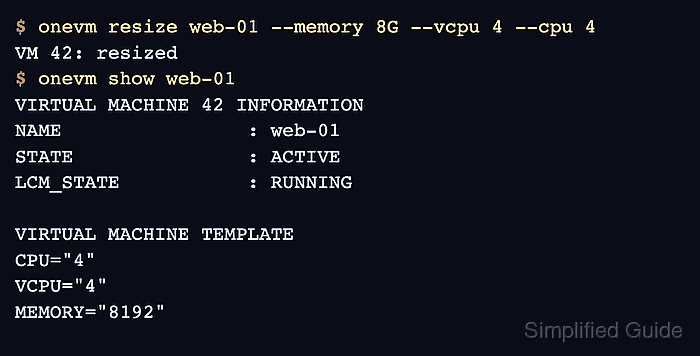
OpenNebula separates compute resizing from disk resizing. The onevm resize action changes CPU, VCPU, and MEMORY values, while onevm disk-resize grows an attached virtual disk to a larger size.
Powering off, resizing, and resuming is the safest default because OpenNebula preserves IP leases and attached resources through the POWEROFF state. Live compute resize is narrower because KVM guests need hotplug attributes in the VM template before boot, and added vCPUs can appear offline inside the guest until the operating system enables them.
Steps to resize an OpenNebula virtual machine:
- List the virtual machine to confirm the target name, ID, state, and current host.
$ onevm list
  ID USER     GROUP    NAME     STAT CPU     MEM        HOSTNAME        TIME
  42 cloud    ops      web-01   runn   2      4G         kvm-01   3d 04h17
- Inspect the current VM capacity and disk IDs.
$ onevm show web-01
VIRTUAL MACHINE 42 INFORMATION
ID                  : 42
NAME                : web-01
STATE               : ACTIVE
LCM_STATE           : RUNNING

VIRTUAL MACHINE TEMPLATE
CPU="2"
VCPU="2"
MEMORY="4096"
DISK=[
  DISK_ID="0",
  SIZE="20480" ]
- Prepare the guest workload for a planned poweroff.
Stop or drain application services inside the guest when the resize window must avoid abrupt client failures. A VM backup is also recommended before changing disk size.
- Power off the VM for the offline resize path.
$ onevm poweroff web-01
VM 42: shutting down
The VM is unavailable until it is resumed. Use live resize only when the VM was started with the required KVM hotplug attributes.
- Confirm that OpenNebula placed the VM in POWEROFF state.
$ onevm list
  ID USER     GROUP    NAME     STAT CPU     MEM        HOSTNAME        TIME
  42 cloud    ops      web-01   poff   0      4G         kvm-01   3d 04h23
- Resize the VM compute capacity.
$ onevm resize web-01 --memory 8G --vcpu 4 --cpu 4
VM 42: resized
VCPU is the virtual CPU count exposed to the guest. CPU is the OpenNebula scheduler allocation factor, where 1 represents one full physical CPU.
- Grow the VM disk when storage capacity must also increase.
$ onevm disk-resize web-01 0 40G
VM 42: disk 0 resized
The new disk size must be larger than the current size. FreeBSD root filesystems are not automatically expanded by OpenNebula contextualization and can be damaged if the guest grows them incorrectly.
- Resume the VM with the new capacity.
$ onevm resume web-01
VM 42: resuming
- Check the OpenNebula VM record after the VM returns to RUNNING.
$ onevm show web-01
VIRTUAL MACHINE 42 INFORMATION
ID                  : 42
NAME                : web-01
STATE               : ACTIVE
LCM_STATE           : RUNNING

VIRTUAL MACHINE TEMPLATE
CPU="4"
VCPU="4"
MEMORY="8192"
DISK=[
  DISK_ID="0",
  SIZE="40960" ]
- Verify the CPU count inside the guest.
$ ssh admin@192.0.2.25 nproc
4
For live KVM vCPU resize, newly added CPUs may appear offline under /sys/devices/system/cpu/ until the guest enables them.
- Verify the memory visible inside the guest.
$ ssh admin@192.0.2.25 free -h total used free shared buff/cache available Mem: 7.7Gi 1.2Gi 5.9Gi 22Mi 612Mi 6.3Gi Swap: 2.0Gi 0B 2.0Gi - Verify the disk size inside the guest.
$ ssh admin@192.0.2.25 lsblk /dev/vda
NAME   MAJ:MIN RM SIZE RO TYPE MOUNTPOINTS
vda    252:0    0  40G  0 disk
`-vda1 252:1    0  40G  0 part /
If the block device grows but the mounted filesystem remains at the old size, expand the partition or filesystem with the guest operating system's supported tool before returning the workload to service.

Mohd Shakir Zakaria is a cloud architect with deep roots in software development and open-source advocacy. Certified in AWS, Red Hat, VMware, ITIL, and Linux, he specializes in designing and managing robust cloud and on-premises infrastructures.


